


QuickBooks Desktop multi-user setup allows several users to access and work on the same company file at the same time over a shared network. In a typical QuickBooks server client setup, the company file is stored on a central server while connected workstations access it through a local network. However, setting up this environment is not always straightforward. Users often encounter issues such as “QuickBooks Database Server Manager not running,” “H202 error,” “H505 error,” or “Unable to communicate with the company file.”
In this guide, we’ll discuss what a multi-user network in QuickBooks Desktop is, its benefits, system and software prerequisites, step-by-step QuickBooks server workstation setup for multiple users, and common errors with practical troubleshooting approaches.
What is a Multi-User Network in QuickBooks Desktop?
A multi-user network in QuickBooks Desktop is a setup that allows multiple users to access and work on the same company file simultaneously from different computers connected to a shared network. In this QuickBooks server-client setup, the company file is hosted on a central server while workstation systems connect to it over a local area network (LAN). QuickBooks uses services like QuickBooks Database Server Manager to manage file access and ensure smooth data sharing without conflicts.
What are the Benefits of Setting Up a Multi-User Network in QuickBooks Desktop?
A multi-user network in QuickBooks Desktop enhances collaboration and operational efficiency by allowing multiple users to work on a single company file hosted on a central server. Here are the benefits of setting up a multi-user install network in QuickBooks Desktop.
- Real-time collaboration
Different users can work in the same company file at the same time, such as accountants reconciling accounts while sales teams generate invoices, without disrupting each other’s work. - Higher productivity
It removes workflow delays caused by users waiting for others to finish, save, or close the file, enabling teams to work in parallel. - Stronger data security and control
Administrators can define user roles and permissions to limit access to sensitive financial records and maintain an audit trail of user activity. - Consistent and updated data
All users access a single centralized database, ensuring that every change is reflected instantly and reducing the risk of mismatched or duplicate data. - Better operational efficiency
It reduces the need to manage separate files across systems, helping teams streamline accounting processes and save time on reconciliations. - Easy scalability
Businesses can add more users as they expand, with QuickBooks Enterprise supporting larger teams to handle increased workloads effectively.
What Are the Prerequisites for QuickBooks Server Client Setup?
Before setting up QuickBooks in a server-client multi-user environment, it is important to ensure that the system, network, and software are properly prepared. Here are the requirements to set up the QuickBooks Server client setup.
| Category | Details |
|---|---|
| Operating System | Windows 10 or 11 (64-bit) for workstations; Windows Server 2016, 2019, or 2022 for the server |
| Processor | Minimum 2.4 GHz Intel or AMD processor |
| RAM (Memory) | Workstations: 8 GB minimum (16 GB recommended); Server: 8 GB for 1–5 users, 12 GB for 10 users, 16 GB for 15 users, 20+ GB for 20+ users |
| Disk Space | At least 2.5 GB required for QuickBooks installation, plus additional space for company files |
| Storage Type | SSD (Solid State Drive) is recommended for better QuickBooks multi-user performance and faster file access |
| Network | Wired Ethernet connection recommended for stable multi-user performance |
| Static IP Address | A static IP address is recommended for stable workstation connectivity in multi-user environments. |
| Folder Permissions | The company file folder must have Full Control permissions enabled for proper read/write access. |
| Database Server Manager | Must be installed on the hosting server computer to manage company file access in multi-user mode. |
| Hosting Mode | “Host Multi-User Access” must be enabled on the server system. |
| QuickBooks Version | The same version and release of QuickBooks Desktop must be installed on all systems. |
| License Information | Required for product activation, updates, and payroll services |
| Internet Access | Required for product activation, updates, and payroll services |
| Firewall Settings | Windows Firewall or antivirus must allow QuickBooks executable files, , Database Server Manager services, and version-specific ports |
What Are the Steps for QuickBooks Server-Client Setup?
Setting up a multi-user network in QuickBooks Desktop requires careful configuration of installation, hosting, permissions, and network access. Here are the steps to set up a multi-user network in QuickBooks Desktop.
Step 1: Install QuickBooks Desktop on the Server and Workstations
This ensures QuickBooks is properly installed on all systems that will access the company file. Here are the steps to install QuickBooks Desktop for multi-user use:
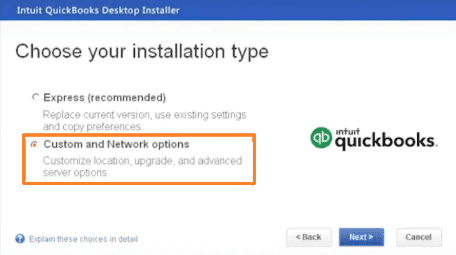
- Download the QuickBooks Desktop setup file and save it on your system.
- Start the installation process and select Custom and Network Install.
- Choose whether the system will host the company file or act as a workstation.
- Follow the on-screen prompts to complete installation.
- Ensure QuickBooks is installed with the correct multi-user setup option.
Step 2: Enable Multi-User Hosting on the Server
It allows the server computer to share the company file with other users on the network. Here are the steps to turn on multi-user hosting in QuickBooks:
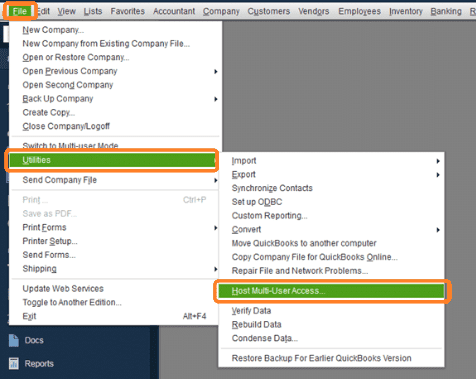
- Open QuickBooks Desktop on the server system.
- Update the company file if prompted to the latest version.
- Go to File > Utilities and select Host Multi-User Access only on the server computer. Workstations should display Stop Hosting Multi-User Access.
- Confirm the action when prompted to enable hosting.
- Complete the setup to allow network access.
Step 3: Configure Firewall and Security Settings
This ensures QuickBooks can communicate across the network without being blocked by security software. Here are the steps to adjust firewall settings for QuickBooks:
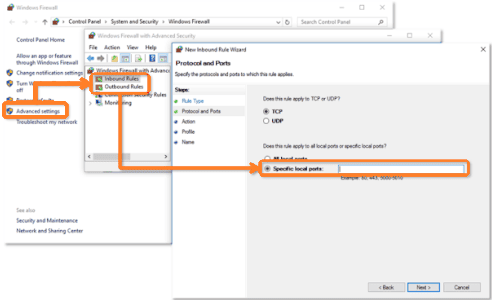
- Search and open Windows Firewall with Advanced Security.
- Go to Inbound Rules and select New Rule.
- Choose Port as the rule type and click Next.
- Select TCP and enter the QuickBooks version-specific ports recommended by Intuit.
- Allow the connection and complete the rule setup.
Step 4: Set Folder and Sharing Permissions for Company Files
This allows users to read and write to the shared company file folder. Here are the steps to configure folder permissions:
- Right-click the folder containing the QuickBooks company file.
- Select Properties > Security > Edit.
- Choose QBDataServiceUserXX and allow Full Control.
- Click Apply and then OK to save changes.
- Enable sharing permissions for network access.
For Windows 10/8/7 users, additional sharing steps include:
- Open File Explorer and locate the company file folder.
- Right-click and select Properties > Sharing > Share.
- Select QBDataServiceUserXX and assign full access.
- Click Share to confirm permissions.
Step 5: Set Up QuickBooks Database Server Manager
It ensures QuickBooks company files are properly detected and shared over the network. Here are the steps to configure Database Server Manager:
- Open the Start menu and go to QuickBooks Tools.
- Launch QuickBooks Database Server Manager.
- Click Scan Folders and then select Add Folder.
- Choose the folder containing the company file.
- Click Scan to detect and configure the files.
- Close the tool once scanning is complete.
Step 6: Assign Windows Administrator Rights
This step ensures users have the necessary permissions to configure and manage QuickBooks in multi-user mode. Here are the steps to grant admin access:
- Open Settings > Accounts > Family & Other Users.
- Select Add someone else to this PC.
- Use an existing Windows administrator account or assign administrator privileges to the required user account
- Ensure the account has full system permissions.
- Apply changes and confirm access rights.
Step 7: Access the Company File in Multi-User Mode
It connects all workstations to the shared company file on the server.
Here are the steps to open and use QuickBooks in multi-user mode:
- Open QuickBooks Desktop and go to the File menu.
- Select Switch to Multi-User Mode.
- Confirm the multi-user setup prompt.
- Open the company file from the network location.
- Add users via Company > Set Up Users and Passwords > Add User.
Conclusion
QuickBooks server client setup improves collaboration, data accuracy, and workflow efficiency through a secure QuickBooks server-client setup. Proper QuickBooks hosting configuration, firewall, and permissions ensure smooth access to company files. With the right setup, businesses can manage multiple users effectively and support scalable accounting operations without disruptions.
Frequently Asked Questions
Can QuickBooks Desktop multi-user mode work over Wi-Fi?
Yes, it can work over Wi-Fi, but a wired Ethernet connection is strongly recommended for better stability and fewer connection drops.
How many users can access QuickBooks Desktop in multi-user mode?
It depends on the version. QuickBooks Pro supports up to 3 simultaneous users, while QuickBooks Premier supports up to 5 simultaneous users. Meanwhile, QuickBooks Enterprise supports up to 40 simultaneous users depending on the subscription plan.
Why is QuickBooks running slowly in multi-user mode?
Slow performance often results from insufficient RAM, weak network speed, large company files, or hosting the file on a non-dedicated system.
Can users access QuickBooks multi-user mode remotely?
Yes, users can access QuickBooks remotely through authorized hosting providers, Remote Desktop Services, or secure VPN configurations.
Do all users need admin rights to use QuickBooks in multi-user mode?
No, only the initial setup requires admin rights. Regular users can work with restricted permissions based on their assigned roles.
