


QuickBooks freezing or locking up is a performance issue in which QuickBooks Desktop stops responding to user actions and becomes temporarily or completely unresponsive. When this happens, you may be unable to click menus, save transactions, open reports, or switch between company files until you force the program to close.
This issue can occur while launching QuickBooks, opening a company file, reconciling accounts, running payroll, or working in multi-user mode. In some cases, the application may display common error messages such as:
- “QuickBooks is not responding.”
- “QuickBooks has stopped working.”
- “A problem caused the program to stop working correctly.”
- “QuickBooks won’t open.”
- “QuickBooks keeps freezing when opening the company file.”
In this guide, we’ll discuss the causes of QuickBooks locking up or freezing up, the signs and symptoms to watch for, the prerequisites to follow before troubleshooting, step-by-step solutions to fix the issue, and practical tips to prevent QuickBooks from freezing in the future.
What are the Methods to Fix the QuickBooks Freezing or Locking Up Issue?
If QuickBooks Desktop keeps freezing, locking up, or showing a “QuickBooks not responding” message, follow the troubleshooting methods below. These solutions address common QuickBooks performance issues, damaged company files, and program-related errors that cause QuickBooks Desktop to become unresponsive.
Method 1: Run Quick Fix My Program from QuickBooks Tool Hub
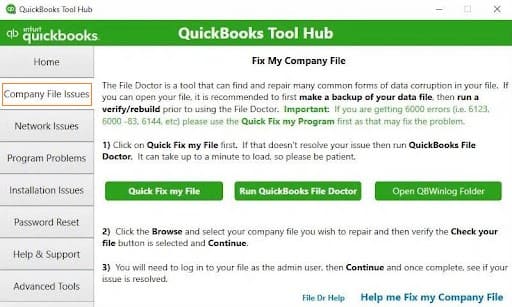
- Download the latest version of QuickBooks Tool Hub.
- Save the QuickBooksToolHub.exe file to your desktop.
- Double-click the downloaded file.
- Follow the on-screen instructions to install the tool.
- Double-click the QuickBooks Tool Hub icon to open it.
Once the Tool Hub opens, use the following tools to troubleshoot the QuickBooks locking up or freezing issue.
Step 1: Run the Clean Install Tool
The Clean Install Tool removes damaged program files and reinstalls QuickBooks Desktop from scratch. Here are the steps to run the Clean Install Tool:
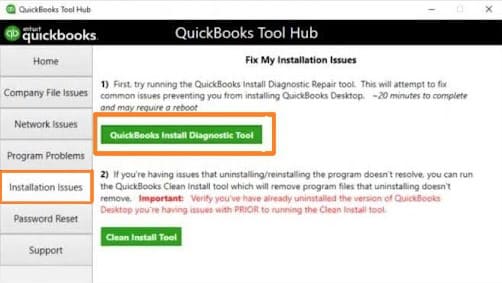
- In QuickBooks Tool Hub, select Installation Issues.
- Click Clean Install Tool.
- Select your QuickBooks version.
- Click Continue.
- Click OK when prompted.
- Reinstall QuickBooks in the default installation folder.
Step 2: Run the QuickBooks Install Diagnostic Tool
This tool automatically repairs Microsoft components and installation issues that may cause QuickBooks to freeze. Here are the steps to run the Install Diagnostic Tool:
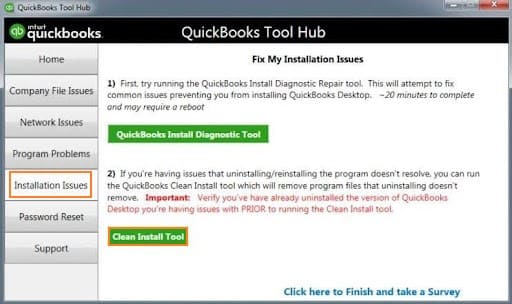
- Open QuickBooks Tool Hub.
- Select Installation Issues.
- Click QuickBooks Install Diagnostic Tool.
- Wait for the scan and repair process to complete.
- Restart your computer.
Step 3: Run QuickBooks File Doctor
QuickBooks File Doctor repairs damaged company files and resolves network issues that cause QuickBooks not responding errors. Here are the steps to run QuickBooks File Doctor:
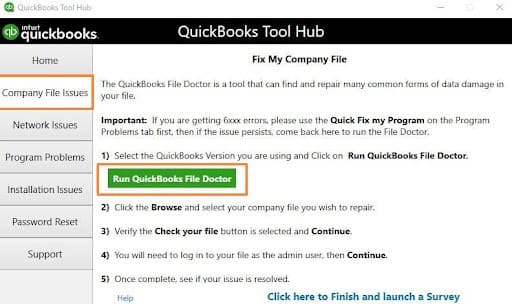
- Open QuickBooks Tool Hub.
- Select Company File Issues.
- Click Run QuickBooks File Doctor.
- Browse and select your company file.
- Choose Check your file or Check file damage and network.
- Enter the QuickBooks admin password.
- Click Next and wait for the scan to finish.
- Reopen QuickBooks Desktop.
Step 4: Run QuickBooks Database Server Manager
This tool fixes hosting and network-related issues in multi-user mode. Here are the steps to run Database Server Manager:
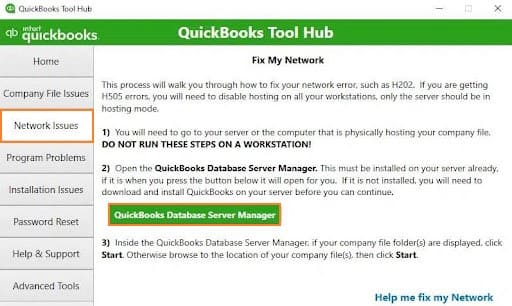
- Open QuickBooks Tool Hub.
- Select Network Issues.
- Click QuickBooks Database Server Manager.
- Browse to the folder containing your company file.
- Click Start Scan.
- Follow the on-screen instructions to complete the process.
Method 2: End QuickBooks Processes Using Task Manager
Background QuickBooks processes can prevent the program from launching properly and may cause QuickBooks to freeze or lock up. Here are the steps to close QuickBooks-related processes:
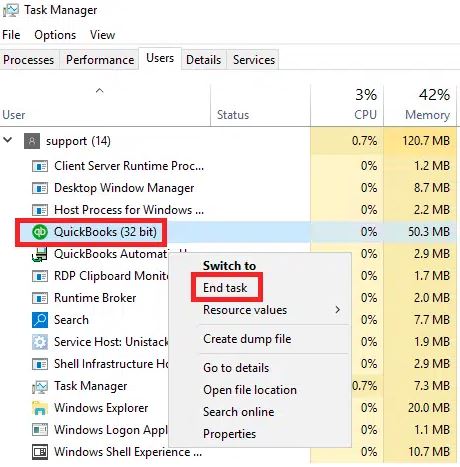
- Press Ctrl + Shift + Esc to open Task Manager.
- Select the Processes tab.
- Locate all processes that begin with QuickBooks or QB.
- Select each process and click End Task.
- Close Task Manager.
Open QuickBooks in Suppressed Mode
Suppressed mode helps QuickBooks open without loading startup windows that may trigger freezing. Here are the steps to open QuickBooks in suppressed mode:
- Hold the Ctrl key.
- Double-click the QuickBooks icon.
- Keep holding Ctrl until the No Company Open window appears.
Open the Company File with Startup Windows Disabled
If the company file causes QuickBooks to freeze, open it with startup windows disabled. Here are the steps to open the company file safely:
- Select your company file.
- Hold the Alt key and click OK.
- Enter your username and password.
- Hold Alt again and click OK.
- Keep holding Alt until the file opens completely.
Method 3: Create and Restore a Portable Company File
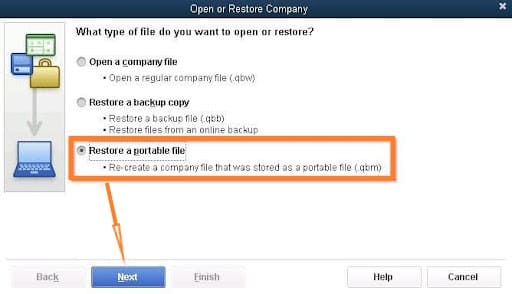
Restoring a portable company file rebuilds the data structure and helps fix minor company file corruption that causes QuickBooks not responding issues. Here are the steps to create and restore a portable company file:
- Open QuickBooks and go to File > Create Copy.
- Select Portable Company File and click Next.
- Choose a location and click Save.
- Click OK after the portable file is created.
- Go to File > Open or Restore Company.
- Select Restore a Portable File and click Next.
- Browse to the portable file and click Open.
- Choose where to save the restored file.
- Click Save.
Note: Restoring a portable company file may reset some custom templates, memorized reports, and user preferences. Review your custom settings after restoring the file.
Method 4: Run Verify and Rebuild Data
The Verify and Rebuild Data utilities repair data integrity issues that can lead to QuickBooks freezing or locking up. Here are the steps to rebuild company data:
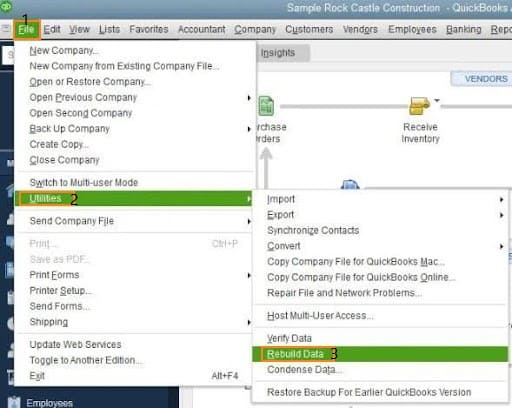
- Go to File > Utilities > Rebuild Data.
- Click OK when prompted.
- Create a backup if QuickBooks asks.
- Wait for the rebuild process to finish.
- Click OK.
Here are the steps to verify the repaired data:
- Go to File > Utilities > Verify Data.
- Review the results.
- If issues remain, run Rebuild Data again.
Method 5: Repair or Reinstall QuickBooks Desktop
Corrupted program files can trigger recurring QuickBooks Desktop freezing and performance issues. Here are the steps to repair QuickBooks:
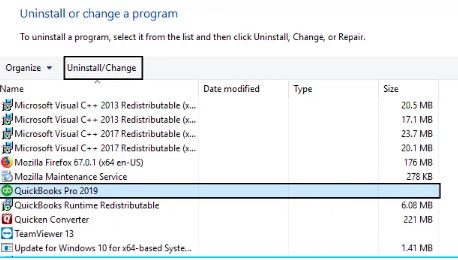
- Press Windows + R, type appwiz.cpl, and press Enter.
- Select QuickBooks from the list.
- Click Uninstall/Change.
- Select Repair and follow the prompts.
- Restart your computer.
Method 6: Turn Off Windows Input Services
This solution applies mainly to touchscreen-enabled Windows systems where input services interfere with QuickBooks.
- Press Windows + R, type services.msc, and press Enter.
- Locate Touch Keyboard and Handwriting Panel Service.
- Double-click the service.
- Click Stop.
- Set Startup Type to Disabled.
- Click Apply, then OK.
Method 7: Rename DAT, ND, and TLG Files
Corrupted configuration and transaction log files can contribute to QuickBooks not responding and company file issues. Here are the steps to rename these files:
- Close QuickBooks.
- Open the company file folder.
- Rename the following files by adding .old:
- UserPref.DAT
- .ND files
- .TLG files
- Reopen QuickBooks Desktop.
Method 8: Clear Browser Cache
Clear your browser cache only if QuickBooks freezes when opening web-based services such as QuickBooks Payments, Payroll, or other connected Intuit windows.:
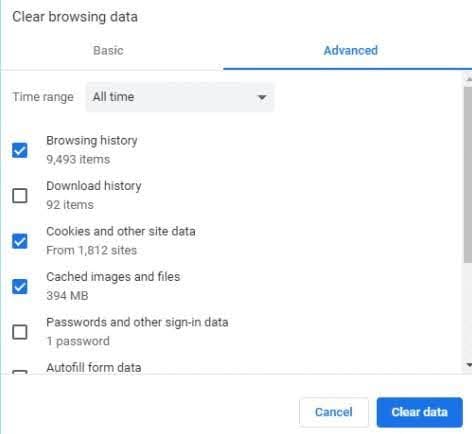
- Open your browser.
- Press Ctrl + Shift + Delete.
- Select Cached images and files.
- Click Clear Data.
- Restart the browser and QuickBooks.
Method 9: Start Windows in Selective Startup (Clean Boot)
A clean boot starts Windows with only essential services, helping identify whether third-party software is interfering with QuickBooks. Steps:
- Press Windows + R, type msconfig, and press Enter.
- Select Selective Startup.
- Clear Load startup items.
- Select the Services tab.
- Check Hide all Microsoft services.
- Click Disable all.
- Click Apply, then OK.
- Restart your computer.
- Open QuickBooks and test the issue.
What Triggers QuickBooks Locking Up or Freezing Up Issue?
Several technical and system-related issues can cause QuickBooks Desktop to freeze, lock up, or stop responding. Below are the most common causes of QuickBooks freezing:
- Corrupted or missing QBWUSER.INI file
- Damaged company file (.QBW)
- Large company files can contribute to freezing, but smaller files may also freeze due to network instability, antivirus interference, damaged templates, or permission issues.
- Outdated QuickBooks Desktop version
- Outdated Windows operating system
- Corrupted QuickBooks installation files
- Damaged PDF and preference files
- Insufficient RAM or slow processor performance
- Too many windows or reports are open in QuickBooks
- Long company file paths or deeply nested folders
- Antivirus or firewall interference
- Network connectivity issues in multi-user mode
- Incorrect folder permissions
- Damaged Windows system files
- Hard drive errors or bad sectors
- Background applications consume system resources
What are the Signs and Symptoms of QuickBooks Locking Up or Freezing?
When QuickBooks Desktop starts freezing or locking up, it usually exhibits several noticeable symptoms that indicate an underlying issue with the company file, program installation, or system performance.
- QuickBooks displays “Not Responding” in the title bar.
- The screen turns white, gray, or shows a spinning loading cursor.
- The program stops responding to mouse clicks and keyboard input.
- QuickBooks freezes on the login or splash screen, often due to a damaged QBWUSER.INI file, display scaling issues, insufficient permissions, or graphics driver conflicts.
- The application hangs while opening a company file.
- Significant delays occur when typing or switching between windows.
- QuickBooks locks up when creating invoices, running reports, or saving transactions.
- Unexpected error messages appear before or during the freeze.
- The software crashes or closes suddenly.
- Windows prompts you to close the program.
- Multi-user mode becomes slow or unresponsive.
- The entire computer slows down, restarts, or shuts down unexpectedly.
What are the Prerequisites to Fix the QuickBooks Locking up or Freezing Issue?
Before troubleshooting QuickBooks Desktop freezing or locking up, complete the following prerequisites to ensure the repair process goes smoothly:
- Create a backup of your company file (.QBB) to protect your data.
- Close QuickBooks and end all related processes, such as QBW32.exe, using Task Manager.
- Restart your computer and sign in to Windows with administrator rights.
- Update QuickBooks Desktop and install the latest Windows updates.
- Switch QuickBooks to Single-user Mode before running advanced file repair utilities such as Verify Data, Rebuild Data, QuickBooks File Doctor, or portable file restoration.
- Download and install the latest version of QuickBooks Tool Hub.
- Verify that your system meets QuickBooks requirements, including sufficient RAM, processor speed, and free disk space.
- Ensure your company file is stored in a local or network folder that is not encrypted or compressed.
- Temporarily disable antivirus or firewall software if it may interfere with QuickBooks.
- Confirm that your internet and network connections are stable, especially in multi-user mode.
What are The Tips To Prevent the QuickBooks Locking Up, Not Responding, Or Freezing Issue?
To reduce the chances of QuickBooks Desktop freezing or becoming unresponsive, follow these preventive maintenance tips:
- Run Verify and Rebuild Data regularly to repair minor data issues before they affect performance.
- Use Quick Fix my Program from the QuickBooks Tool Hub to resolve common program-related problems.
- Monitor the company file size and condense old data when the file becomes too large.
- Rename .ND and .TLG files if you experience recurring network or transaction log issues.
- Avoid opening too many windows and close unnecessary background applications to conserve system resources.
- Store your company file on a fast, reliable drive and maintain a stable network connection in multi-user mode.
- Exclude QuickBooks folders from antivirus and firewall scans to prevent interruptions.
- Restart your computer periodically and run Disk Cleanup and drive error checks.
Conclusion
QuickBooks locking up or freezing up can disrupt your accounting workflow, but you can resolve most QuickBooks not responding and performance issues by updating the software, repairing company files, and optimizing system resources. Follow the solutions and prevention tips to fix the QuickBooks performance issue and keep your business operations running smoothly.
Frequently Asked Questions
Why does QuickBooks freeze only when I run reports?
QuickBooks may freeze during report generation if your company file is very large, contains damaged data, or your system does not have enough memory to process the report.
Can a slow network cause QuickBooks to lock up?
Yes, in multi-user mode, unstable network connectivity or server latency can make QuickBooks Desktop appear to freeze when accessing the company file.
Does reducing the company file size improve QuickBooks performance?
Yes, condensing old transactions and archiving unused data can improve performance and reduce freezing issues.
Can damaged .ND and .TLG files cause QuickBooks not responding errors?
Yes, corrupted network and transaction log files can prevent QuickBooks from opening the company file properly.
When should I contact QuickBooks support?
If QuickBooks continues to freeze after you repair the company file, update the software, and run QuickBooks Tool Hub utilities, you should contact a certified QuickBooks expert for advanced troubleshooting.
