


Are you planning to upgrade QuickBooks Desktop to 2024 to improve system performance, strengthen data security, and access the latest accounting features? The QuickBooks Desktop 2024 version introduces several enhancements designed to improve workflow efficiency, reporting accuracy, and overall application stability. However, users sometimes encounter technical issues during the upgrade process, such as “QuickBooks Error 15270,” “Error 1603,” “Company File Needs to Be Updated,” or installation failures caused by corrupted Windows files, incomplete updates, or unsupported system configurations.
In this guide, we’ll discuss the benefits of upgrading to QuickBooks Desktop 2024, the latest features included in the new release, prerequisites for installation, step-by-step instructions to upgrade QuickBooks Desktop to the latest release 2024, and more.
Why Should You Upgrade QuickBooks Desktop to 2024?
Upgrading to QuickBooks Desktop 2024 helps businesses strengthen data security, improve accounting efficiency, and access modern tools designed to simplify financial management. Here are the reasons to upgrade to QuickBooks 2024.
- Faster Search and Improved Data Access
Enhanced search tools and filters help you quickly locate records such as fixed assets, payroll items, memorized transactions, and other key financial data. - Improved Invoicing and Statement Handling
You can display purchase order numbers on customer statements, making invoice matching faster and improving transaction tracking accuracy. - Enhanced Profitability Insights
QuickBooks 2024 allows detailed analysis of invoice profitability at the line-item level with better filtering and subtotal options for clearer financial insights. - More Stable and Responsive Performance
The updated version improves system responsiveness, reduces delays during processing, and supports smoother day-to-day accounting tasks. - Expanded Enterprise-Level Capabilities
Enterprise users can efficiently manage customer prepayments, deposits, product categorization, and retirement-related workflows within a unified system.
What’s New in QuickBooks Desktop 2024?
QuickBooks Desktop 2024 delivers stronger security, faster search capabilities, improved reporting tools, and advanced payroll and inventory management features.
- Upgraded Data Security with AES 256-bit Encryption
Strengthens protection for company files, payroll data, and customer information using advanced encryption standards. - Enhanced Search and Filtering Tools
Improves record retrieval across payroll schedules, classes, vendor details, and other business data for faster navigation. - Improved Reporting and Printing Options
Adds grid lines to reports and enhances zoom controls for clearer data presentation and easier analysis. - Enhanced 401(k) Payroll Contribution Tracking
Enables payroll users to track 401(k) payroll deductions and retirement contributions within QuickBooks Desktop. - Redesigned Employee Management Interface
Flags incomplete employee details in advance to reduce errors during payroll processing and tax filing. - Optimized Performance and System Responsiveness
Improved processing speed, reduced delays, and ensured smoother overall software performance.
Read Also: Before upgrading to QuickBooks 2024, it’s recommended to reduce QuickBooks file size before upgrading and create a secure backup. This helps improve performance and minimizes the risk of data conversion problems during installation.
What are the Prerequisites to Upgrade QuickBooks Desktop to the Latest Release, 2024?
Before you upgrade QuickBooks Desktop to QuickBooks 2024, verify that your system meets the required hardware, software, and compatibility standards. Here are the prerequisites to consider before you upgrade QuickBooks Desktop to the latest release, 2024.
| Requirement Category | QuickBooks Desktop 2024 Requirements |
|---|---|
| Supported Operating Systems | Windows 10 (64-bit), Windows 11 (64-bit), Windows Server 2016, 2019, and 2022. |
| Unsupported Platforms | Windows 8.1, Windows 10 S Mode, Windows 11 IoT, Linux, and ARM-based processors. |
| Processor | Intel or AMD x86-based processor with a minimum speed of 2.4 GHz |
| RAM Requirement | Minimum 8 GB RAM; higher RAM recommended for multi-user environments. |
| Storage Space | At least 2.5 GB free disk space, plus extra space for company files. |
| Recommended Storage | Use an SSD for better speed and overall performance. |
| Internet Requirement | Required for payroll, updates, subscriptions, and online services. |
| Display Settings | Screen resolution of 1280×1024 or higher with dual-monitor support. |
| Microsoft Office Compatibility | Supports Microsoft Office 2016-2021 and Microsoft 365 (64-bit). |
| Supported Email Applications | Compatible with Outlook, Gmail, Outlook.com, and SMTP-supported email clients. |
| Mobile Device Support | Supports Android 6.0+ and iOS 12+ devices. |
| POS Compatibility | Integrates with QuickBooks POS version 19.0. |
| Product Activation | Registration and activation are required after installation. |
How to Check the Current QuickBooks Version?
Before you update or troubleshoot QuickBooks Desktop, you should first identify the installed version and release details. Here are the steps to check the current QuickBooks version:

- Open QuickBooks Desktop and sign in to your company file.
- Press F2 on your keyboard to open the Product Information window.
- Check the version and release details in the Product Information window.
- Match your installed release with the latest available QuickBooks update
What are the Methods to Upgrade QuickBooks Desktop to 2024?
QuickBooks Desktop offers multiple ways to download and install the latest QuickBooks 2024 updates. You can choose the method that best matches your system setup, network configuration, and upgrade preferences. The following methods can help you upgrade QuickBooks Desktop to the latest release, 2024:
Method 1: Create a Backup of Your Current Version
Before upgrading QuickBooks Desktop to 2024, create a backup of your existing company file. Follow these steps to create a local company file backup:
- Open your current QuickBooks Desktop version.
- Sign in to the company file as an Admin user.
- Click the File menu at the top-left corner.
- Select Back Up Company and then choose Create Local Backup.
- In the Create Backup window, select Local Backup and click Next.
- Choose the folder where you want to save the backup file.
- Click Options in case you want to customize backup settings.
- Click Save it now, then select Next.
- Wait until QuickBooks completes the backup process.
- Close the backup window after QuickBooks saves the file successfully.
Method 2: Use the Automatic Update Method
Enable automatic updates to allow QuickBooks to download updates in the background without manual intervention. Here are the steps to enable or disable automatic QuickBooks updates:
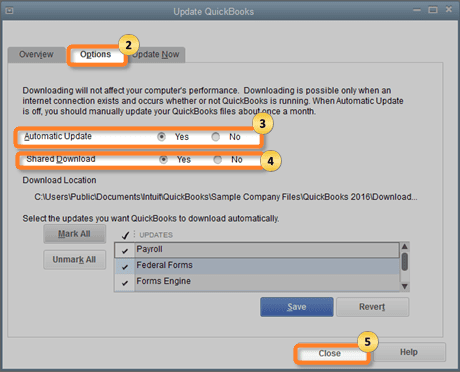
- Open QuickBooks Desktop.
- Go to the Help menu and select Update QuickBooks Desktop.
- Click the Options tab.
- Select Yes to enable automatic updates or choose No to disable them.
- Choose the updates you want QuickBooks to download automatically.
- Remove unnecessary updates if needed.
- Click Save and then select Close.
Note: In case you disable automatic updates, QuickBooks can still display reminders to check for available updates manually.
In case the automatic update feature does not work properly, use the Immediate Update method below.
Method 3: Use the Immediate Upgrade Method
Use this option to manually download and install the latest updates instantly from QuickBooks. Follow these steps to download QuickBooks updates immediately:
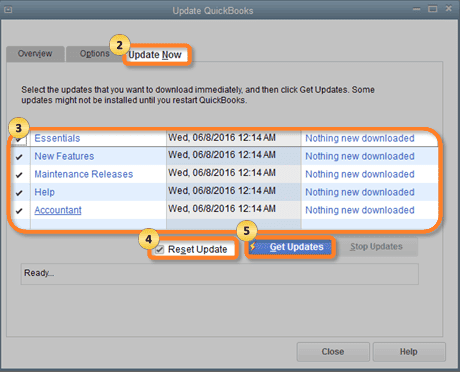
- Open QuickBooks Desktop.
- Select the Help menu and click Update QuickBooks Desktop.
- Open the Update Now tab.
- Select the updates you want to install.
- Click Get Updates to start downloading updates.
- Close QuickBooks after the download finishes.
- Reopen QuickBooks Desktop.
- When prompted, click Install Now or Yes to install the updates.
- Restart your computer after installation completes.
Important: Install maintenance releases manually by reopening QuickBooks and accepting the installation prompt. QuickBooks does not install maintenance releases automatically.
Note: Reinstall updates in the same release order in case you reinstall QuickBooks later. Skipping updates can prevent company files from opening properly.
Method 4: Download Release Updates in Multi-User Mode
Enable shared download to distribute updates across connected systems in a multi-user environment. Use the following steps to share downloaded updates across systems:
- Open the shared company file.
- Go to the Help menu and select Update QuickBooks Desktop.
- Click the Options tab.
- Set the Share Download option to Yes.
- Click Save to apply the changes.
After enabling shared downloads, QuickBooks distributes downloaded updates to connected computers automatically.
Note: QuickBooks stores shared updates in the same location as your company files. Otherwise, it saves updates in the QuickBooks installation folder.
Method 5: Install Updates Manually
Use manual updates when automatic or immediate updates fail to detect the latest release. Here are the steps to manually update QuickBooks Desktop:
- Download the latest QuickBooks Desktop update file.
- Close all company files and exit QuickBooks Desktop.
- Open the Windows Start menu.
- Right-click QuickBooks Desktop and select Run as Administrator.
- On the No Company Open screen, select Help and then click Update QuickBooks Desktop.
- Open the Options tab and select Mark All.
- Click Save.
- Go to the Update Now tab.
- Mark the Reset Update checkbox.
- Click Get Updates to begin downloading the latest release.
Method 6: Download Updates From the QuickBooks Website
You can also download QuickBooks Desktop 2024 updates directly from the official QuickBooks download portal. Follow these steps to download updates from the QuickBooks website:
- Open the QuickBooks Downloads & Updates page.
- Select your country from the dropdown list.
- Choose your QuickBooks product version.
- Select the QuickBooks year version.
- Click Search.
- Mark the Critical Fixes option in case you want smaller update downloads.
- Click Get Updates.
- Save the downloaded file to an easily accessible location.
Tip: Download updates directly from the official QuickBooks update portal when in-product updates are unavailable.
What are the Steps to Update QuickBooks Enterprise 2024?
If you use QuickBooks Desktop Enterprise, you should follow a structured upgrade process to ensure smooth installation, prevent data issues, and maintain proper multi-user connectivity. The steps below explain how to upgrade QuickBooks Enterprise successfully.
Step 1: Validate and Prepare the Company File
Before installing QuickBooks Enterprise 24.0, ensure your company file is clean and ready for upgrade to avoid data conflicts during migration.
- Open QuickBooks Desktop Enterprise and sign in as an Admin user.
- Access the Company menu and review user settings.
- Ensure the company file name does not contain special characters in the .QBW file.
- Close and restart QuickBooks Desktop.
- Navigate to the File menu and select Utilities.
- Click Verify Data to check file integrity.
- Wait for the verification process to complete.
If QuickBooks confirms that no issues are found, proceed with the upgrade. In case errors appear, resolve them before continuing.
Step 2: Install QuickBooks Enterprise 2024 on the Server
- Install the updated version on the server first, since it hosts the company file and controls multi-user access.
- Close all applications running on the server system.
- Download QuickBooks Enterprise 2024 from the official update source.
- Select the correct product details, including region and version.
- Save the installer in an accessible folder.
- Run the downloaded setup file.
- Choose Server Install during installation.
- Select Database Server and QuickBooks Application components.
- Proceed with installation over the existing version if prompted.
- Complete the setup using on-screen instructions.
- Open QuickBooks Enterprise 2024 and sign in as Admin.
- Allow QuickBooks to create a backup when prompted.
- Wait for the company file upgrade process to finish.
After completion, the updated company file will open automatically.
Step 3: Remove Older QuickBooks Versions (If Required)
After confirming the new version works correctly, remove older installations to avoid version conflicts.
- Open Windows Settings from the Start menu.
- Go to Control Panel and select Programs.
- Open Add or Remove Programs.
- Locate the older QuickBooks version.
- Select Uninstall/Change.
- Follow the prompts to complete removal.
Step 4: Configure Multi-User Network Settings
Set up the database server properly so all users can access the updated company file without interruptions.
- Open the Start menu and launch QuickBooks tools.
- Open QuickBooks Database Server Manager.
- Select Scan Folders.
- Add the folder containing your company file.
- Confirm that the file appears in the scan results.
- Close the Database Server Manager.
Step 5: Install QuickBooks Enterprise on Workstations
Install the updated version on all connected systems to maintain consistency across the network.
Remove the Previous Version First
- Open Windows Settings and go to Control Panel.
- Open Programs and select Add or Remove Programs.
- Locate the existing QuickBooks version.
- Select Uninstall/Change and complete removal.
Install QuickBooks Enterprise 2024
- Run the QuickBooks Enterprise setup file.
- Select Server Install and required components.
- Choose Express Install for standard setup.
- Use Custom and Network options in case the file is hosted on another system.
- Complete installation using on-screen instructions.
- Open QuickBooks Enterprise 2024 and sign in as Admin.
- Allow QuickBooks to process the company file update.
- Wait until the upgrade completes successfully.
What are the Steps to Update QuickBooks Desktop Accountant to Plus 2024?
In case you use QuickBooks Desktop Accountant to manage client accounting data, upgrading to the latest version helps maintain compatibility, security, and improved performance. Follow the steps below to upgrade to QuickBooks Desktop Accountant Plus 2024.
Step 1: Sign In to the CAMPS Portal
Before starting the download process, access your QuickBooks account through CAMPS to verify your product access and licensing details.
- Open the official QuickBooks CAMPS login page.
- Enter your registered username and password.
- Sign in to view your product and subscription details.
Step 2: Locate and Download Accountant Plus 2024
After signing in, search for the latest QuickBooks Desktop Accountant Plus 2024 version and proceed with the download or update based on your requirement.
- Open the official QuickBooks Downloads & Updates page.
- Answer the setup prompts displayed on the screen.
- Choose the multi-user option based on your requirement (Yes, No, or Not Sure).
- Click Next to continue.
- Select your country version (United States, United Kingdom, or Canada).
- Choose QuickBooks Desktop Accountant from the product list.
- Select Accountant Plus 2024 from the version dropdown menu.
- Click Search to view available results.
- Select the appropriate product from the list.
- Choose Download to install the full product or Get Latest Updates to update your existing version only.
- After the download completes, run the installer and follow the on-screen instructions to finish the upgrade process.
What are the Steps to Update QuickBooks Desktop for Mac?
QuickBooks Desktop for Mac (Mac Plus 2024) offers improved stability, performance, and updated features. You can update it using either the in-product method or a manual installation process depending on your system requirements.
Method 1: Update QuickBooks Mac Using In-Product Option
Use this method when QuickBooks is running normally and can detect updates automatically from within the application.
- Open QuickBooks Desktop for Mac.
- Access the drop-down menu and select Check for QuickBooks Updates.
- If a new version is available, choose Install and Update.
- When prompted, click Install and Relaunch.
- Allow the system to complete the installation process.
- QuickBooks will restart automatically after the update is applied.
Method 2: Manually Update QuickBooks Desktop for Mac
Use the manual method when the in-product update fails or when you need a fresh installation of Mac Plus 2024.
Step 1: Remove Existing Version
- Close QuickBooks Desktop for Mac.
- Open Finder and go to the Applications folder.
- Locate the QuickBooks Desktop application.
- Move the application to the Trash to uninstall it.
Step 2: Install QuickBooks Mac Plus 2024
- Open the official QuickBooks download and update page.
- Navigate to the Mac product section.
- Download the latest QuickBooks Desktop Mac installer file.
- Open the downloaded .dmg file.
- Drag the QuickBooks icon into the Applications folder.
- Complete the installation process.
Step 3: Restore Your Company File
After installation, restore your backup file to resume working with your updated data.
- Open QuickBooks Desktop Mac Plus 2024.
- Go to Preferences and select Backup settings.
- Open the backup folder location.
- Locate your saved company file backup.
- Open the backup file to create a working copy.
- Move it to the QuickBooks company file location.
- Reopen QuickBooks and click Browse.
- Select the restored file and continue.
- Save and confirm the company file setup.
- Complete the restoration process.
Supported QuickBooks Desktop Mac Versions
QuickBooks Desktop for Mac currently supports these releases:
- QuickBooks Mac Plus 2024 R3
- QuickBooks Mac Plus 2023 R6
- QuickBooks Mac Plus 2022 R11
- QuickBooks Mac 2021 R14
What are the Best Practices to Follow to Update QuickBooks Desktop to 2024?
Following the correct upgrade practices helps you upgrade to QuickBooks Desktop 2024 smoothly while minimizing data risks and compatibility issues.
- Ensure all systems meet the required configuration before starting the upgrade to avoid compatibility issues during installation.
- Install QuickBooks Desktop 2024 in a controlled sequence, starting with the primary system that hosts company data.
- Maintain consistent software versions across all connected workstations to prevent multi-user access conflicts.
- Verify system stability after installation to confirm that the upgrade has been applied correctly and the application runs smoothly.
- Coordinate the upgrade process across the network to minimize downtime and avoid disruption in accounting operations.
- Test core functions after installation, such as opening company files and accessing reports, to ensure proper system behavior.
Conclusion
Follow the correct steps, prerequisites, and best practices to avoid errors and ensure smooth migration. With proper setup, you can upgrade QuickBooks Desktop to 2024 confidently and maintain accurate, reliable financial management across all operations.
Read Also:
Upgrade QuickBooks Desktop 2017 to the latest Version 2024
Upgrade QuickBooks Desktop 2021 to the Latest Release 2024
Frequently Asked Questions
Can I directly upgrade from an older QuickBooks version to 2024?
Yes, you can upgrade QuickBooks Desktop to 2024 from supported earlier versions, but you should always check system compatibility and update your Windows environment before installation.
Will my company file work after upgrading to QuickBooks Desktop 2024?
Yes, QuickBooks automatically updates your company file during the first open in 2024, making it compatible with the latest version.
Do I need to reinstall QuickBooks on all computers in multi-user mode?
Yes, all workstations must run the same QuickBooks version to ensure proper multi-user access and prevent data synchronization issues.
How long does the QuickBooks Desktop 2024 upgrade take?
The time to upgrade QuickBooks Desktop to 2024 varies depending on file size, system speed, and network performance, typically ranging from a few minutes to an hour.
Can I still access the older QuickBooks version after upgrading?
Yes, you can still access your older QuickBooks version if it remains installed on your system. However, both versions should not be used simultaneously on the same company file, as this can cause compatibility or data issues.
