


Many growing businesses start with QuickBooks Enterprise on a single computer, but as teams expand, this setup quickly becomes a hassle. Employees have to wait for access to the company file, while an improper network configuration can trigger errors like H202, H505, “QuickBooks cannot communicate with the server,” “Company File Not Found,” or “The Database Server Manager is not running.” A QuickBooks Enterprise network setup solves this hassle as it allows multiple authorized users to access the same company file from different computers over a secure network. It centralizes your financial data, improves collaboration, simplifies backups, and enhances security and system performance.
In this guide, we’ll discuss the system requirements for network setup, the essential components, how to configure the QuickBooks Enterprise network, and best practices for maintaining a secure QuickBooks environment.
What Does QuickBooks Enterprise Network Setup Mean?
QuickBooks Enterprise Network Setup is the process of configuring QuickBooks Enterprise so multiple authorized users can access the same company file over a local network. It involves installing QuickBooks Enterprise on a host server, setting up the Database Server Manager, configuring shared folders and permissions, and connecting workstations to the shared company file.
The QuickBooks Enterprise server setup improves collaboration, strengthens data security, and simplifies file management. With the correct hosting settings, firewall configuration, and user permissions in place, businesses can reduce connectivity issues, support multi-user access, and maintain consistent performance as their accounting needs grow.
Why Should You Set Up QuickBooks Enterprise on a Network?
QuickBooks Enterprise network setup creates a centralized environment where multiple users can work simultaneously without compromising data accuracy or security. It also simplifies file management, streamlines administration, and supports business growth. The key benefits of network setup in QuickBooks Enterprise include;
1. Enable Multi-User Collaboration
A QuickBooks Enterprise multi-user setup allows up to 40 authorized users to work on the same company file simultaneously, improving team productivity.
2. Keep Data in One Central Location
When you install QuickBooks Enterprise on a network, everyone accesses the same company file. This prevents duplicate records and keeps financial data up to date.
3. Access the Company File Securely
Employees can securely connect to the company file from different offices or approved remote locations.
4. Scale as Your Business Grows
A properly configured network supports large company files, up to one million customers, vendors, and inventory items, while maintaining reliable performance for expanding teams.
5. Strengthen Security and Simplify Management
A QuickBooks Enterprise server setup lets administrators assign user permissions, manage backups, and maintain the system from one central server.
What Are the System Requirements for QuickBooks Enterprise Network Setup?
Meeting the system requirements for a QuickBooks Enterprise network setup helps ensure stable multi-user access, reliable performance, and seamless communication between the server and workstations. Before installing QuickBooks Enterprise on a network, verify that your system meets the following requirements.
| Parameters | Details |
|---|---|
| Client Operating System | Windows 10 (64-bit) or Windows 11 (64-bit). |
| Server Operating System | Windows Server 2016, 2019, or 2022 (Standard or Essentials editions). |
| Unsupported Platforms | Recent QuickBooks Enterprise versions do not support Windows 8.1, Windows S Mode, or Linux-based file server hosting. |
| Processor | 2.4 GHz processor or faster. A multi-core processor is recommended for better multi-user performance. |
| Memory (RAM) | Client PCs require at least 8 GB RAM (16 GB recommended). Server RAM should scale with the number of users, starting at 8 GB for up to 5 users and 20 GB or more for 20+ users. |
| Storage | Reserve at least 2.5 GB of free disk space for installation, plus additional space for company files and backups. An SSD is recommended for improved performance. |
| Network Connection | Use a stable wired local network with a minimum bandwidth of 40 Mbps for reliable multi-user access. |
| QuickBooks Database Server Manager | Install Database Server Manager on the host server to manage the company file and enable multi-user access. |
| Internet Connection | Required for product activation, software updates, payroll, online banking, and other connected services. |
How to Install QuickBooks Enterprise on the Server?
To set up QuickBooks Enterprise on a network, you must first install the software on the host server. The server stores the company file and manages multi-user connections for all workstations. Follow these steps to complete the installation correctly.
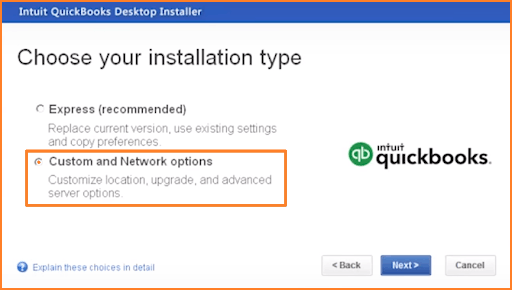
- Sign in as a Windows Administrator and close all running applications.
- Launch the QuickBooks Enterprise installer and accept the license agreement.
- Select Custom and Network Install when prompted.
- Choose the installation option that matches your setup:
- I’ll be using QuickBooks on this computer, AND I’ll be storing our company file here so it can be shared over our network. (Server and workstation)
- I will NOT be using QuickBooks on this computer. I’ll be storing our company file here so it can be shared over our network. (Dedicated server)
- Complete the installation by following the on-screen instructions.
- Restart the server if prompted.
- Verify the QuickBooksDBXX service is running in Windows Services. If it isn’t, start or restart the service manually.
- Open QuickBooks Database Server Manager to prepare the server for hosting the company file.
A shared company file allows authorized users to access the same QuickBooks Enterprise data from multiple workstations. Configure the shared folder correctly to avoid permission and connectivity issues.
- Create a dedicated folder on the host server for the QuickBooks company file.
- Move the company file (.QBW) into the shared folder.
- Share the folder with all authorized users on the network.
- Grant Full Control permissions to QuickBooks users for both Share Permissions and NTFS Security Permissions.
- Verify network access by opening the shared folder from a workstation before launching QuickBooks.
How To Install QuickBooks Enterprise On A Network?
Every workstation that accesses the shared company file must have the same QuickBooks Enterprise version installed. After installation, connect the workstation to the company file hosted on the server. Listed below are the steps to install QuickBooks Enterprise on Workstations.
- Run the QuickBooks Enterprise installer on each workstation.
- Select Custom and Network Install.
- Choose I’ll be using QuickBooks on this computer, but the company file will be located on a different computer.
- Complete the installation by following the setup wizard.
- Open QuickBooks Enterprise and select File > Open or Restore Company > Open a Company File.
- Browse to the shared company file stored on the server.
- Open the company file and verify that it loads successfully without any network errors.
How to Configure QuickBooks Database Server Manager?
QuickBooks Database Server Manager enables workstations to locate and access the shared company file. Configure it on the host server after installing QuickBooks Enterprise.
- Open QuickBooks Database Server Manager from the Windows Start menu.
- Go to the Scan Folders tab.
- Add the folder that contains your QuickBooks company file.
- Click Scan to register the folder for multi-user access.
- Verify the folder status changes to Monitored after the scan completes.
- Enable Monitor Drives if you want QuickBooks to detect changes to company files automatically.
- Rescan the folder whenever you create, move, or restore a QuickBooks company file.
How to Enable Multi-User Mode in QuickBooks Enterprise?
Multi-user mode allows multiple authorized users to work on the same company file at the same time. To prevent hosting conflicts, enable hosting only on the server that stores the company file.
- Open QuickBooks Enterprise on a workstation.
- Go to File > Utilities.
- If Host Multi-User Access appears, leave it unchanged because hosting is already disabled on that workstation.
- If Stop Hosting Multi-User Access appears, select it to disable hosting.
- Repeat these steps on every workstation connected to the network.
- Open QuickBooks Enterprise on the host server.
- Go to File > Utilities > Host Multi-User Access and confirm the prompt.
- Open the company file and switch to Multi-user Mode if prompted.
- Verify that multiple users can access the company file simultaneously.
How to Configure QuickBooks Enterprise firewall ports?
Windows Firewall must allow QuickBooks Enterprise and its services to communicate across the network. Configuring the required firewall exceptions helps prevent H202, H505, and other multi-user connectivity errors. Here are the steps to configure Windows Firewall for QuickBooks Enterprise.
- Open Windows Defender Firewall with Advanced Security.
- Allow QuickBooks Enterprise executable files through Windows Firewall or create the required firewall exceptions.
- Open the TCP ports required for your installed QuickBooks Enterprise version.
- Allow QuickBooks Database Server Manager and related QuickBooks services through the firewall.
- Add antivirus exclusions for QuickBooks program folders, if recommended by your security software.
- Restart the QuickBooksDBXX service if you recently updated the firewall or firewall rules.
- Test multi-user access from each workstation to confirm that all users can connect to the shared company file successfully.
Best Practices for Maintaining a QuickBooks Enterprise Network
Here are the best practices that help maintain a stable, secure, and high-performing QuickBooks Enterprise network while reducing multi-user and connectivity issues.
Use a dedicated host server to store the company file instead of a daily-use workstation.
- Keep QuickBooks Database Server Manager running on the host server at all times.
- Grant the QBDataServiceUserXX group Full Control over the shared company file folder.
- Use a wired Ethernet connection instead of Wi-Fi for reliable multi-user performance.
- Configure firewall and antivirus exceptions for QuickBooks executable files, services, and required TCP ports.
- Avoid storing company files on NAS devices because QuickBooks requires a supported Windows operating system.
- Run the Verify Data and Rebuild Data utilities regularly to detect and repair data issues.
- Schedule automatic daily backups and store them on a secure external drive or cloud location.
- Keep QuickBooks Enterprise and Windows updated with the latest releases and security patches.
- Monitor server health regularly by checking disk space, Windows services, and network performance.
Conclusion
A QuickBooks Enterprise network setup can be completed successfully by installing QuickBooks on the host server, configuring the shared company file, setting up QuickBooks Database Server Manager, enabling Multi-User Mode correctly, and allowing the required firewall ports and QuickBooks services. Following these steps helps eliminate common issues such as H202, H505, “Company File Not Found,” and “QuickBooks cannot communicate with the server.” These best practices improve network stability, protect your financial data, and ensure uninterrupted access for all authorized users.
Frequently Asked Questions
Can QuickBooks Enterprise run over a VPN?
Yes, QuickBooks Enterprise can run over a VPN, but Intuit recommends using a stable, high-speed VPN with low latency. For better performance, businesses often use Remote Desktop Services or authorized hosting providers instead of a VPN.
Why does QuickBooks Enterprise keep switching to Single-User Mode?
QuickBooks Enterprise can switch to Single-User Mode when another user performs administrative tasks, hosts the company file incorrectly, or when network communication is interrupted. Verify your hosting configuration and network connectivity to resolve the issue.
Can I access QuickBooks Enterprise from multiple office locations?
Yes. You can access QuickBooks Enterprise from multiple locations by using a secure VPN, Remote Desktop Services, or an authorized QuickBooks hosting solution while keeping the company file on a central server.
What should I do if QuickBooks Enterprise cannot find the server?
First, verify that the host server is powered on, the shared folder is accessible, the QuickBooksDBXX service is running, and the firewall allows QuickBooks traffic. Also, confirm that all computers are connected to the same network.
Does every user need a QuickBooks Enterprise license in a network environment?
Yes. Every user who accesses QuickBooks Enterprise simultaneously must have a valid user license included in your QuickBooks Enterprise subscription.
Can I move my QuickBooks Enterprise company file to a new server?
Yes. Move the company file to the new server, configure the shared folder, install QuickBooks Database Server Manager, rescan the folder, and reconnect all workstations to the new file location.
Is QuickBooks Enterprise compatible with virtual servers?
Yes. QuickBooks Enterprise supports many virtual environments, provided the virtual machine meets Intuit’s hardware, operating system, and networking requirements.
