


QuickBooks users often handle multiple accounting tasks throughout the day, including invoicing, expense tracking, payroll management, and report generation. Because many users are new to QuickBooks or unfamiliar with its keyboard shortcuts, they often experience workflow interruptions, reduced productivity, and manual errors. Some common challenges users face include:
- Spending too much time navigating menus and tabs.
- Repeating manual actions for daily accounting tasks
- Difficulty switching between windows and company files quickly
- Increased risk of data entry mistakes during transactions
- Slow workflow while creating invoices, reports, or bills
- Confusion between QuickBooks Desktop and Online shortcut commands
Whether you’re a business owner, accountant, or bookkeeper, learning the right QuickBooks keyboard shortcuts can make financial management much easier. In this guide, we’ll discuss QuickBooks general keyboard shortcuts, shortcut keys for QuickBooks Desktop and Online, productivity benefits, and tips for using QuickBooks keyboard shortcuts effectively.
What Are Shortcut Keys in QuickBooks?
Shortcut keys in QuickBooks are keyboard combinations that help users perform tasks quickly without using a mouse. These keys allow users to open windows, create transactions, save records, switch between tabs, and navigate features more quickly.
QuickBooks Desktop includes many built-in shortcuts, while QuickBooks Online combines QuickBooks shortcuts with browser-based keyboard shortcuts. Users can press keys such as Ctrl, Alt, or function keys with another key to complete actions instantly. For example, users can create a new invoice, open reports, or move between fields in just a few seconds.
Tip: Some keyboard shortcuts and productivity features work best when you upgrade to QuickBooks 2024 and use the latest supported version.
What are the Benefits of Using Keyboard Shortcuts in QuickBooks Desktop and Online?
QuickBooks keyboard shortcuts help users complete accounting tasks more efficiently in both QuickBooks Desktop and Online. Here are the benefits of using Keyboard shortcuts in QuickBooks.
- Faster Data Entry
QuickBooks keyboard shortcuts help users create invoices, add expenses, open reports, and enter transactions quickly without searching through multiple menus and options. - Improved Navigation
Users can move between fields, tabs, and windows faster with shortcut keys, which helps them manage accounting tasks more smoothly and efficiently. - Better Accuracy
Keyboard shortcuts reduce accidental mouse clicks and incorrect selections from dropdown lists, helping users maintain accurate financial records and transaction entries. - Higher Productivity
QuickBooks users can complete repetitive accounting tasks in less time, which improves daily workflow and increases overall productivity for businesses and accountants. - Reduced Physical Strain
Using shortcut keys minimizes constant mouse movement and clicking, which helps reduce wrist strain and supports a more comfortable working position. - Easier Multitasking
QuickBooks Desktop and Online shortcuts allow users to switch between company files, reports, and transactions quickly without interrupting their workflow. - More Efficient Financial Management
Users can organize accounting tasks better, save time during bookkeeping, and manage invoices, payments, and reports more effectively with shortcut commands.
What are the Keyboard Shortcuts in QuickBooks Desktop?
QuickBooks Desktop includes several built-in keyboard shortcuts that help users complete accounting tasks faster and navigate the software more efficiently. From creating invoices and managing transactions to opening reports and switching between windows, these shortcut keys simplify daily bookkeeping tasks and improve overall productivity.
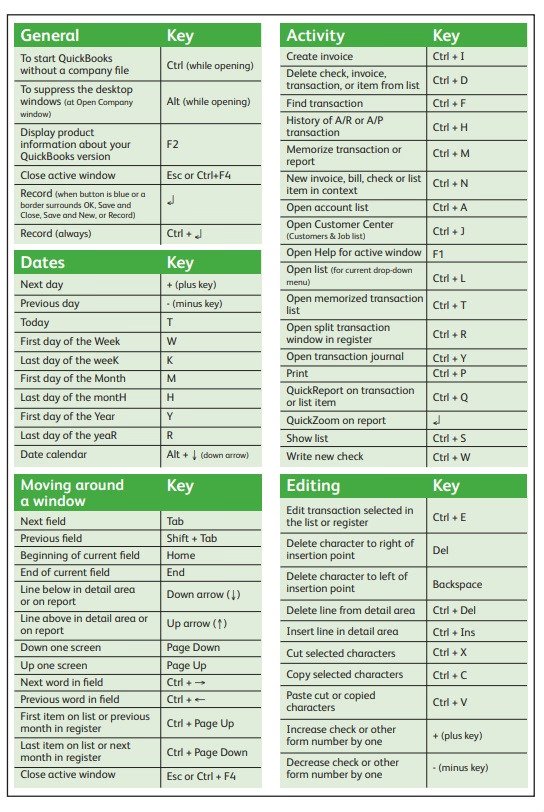
QuickBooks Desktop Keyboard Shortcuts for Windows
QuickBooks Desktop offers several keyboard shortcuts that help users manage transactions, reports, invoices, and navigation tasks quickly. These shortcut keys reduce manual work and improve workflow efficiency.
1. Editing Transactions and Lists
These QuickBooks keyboard shortcuts help users create, edit, delete, and manage transactions or list items more efficiently.
| Shortcut Key | Action |
|---|---|
| Ctrl + N | Create a new transaction or list item. |
| Ctrl + D | Delete the current transaction or item. |
| Ctrl + E | Edit a selected transaction or list item. |
| Ctrl + Del | Delete the selected line in a transaction. |
| Ctrl + Ins | Insert a blank line in a transaction. |
| Ctrl + H | Open transaction history |
| F5 | Refresh lists in multi-user mode |
2. Opening Windows and Lists
These shortcuts allow users to quickly open important QuickBooks windows, reports, and accounting lists.
| Shortcut Key | Action |
|---|---|
| Ctrl + W | Open Write Checks window (behavior may vary depending on QuickBooks version and active window) |
| Ctrl + I | Create a new invoice. |
| Ctrl + J | Open Customer Center |
| Ctrl + A | Open Chart of Accounts |
| Ctrl + F | Find transactions or records. |
| Ctrl + Q | Open Quick Report |
| Ctrl + Y | Open Transaction Journal |
| Ctrl + L | Open dropdown list |
| F1 | Open QuickBooks Help |
3. Navigation and Maneuvering
These keyboard shortcuts help users move between fields, pages, and transactions faster while working in QuickBooks Desktop.
| Shortcut Key | Action |
|---|---|
| Tab | Move to the next field. |
| Shift + Tab | Move to the previous field. |
| Alt + S | Save transaction |
| Alt + N | Save and move to the next transaction. |
| Alt + P | Go to the previous transaction. |
| Ctrl + Enter | May record or save certain transactions in supported QuickBooks windows or forms |
| Page Up/Page Down | Move between report pages in supported QuickBooks windows. |
| Ctrl + Page Up/Page Down | Move between open windows or tabs in supported QuickBooks sections |
4. Opening and Closing QuickBooks
These shortcuts help users start, manage, or close QuickBooks Desktop quickly without using menu options.
| Shortcut Key | Action |
|---|---|
| Ctrl | Open QuickBooks without opening a company file |
| Alt | Suppress QuickBooks Desktop during startup |
| Alt + F4 | Exit QuickBooks |
5. Date and Data Entry Shortcuts
These date shortcuts help users enter and adjust dates quickly while creating invoices, bills, and other transactions.
| Shortcut Key | Action |
|---|---|
| + | Move to the next day |
| – | Move to the previous day. |
| T | Enter today’s date |
| W | Enter the first day of the week. |
| K | Enter the last day of the week. |
| M | Enter the first day of the month. |
| H | Enter the last day of the month. |
| Y | Enter the first day of the year. |
| Alt + Down Arrow | Open calendar |
6. Memorized Transaction Shortcuts
These shortcuts help users access and manage memorized transactions more easily in QuickBooks Desktop.
| Shortcut Key | Action |
|---|---|
| Ctrl + M | Memorize the current transaction. |
| Ctrl + T | Open Memorized Transaction List |
7. Invoice Management Shortcuts
These QuickBooks invoice shortcuts help users create, save, print, and switch between invoices quickly.
| Shortcut Key | Action |
|---|---|
| Alt + P | Go to the previous invoice |
| Alt + N | Open the next invoice. |
| Ctrl + P | Print invoice |
| Alt + A | Save and close the invoice. |
| Alt + S | Save and create a new invoice. |
8. Chart of Accounts Shortcuts
These keyboard shortcuts simplify account management and help users access registers and reports faster.
| Shortcut Key | Action |
|---|---|
| Ctrl + A | Open Chart of Accounts |
| Ctrl + R | Open account register |
| Ctrl + Q | Open Quick Report |
| Ctrl + E | Edit account |
| Ctrl + D | Delete account |
| Home/End | Move to the beginning or the end of the list. |
9. Reports and Printing Shortcuts
These shortcuts help users generate reports, print documents, and manage report settings more efficiently.
| Shortcut Key | Action |
|---|---|
| Ctrl + P | Print reports or forms |
| Ctrl + Q | Open Quick Report |
| Alt + D | Change report date range (availability may depend on the active report window) |
| Alt + I | Email report as Excel or PDF |
| Enter | Open report details |
10. Standard Text Editing Shortcuts
These common text editing shortcuts help users copy, paste, edit, and manage text quickly in QuickBooks fields.
| Shortcut Key | Action |
|---|---|
| Ctrl + C | Copy |
| Ctrl + V | Paste |
| Ctrl + X | Cut |
| Ctrl + Z | Undo |
| Delete | Delete the character to the right. |
| Backspace | Delete the character to the left. |
| Home/End | Move to the start or end of the text. |
QuickBooks Desktop Keyboard Shortcuts for Mac
QuickBooks Desktop for Mac includes several shortcut commands that help users navigate forms, manage transactions, and access QuickBooks features quickly.
1. Navigation Shortcuts for Mac
These Mac shortcuts help users open QuickBooks features, minimize windows, and find transactions quickly.
| Shortcut Key | Action |
|---|---|
| Command +? | Open Help window |
| Command + M | Minimize the current window. |
| Command + F | Find transactions |
| Command + 1 | Open Product Information |
| Command + H | Hide QuickBooks |
2. Form and Data Field Shortcuts
These shortcuts make data entry and field navigation easier while working on QuickBooks forms.
| Shortcut Key | Action |
|---|---|
| Tab | Move to the next field. |
| Shift + Tab | Move to the previous field. |
| Command + C | Copy |
| Command + V | Paste |
| Command + X | Cut |
| Command + Z | Undo |
3. Date Entry Shortcuts for Mac
These keyboard shortcuts help Mac users quickly enter and adjust dates in QuickBooks transactions and forms.
| Shortcut Key | Action |
|---|---|
| + | Move to the next day. |
| – | Move to the previous day. |
| T | Enter today’s date |
| W | First day of the week |
| M | First day of the month |
| H | Last day of the month |
| Y | First day of the year |
| R | Last day of the year |
4. Transaction and Invoice Shortcuts
These Mac shortcuts help users create invoices, manage transactions, and print reports more efficiently.
| Shortcut Key | Action |
|---|---|
| Command + Y | Add transaction line (may vary depending on QuickBooks Desktop for Mac version) |
| Command + B | Delete transaction line |
| Command + P | Print forms or reports |
| Command + U | Open transaction history |
| Command + I | Create invoice |
| Command + K | Create check |
5. Quick Access Shortcuts
These shortcuts provide quick access to important QuickBooks Desktop for Mac sections and accounting tools.
| Shortcut Key | Action |
|---|---|
| Shift + Command + A | Open Chart of Accounts |
| Shift + Command + J | Open Customer Center |
| Shift + Command + E | Open Employee Center |
| Shift + Command + V | Open Vendor Center |
| Shift + Command + M | Open Memorized Transactions |
What are the Keyboard Shortcuts in QuickBooks Online?
QuickBooks Online also offers useful keyboard shortcuts that help users manage accounting tasks more quickly within a web browser. Here are some commonly used QuickBooks Online keyboard shortcuts that help users save time, improve workflow, and complete accounting tasks more efficiently.
These shortcuts help users move through QuickBooks Online pages and find transactions or features quickly.
| Shortcut Key | Action |
|---|---|
| Ctrl + Alt +? | Open keyboard shortcuts menu |
| / | Open the search bar. |
| Esc | Close the active window or pop-up. |
| Tab | Move to the next field. |
| Shift + Tab | Move to the previous field. |
2. Transaction Shortcuts
These keyboard shortcuts help users create and manage transactions faster in QuickBooks Online.
| Shortcut Key | Action |
|---|---|
| Ctrl + Alt + I | Create invoice |
| Ctrl + Alt + W | Write check |
| Ctrl + Alt + X | Create expense |
| Ctrl + Alt + C | Create customer |
| Ctrl + Alt + V | Create vendor |
3. Form and Data Entry Shortcuts
These shortcuts simplify data entry and help users work more efficiently while filling forms.
| Shortcut Key | Action |
|---|---|
| Enter | Save selected action |
| Ctrl + C | Copy |
| Ctrl + V | Paste |
| Ctrl + X | Cut |
| Ctrl + Z | Undo Changes |
4. Browser-Based Shortcuts
Since QuickBooks Online works in a browser, users can also use common browser shortcuts for faster navigation.
| Shortcut Key | Action |
|---|---|
| Ctrl + T | Open a new browser tab. |
| Ctrl + W | Close current tab |
| Ctrl + R | Refresh page |
| Ctrl + L | Highlight the browser address bar. |
| Alt + Left Arrow | Go back to the previous page. |
5. Accessibility and Productivity Shortcuts
These shortcuts help users improve productivity and access QuickBooks Online features more efficiently.
| Shortcut Key | Action |
|---|---|
| Ctrl + Alt + H | Open homepage/dashboard (behavior may vary depending on browser and system configuration) |
| Ctrl + Alt + A | Open Chart of Accounts |
| Ctrl + Alt + R | Open reports (availability may depend on QuickBooks version and browser) |
6. Drop-Down List Shortcuts
These shortcuts help users open and navigate dropdown menus more efficiently while entering transaction details.
| Shortcut Key | Action |
|---|---|
| Tab | Move to a specific field. |
| Alt + Down Arrow | Open dropdown list |
| Up Arrow/Down Arrow | Move through list items. |
| Tab | Select the item and move to the next field. |
These shortcuts simplify movement between lines and fields while working on journal entries.
| Shortcut Key | Action |
|---|---|
| Up Arrow | Move to the distribution line above. |
| Down Arrow | Move to the distribution line below. |
| Tab | Move between fields. |
Note: Some QuickBooks Online shortcuts may vary depending on browser and system configuration.
How to Memorize QuickBooks Keyboard Shortcuts Easily?
Learning QuickBooks keyboard shortcuts seems difficult at first, but simple practice techniques can help users remember them quickly. Here are some simple tips to memorize QuickBooks general keyboard shortcuts more easily.
1. Start With the 3-Task Method
Choose three shortcuts you use most often, such as creating invoices, opening the Chart of Accounts, or writing checks. Practice only these shortcuts for a few days until they become automatic.
2. Learn Common Shortcuts First
Start with basic QuickBooks keyboard shortcuts like Ctrl + I for invoices, Ctrl + W for checks, and Ctrl + Q for Quick Reports. Frequent usage improves memory faster.
3. Use Shortcut Associations
Connect shortcut keys with their related tasks to remember them more easily. For example, “I” stands for Invoice, “F” for Find, and “A” for Accounts.
4. Group Shortcuts by Category
Memorize shortcuts based on tasks like invoicing, reporting, navigation, or editing. Learning shortcuts in groups makes the process simpler and more organized.
5. Keep a Shortcut Reference Sheet
Print or save a QuickBooks shortcut list for quick access while working. Users can also keep the shortcut guide open on a second screen for practice.
6. Use Built-In QuickBooks Shortcut Lists
In QuickBooks Online, press Ctrl + Alt + ? to open the shortcut menu. In QuickBooks Desktop, press F1 to access Help and download the keyboard shortcut guide.
7. Practice Date Shortcuts Regularly
Use simple date shortcuts like T for today, M for the first day of the month, and Y for the first day of the year to save time during data entry.
Press the Esc key whenever you want to close a pop-up, exit a transaction, or leave a window quickly without using the mouse.
9. Practice During Daily Tasks
The best way to memorize QuickBooks keyboard shortcuts is to use them every day while creating invoices, entering expenses, managing reports, or updating transactions.
Best Practices for Improving Workflow with QuickBooks Keyboard Shortcuts
Keyboard shortcuts help users complete accounting tasks faster, reduce manual effort, and improve productivity in both QuickBooks Desktop and Online. Reduce manual effort and improve productivity in both QuickBooks Desktop and Online.
- Focus on frequently used shortcuts like Ctrl + I, Ctrl + J, Ctrl + A, and Ctrl + F for faster navigation.
- Use save shortcuts such as Alt + S (where applicable in QuickBooks Desktop) to quickly save transactions and forms.
- Apply date shortcuts like T, M, H, Y, and R to enter dates quickly without opening the calendar.
- Use Tab and Shift + Tab to move between fields faster during data entry tasks.
- Enter formulas directly in amount fields to use QuickBooks’ built-in calculator feature.
- Reduce mouse usage by performing navigation and transaction tasks with keyboard shortcuts.
- Open multiple browser tabs in QuickBooks Online to manage reports, invoices, and accounts together.
- F11 is a browser shortcut that enables full-screen mode, which can improve visibility while working in QuickBooks Online.
- Keep a QuickBooks keyboard shortcut cheat sheet nearby for quick reference during work.
- Practice shortcut keys daily to improve speed, accuracy, and workflow efficiency over time.
- Learn platform-specific shortcuts separately for QuickBooks Desktop and QuickBooks Online.
Conclusion
QuickBooks keyboard shortcuts help users save time, improve accuracy, and complete accounting tasks faster. Users can use QuickBooks general keyboard shortcuts in QuickBooks Desktop and QuickBooks Online. Regular use of Keyboard shortcuts in QuickBooks increases productivity, reduces manual work, and streamlines daily bookkeeping tasks.
Frequently Asked Questions
Can beginners use QuickBooks keyboard shortcuts easily?
Yes, beginners can learn QuickBooks keyboard shortcuts easily by starting with basic commands for invoices, reports, and navigation. Regular practice helps users remember shortcuts faster.
Do QuickBooks keyboard shortcuts improve accounting efficiency?
Yes, QuickBooks keyboard shortcuts reduce manual clicks, speed up data entry, and help users complete accounting tasks more efficiently.
Do all QuickBooks versions support keyboard shortcuts?
Most keyboard shortcuts work in QuickBooks Desktop and QuickBooks Online, but some commands can vary depending on the version and operating system.
Can QuickBooks Online users use browser shortcuts?
Yes, QuickBooks Online users can use browser shortcuts like Ctrl + T, Ctrl + R, and F11 to improve navigation and multitasking.
Which QuickBooks keyboard shortcuts save the most time?
Shortcuts for creating invoices, opening reports, saving transactions, and searching records usually save the most time during daily bookkeeping tasks.
Can keyboard shortcuts reduce data entry errors in QuickBooks?
Yes, keyboard shortcuts reduce unnecessary mouse clicks and help users enter and manage financial data more accurately.
Are QuickBooks keyboard shortcuts useful for accountants and bookkeepers?
Yes, accountants and bookkeepers use QuickBooks keyboard shortcuts to manage invoices, reports, payroll, and transactions more quickly and efficiently.
