


The QuickBooks Desktop fields display black instead of white issue makes it difficult to read transaction details, enter data, or navigate the software normally. This display problem usually appears when Windows theme settings, graphics drivers, or QuickBooks program files conflict with the software interface. In many cases, the menus and entry fields turn completely black, while the text becomes unreadable.
The issue affects daily bookkeeping tasks and slows down accounting work. The QuickBooks Turned Black and White issue makes transaction forms, menus, and entry fields difficult to read, which affects data entry accuracy and productivity. This guide explains the common causes behind the error, the settings to review before troubleshooting, and the solutions that restore the normal QuickBooks display without affecting your company workflow.
What Causes the QuickBooks Turned Black and White Issue?
Identifying the source of the display issue helps you apply the correct troubleshooting method more efficiently. If you’re running an older version of the software, upgrading to QuickBooks 2024 can help resolve many display-related problems.
- The active Windows desktop theme conflicts with the QuickBooks interface.
- Outdated graphics drivers prevent QuickBooks from displaying colors properly.
- Damaged QBW.ini settings affect the software display configuration.
- Background QuickBooks processes interfere with the application interface.
- Incorrect Windows display settings create visual rendering issues.
Impact of the QuickBooks Turned Black and White Issue
The QuickBooks Turned Black and White issue affects visibility across the software interface and creates difficulties during routine accounting activities.
- Black display fields make transaction details difficult to read and verify.
- Unreadable menus increase the time required to complete bookkeeping tasks.
- Data entry becomes more difficult when forms do not display correctly.
- Navigation issues reduce productivity during daily accounting operations.
- Display problems increase the risk of entering incorrect transaction information.
Common Causes and Recommended Fixes
The following table highlights the most common causes of the QuickBooks black field issue and the troubleshooting methods to resolve it.
| Component | Common Issue | Recommended Fix |
|---|---|---|
| Windows Theme | Custom or high-contrast themes | Switch to the Windows Basic theme |
| Graphics Driver | Outdated video software | Update the driver through Device Manager |
| Initialization File | Damaged QBW.ini settings | Add Classic=0 to the file |
| Background Processes | Program conflicts | Run Quick Fix my Program |
Prerequisites Before Fixing QuickBooks Desktop Fields Display Black Instead of White
Before you begin the troubleshooting process, review these settings to avoid interruptions during the repair.
- Close QuickBooks Desktop completely before applying any fixes.
- Verify that your Windows system is fully updated.
- Check your internet connection before downloading repair tools or driver updates.
- Confirm that your graphics driver is installed properly.
- Make sure no other applications are showing similar display problems.
How to Fix QuickBooks Desktop Fields Display Black Instead of White
Follow these troubleshooting methods in the order below to restore the normal QuickBooks display.
Total Time: 12 minutes
Solution 1: Run the QuickBooks Tool Hub
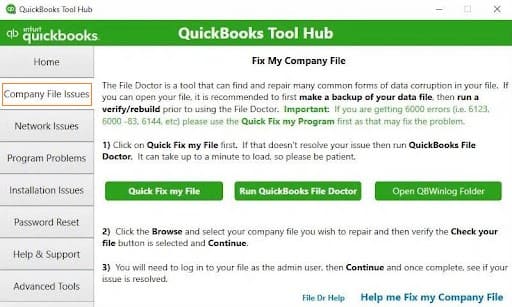
The QuickBooks Tool Hub helps resolve program-related causes of the QuickBooks Turned Black and White issue by closing interfering background processes and repairing common application problems.
1. Open the QuickBooks Tool Hub.
2. Select the Program Problems tab.
3. Click Quick Fix my Program.
4. Wait for the utility to close background QuickBooks processes.
5. Open QuickBooks Desktop and check the display.
Solution 2: Update the Video Card Driver
Outdated graphics drivers are a common cause of the QuickBooks Turned Black & White issue because they affect how QuickBooks renders interface elements.
1. Press the Windows key and search for Device Manager.
2. Open the Display adapters section.
3. Right-click your video card and select Update driver.
4. Choose Search automatically for drivers.
5. Complete the installation and restart the computer.
Solution 3: Switch to the Windows Basic Theme
Custom themes and high-contrast settings frequently contribute to the QuickBooks Turned Black & White issue by overriding the default display configuration.
1. Close QuickBooks Desktop.
2. Right-click an empty area on your desktop and select Personalize.
3. Choose the Windows Basic theme.
4. Wait for Windows to apply the settings.
5. Reopen QuickBooks Desktop and verify the display.
Solution 4: Edit the QBW.ini File
The QBW.ini file stores display-related initialization settings for QuickBooks.
1. Navigate to the folder containing the QBW.ini file.
2. Right-click the file and open it with Notepad.
3. Scroll to the bottom of the file.
4. Type [COLORS] on a new line.
5. Enter Classic=0 below it.
6. Save the file and close Notepad.
7. Open QuickBooks Desktop to verify the changes.
Solution 5: Change Windows Display (DPI) Settings
Incorrect DPI or display scaling settings can prevent QuickBooks Desktop from rendering forms and fields correctly.
1. Close QuickBooks Desktop.
2. Right-click the QuickBooks Desktop shortcut and select Properties.
3. Open the Compatibility tab.
4. Select Change high DPI settings.
5. Enable the option to override high DPI scaling behavior and let Windows apply the scaling.
6. Click Apply, then OK.
7. Reopen QuickBooks Desktop and verify whether the display issue is resolved.
Solution 6: Adjust the Screen Resolution
A screen resolution that does not meet QuickBooks Desktop requirements can cause display problems.
1. Right-click an empty area of the Windows desktop and select Display settings.
2. Verify that the display resolution is set to the recommended value for your monitor.
3. Apply the changes if necessary.
4. Restart your computer.
5. Open QuickBooks Desktop and check whether the fields display correctly.
Solution 7: Re-register the QuickBooks Program Files
Damaged or unregistered QuickBooks program files can interfere with the application interface.
1. Close QuickBooks Desktop.
2. Locate the QuickBooks installation folder.
3. Find the QuickBooks batch (.bat) file for your version.
4. Right-click the file and select Run as administrator.
5. Wait for the command window to finish processing.
6. Reopen QuickBooks Desktop and verify the display.
Solution 8: Restart QuickBooks and End Background Processes
Background QuickBooks processes can continue running after the program closes and interfere with the display.
1. Close QuickBooks Desktop.
2. Press Ctrl + Shift + Esc to open Task Manager.
3. Locate any QBW32.exe or QuickBooks processes.
4. Select each process and click End Task.
5. Restart QuickBooks Desktop and verify whether the display has returned to normal.
If your QuickBooks continues to run slowly after fixing the graphics issue, consider ways to optimize your QuickBooks company file to improve overall performance.
Best Practices to Prevent the QuickBooks Turned Black & White Issue
Following these maintenance practices helps reduce display-related problems in QuickBooks Desktop.
- Install Windows updates regularly to maintain display compatibility with QuickBooks Desktop.
- Keep graphics drivers updated through the device manufacturer’s recommended update process.
- Avoid unsupported high-contrast themes that interfere with QuickBooks display settings.
- Install QuickBooks Desktop updates as soon as they become available.
- Close unnecessary background applications before opening QuickBooks Desktop.
- Review Windows display settings after major operating system updates.
Conclusion
The QuickBooks Desktop fields display black instead of white issue interrupts normal bookkeeping by making menus and entry fields difficult to read. Running the QuickBooks Tool Hub, updating graphics drivers, switching to the Windows Basic theme, or editing the QBW.ini file helps restore the normal software display. Keeping Windows settings and graphics drivers updated also helps prevent the QuickBooks Turned Black and White issue from returning in the future.
Once the software is working correctly again, take advantage of QuickBooks keyboard shortcuts to navigate menus and complete accounting tasks more efficiently.
Frequently Asked Questions
Why are my QuickBooks fields showing black boxes?
This issue usually occurs because of Windows theme conflicts, damaged display settings, or outdated graphics drivers.
Does the QuickBooks Tool Hub fix display issues?
Yes. The Quick Fix my Program utility in the QuickBooks Tool Hub helps resolve display-related issues caused by background QuickBooks processes.
What should I do if updating the graphics driver does not work?
If updating the graphics driver does not resolve the issue, switch to the Windows Basic theme or edit the QBW.ini file using the troubleshooting steps provided in this guide.
