


Sage 50 includes a bank feeds feature that automatically imports your banking transactions into the software. This feature works through a trusted third-party provider, Yodlee Inc., which also supplies bank feeds for Xero. Sage 50 bank feeds allow users to connect an online bank account directly to Sage 50. The system imports transactions automatically and reduces manual data entry by up to 80%. This process makes bank reconciliation faster and easier.
The feature is free for Sage 50 users and helps you view and compare your bank information in real-time, improving the accuracy of your accounts. For any additional assistance, you can reach out to the Sage 50 Technical Support team.
Table of Contents
- 1 Before Setting Up Sage 50 Bank Feeds
- 2 How to Set Up Sage 50 Bank Feeds
- 3 SAGE 50 Bank Feeds Settings Up
- 4 Downloading Bank Transactions in Sage 50
- 5 How to Check for New Transactions in Sage 50 Bank Feeds
- 6 How to Disconnect Bank Feeds in Sage 50
- 7 How to Reconnect Bank Feeds in Sage 50
- 8 What are the solutions for Common Bank Feeds Errors in Sage 50, Sage 100, Sage 200, and Sage 300
- 9 Help & Support: Sage 50 Bank Feeds Problems & Issues
- 10 Frequently Asked Questions
- 10.1 What are Sage 50 Bank Feeds?
- 10.2 Why are my bank transactions not downloading?
- 10.3 How do I fix Sage 50 Bank Feeds errors?
- 10.4 Can I match bank feed transactions with existing entries?
- 10.5 What date should I use to download bank transactions?
- 10.6 Do Bank Feeds affect existing data in Sage 50?
- 10.7 What should I do if Bank Feeds stop working completely?
- 10.8 Are Sage 50 Bank Feeds secure?
Before Setting Up Sage 50 Bank Feeds
You can connect bank feeds in Sage 50 to Checking, Savings, and Credit Card accounts. Bank feeds cannot be connected to Loan, Cash, or other account types.
Sage 50 allows users to download bank transactions from the past 90 days. Users must import bank statements or enter transactions manually for older records before connecting the bank feed.
How to Set Up Sage 50 Bank Feeds
Before setting up Sage 50 bank feeds, make sure you have your Sage Account Number (found on any Sage invoices) and your software Serial Number. You can locate the Serial Number by navigating to Help, and then you have to go to About in the software.
Complete the setup process in one session. Do not close the setup window during the process. Closing and restarting the setup can block access to the bank feeds setup screen.
Setting Up Sage 50 Bank Feeds for the First Time
- Go to the Bank area in Sage 50.
- Click the Bank Feeds icon, located between the Activity and Reconcile icons in the top menu bar.
- The Bank Feeds window will open with the message “Let’s get started.”
- Click “Let’s Get Started.”
- Log in using your Sage ID, which provides access to all Sage services with a single username. If you don’t have a Sage ID, you will need to create one before proceeding.
SAGE 50 Bank Feeds Settings Up
Before continuing, Sage 50 will request your permission to connect bank feeds to your data. You will also need your Sage Account Number and Serial Number to register for Sage 50 Bank Feeds.
Steps to Connect Your Bank Account:
- In the Bank Account window, click Add.
- Type your bank name in the search field.
- Select your bank account from the list provided.
- If your bank is not listed, click Search and select your bank from the Matching Results.
- Enter your bank login details, then click Add, and then click on Close.
- In the Bank Account window, select the account you want to use.
- Click OK and then click Close to complete the setup.
Downloading Bank Transactions in Sage 50
Sage 50 allows users to download bank transactions every 15 minutes. This keeps account records current.
Steps to Download Transactions:
- Go to Bank Accounts.
- Select your bank account, then click Bank Feeds.
- Download your bank transactions.
- Enter the earliest transaction date you want to include in the download.
How to Check for New Transactions in Sage 50 Bank Feeds
Sage 50 bank feeds update about every 24 hours. Update timing depends on the bank’s rules. New transactions appear automatically in the linked bank account. Users can also download transactions manually at any time.
Steps to Check and Download New Transactions:
- Go to the Banking section.
- Find the bank account tile for the account you want to update.
- Click the Transactions button in the lower-left corner.
- Enter your security details if your bank uses multi-factor authentication.
- Sage 50 will download the latest bank transactions.
- Review the list and match, create, transfer, or discard transactions as needed.
- For more help with transaction handling, see the Working with incoming bank transactions section.
How to Disconnect Bank Feeds in Sage 50
You can disconnect a bank feed in Sage 50 at any time without removing existing transactions.
- Go to the Banking section.
- Click the bank account you want to disconnect.
- Select Actions in the lower right-hand corner.
- Choose Disconnect Bank to complete the process. Disconnecting the bank feed will not delete any previously imported transactions from the bank account.
How to Reconnect Bank Feeds in Sage 50
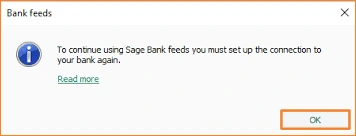
Users can reconnect a disconnected bank feed by following the same steps used during the first connection. During reconnection, users can select a bank from the previously connected list or choose a different bank when needed.
How to Connect to a New Bank Feed in Sage 50
Follow these steps to connect a new bank feed in Sage 50:
- Go to the Banking section and search for your bank.
- Click Actions, then select Connect to Bank.
- In the search box, enter your bank name and choose the correct bank feed.
- Click Accept and Continue, then complete the required steps to connect with your bank.
- Enter the transaction start date for importing transactions. To avoid duplicate entries, select the day after disconnecting the previous bank feed.
- On the Banking page, click Number of Transactions to open the Incoming Bank Transactions page and process the new transactions.
What are the solutions for Common Bank Feeds Errors in Sage 50, Sage 100, Sage 200, and Sage 300
To help resolve bank feed errors in Sage accounting software, below are the most common issues and their solutions. When an error code is not listed, follow the general troubleshooting steps to check whether the bank feed is working correctly. Live chat support with Sage experts is available when the issue continues.
- Allow cookies from third-party websites, then reconnect your online bank account. Refer to your browser’s help section for steps to enable cookies in Safari, Chrome, Mozilla Firefox, or Internet Explorer.
- Confirm that the correct bank account was selected and that all required details were entered accurately during bank feed setup.
- Log in to your online banking service to verify that your password and security details are correct and match the information entered in Sage.
- Check your online banking account for any pending terms and conditions, alerts, or messages that require acceptance.
- Review the bank feed setup details to ensure all information is current and correct.
These steps resolve the most common bank feed issues across Sage 50, Sage 100, Sage 200, and Sage 300.
Help & Support: Sage 50 Bank Feeds Problems & Issues
Enter a start date to download the earliest bank transaction. Use the recommended date, which is the day after the last completed bank reconciliation in Sage. The system downloads transactions and shows them in the Bank Transactions pane. View live bank transactions alongside entries already posted in Sage 50. Match downloaded transactions with existing records or create new ones when needed.
AccountsPro provides reliable support and assistance for Sage 50 queries and errors. The team helps resolve issues quickly and offers Sage Cloud Hosting benefits to improve business performance. Report Sage-related errors promptly to receive fast and effective support.
Conclusion
Sage 50 Bank Feeds simplifies bank transaction management by allowing direct downloads from your bank into the software. Proper setup and regular use help maintain accurate records and reduce manual data entry. Common bank feed errors usually occur due to connection issues, incorrect login details, or outdated software. Resolving these problems on time ensures smooth bank reconciliation and reliable financial reporting. With correct configuration, regular reviews, and expert support when required, Sage 50 Bank Feeds becomes a reliable tool for daily accounting operations.
Frequently Asked Questions
What are Sage 50 Bank Feeds?
Sage 50 Bank Feeds allow automatic download of bank transactions directly into Sage 50 from your bank account.
Why are my bank transactions not downloading?
This issue usually occurs due to incorrect bank credentials, poor internet connection, bank maintenance, or outdated Sage 50 software.
How do I fix Sage 50 Bank Feeds errors?
Check your internet connection, verify bank login details, update Sage 50 to the latest version, and refresh the bank feed connection.
Can I match bank feed transactions with existing entries?
Yes, Sage 50 allows you to match downloaded transactions with existing records or create new transactions when no match is found.
What date should I use to download bank transactions?
Use the date recommended by Sage, which is the day after your last completed bank reconciliation.
Do Bank Feeds affect existing data in Sage 50?
No, Bank Feeds only import transactions. They do not change or delete existing posted entries.
What should I do if Bank Feeds stop working completely?
Reconnect the bank feed, clear cached data, update the software, or contact Sage 50 support for advanced troubleshooting.
Are Sage 50 Bank Feeds secure?
Yes, Sage uses secure encryption to protect bank data during the connection and transaction download process.
