


Are you wondering how to transfer QuickBooks to a new computer without losing your company data, templates, and custom settings? Many users need to move QuickBooks to another computer when upgrading to a faster system or replacing an old PC. However, transferring QuickBooks Desktop to a new PC is not as simple as copying a few files. In case you skip important QuickBooks migration steps, you can run into installation errors, damaged company files, missing templates, or issues with payroll and other connected services.
In this guide, we’ll discuss why you should transfer QuickBooks desktop to a new PC, the prerequisites, step-by-step QuickBooks migration steps using the QuickBooks Data Transfer Tool (Migrator Tool) and manual method, what to do after the migration, best practices, and answers to frequently asked questions.
Why You Should Transfer QuickBooks Desktop to a New PC?
In case your current system is slow, outdated, or prone to errors, transferring QuickBooks Desktop to a new PC ensures that you can continue managing your accounting data without interruptions. Here are the main reasons to move QuickBooks to another computer or a new one.
- Better Performance
A new computer can open company files faster, process payroll more efficiently, and generate reports quickly. - Fix Ongoing Errors
Reinstalling QuickBooks on a new computer can remove corrupted files, while damaged settings can cause recurring issues. - Operating System Compatibility
Moving to a new PC lets you install a QuickBooks version that works properly with modern operating systems such as Windows 11. - Improved Security
New systems offer stronger security features and support the latest Windows and QuickBooks updates. - More Storage Space
Additional storage accommodates larger company files, backups, and attachments. - Multi-User and Remote Access
A new setup makes it easier to configure network sharing and support remote teams. - Reduced Risk of Data Loss
Migrating your QuickBooks company file to a stable system helps protect critical financial data.
What are the Prerequisites to Transfer QuickBooks to a New Computer?
Before you transfer QuickBooks to a new computer, gather the required information and tools. Preparing everything in advance helps you avoid installation issues, activation errors, and data loss.
| Requirement | Why You Need It |
|---|---|
| License and Product Numbers | You need these details to reinstall and activate QuickBooks on the new computer. You can find them in your Intuit account or purchase confirmation email. |
| QuickBooks Installation File or CD | You need the installer to reinstall QuickBooks. Download the latest setup file from Intuit if you do not have the original CD. |
| Administrator Rights | You must log in as a Windows administrator on both computers to install software and transfer files. |
| Company File Backup (.QBB) | A backup protects your accounting data and lets you restore your company file in case anything goes wrong. |
| USB Flash Drive or External Storage | Use a storage device with at least 150 to 250 MB of free space to transfer your backup and Migrator Tool files. |
| Stable Internet Connection | QuickBooks requires internet access to verify your license, download updates, and activate the software. |
| Supported Operating System | Your new computer should run a supported version of Windows, such as Windows 10 or Windows 11. |
| QuickBooks Migrator Tool (Optional) | Available in QuickBooks Desktop US 2018 and later for single-user setups. It automates the transfer process. |
| Manual Transfer Plan | In case you do not use the Migrator Tool, you will need to reinstall QuickBooks and manually move your company file. |
How to Transfer QuickBooks to a New Computer?
You can transfer QuickBooks to a new computer using either the built-in QuickBooks Migrator Tool or a manual method. Both options help you move QuickBooks to another computer, transfer your company file, and reinstall QuickBooks on the new system without losing important accounting data.
Transfer QuickBooks to a New Computer via the Migrator Tool
The QuickBooks Migrator Tool is the easiest way to transfer QuickBooks Desktop to a new computer. It automatically copies your QuickBooks installation files, company files, and selected settings to a USB drive.
On the Old Computer
Start the migration on your current computer to create the transfer package on your USB drive. Follow these steps to prepare QuickBooks for transfer:
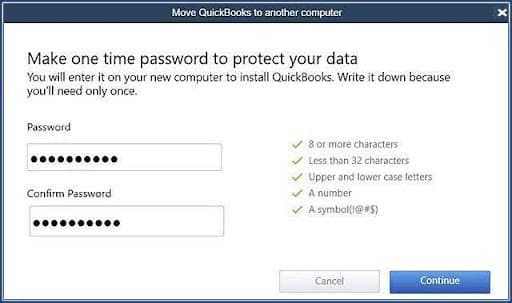
- Download the QuickBooks Migrator Tool from Intuit in case it is not already available in your QuickBooks Desktop version.
- Insert a USB flash drive into the old computer.
- Open QuickBooks as the Admin user.
- Go to File > Utilities > Move QuickBooks to Another Computer.
- Click I’m Ready.
- Create a strong one-time password. You will need this password on the new computer, so save it in a secure place.
- Follow the on-screen instructions to copy your QuickBooks files to the USB drive.
- Wait for the process to finish. The transfer time depends on the size of your QuickBooks company file and related data.
On the New Computer
After you create the migration file on the USB drive, complete the transfer on your new computer. The Migrator Tool will install QuickBooks and move your company data automatically. Use the following steps to run the QuickBooks Migrator Tool on the new computer:
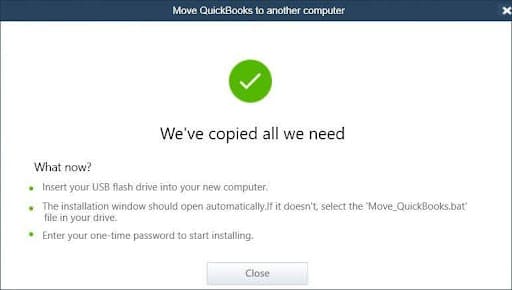
- Insert the USB flash drive into the new computer.
- Open the USB drive in File Explorer.
- Locate the Move_QuickBooks.bat file.
- Double-click the file to launch the Migrator Tool. Windows security settings usually prevent the tool from opening automatically.
- Enter the one-time password you created on the old computer.
- Click Let’s Go to begin the transfer.
- Wait for the tool to install QuickBooks and copy your company files to the new computer.
Transfer QuickBooks to a New Computer via the Manual Method
In case you prefer not to use the QuickBooks Migrator Tool, you can transfer QuickBooks manually. This method requires you to reinstall QuickBooks Desktop on the new computer and then move your QuickBooks company file and related data.
Reinstall QuickBooks on the New Computer
First, install QuickBooks Desktop on your new computer using your existing license information. Follow these steps for a QuickBooks reinstall on a new computer:
- Keep your QuickBooks license number and product number ready.
- Uninstall QuickBooks from the old computer in case you no longer plan to use it there.
- Download the QuickBooks installation file from Intuit or insert the original installation CD.
- Run the installer on the new computer.
- Enter your license and product numbers when prompted.
- Follow the on-screen instructions to complete the installation.
- Open QuickBooks and activate the software.
Move Your Company File
After installation, copy your company file and other important QuickBooks data to the new computer. Use these steps to transfer QuickBooks desktop to a new PC manually.
- Copy your company file (.QBW) or backup file (.QBB) to a USB drive or external storage device.
- Paste the file into the QuickBooks company files folder on the new computer.
- Open QuickBooks.
- Select Open or Restore an Existing Company.
- Browse to the transferred file and open it.
- Verify that all data, templates, and reports appear correctly.
What Gets Copied and What Does Not Get Copied Using the QuickBooks Migrator Tool?
When you use the QuickBooks Migrator Tool to transfer QuickBooks Desktop to a new computer, it copies most of the files and settings required to run QuickBooks on the new system. However, some files and service configurations do not transfer automatically and must be moved or set up manually.
| What the Migrator Tool Copies | What the Migrator Tool Does Not Copy |
|---|---|
| QuickBooks Desktop installation files and version details | Manual backup files (.QBB) |
| Up to the last three company files you opened | Older company files that were not recently opened |
| Invoice templates, letters, and custom forms | Intuit Data Protect settings |
| Memorized and scheduled reports | Payroll and payment service setup |
| Local attachments | Multi-user hosting and network configuration |
| Printer settings | Stored passwords and login credentials |
| Spell check dictionary files | Bank feed connections |
| Financial Statement Designer files | Windows user permissions |
| Cash Flow Projector, Business Planner, and Loan Manager files, Statement Writer files (Accountant edition), Advanced Reports files (Enterprise edition) | Certain third-party application settings |
What to Do After You Transfer QuickBooks To Another New Computer?
After you transfer QuickBooks Desktop to your new computer, review your setup to ensure that your data and services work correctly before you resume daily accounting tasks.
- Open the company file and compare key reports, account balances, and recent transactions with your old computer to confirm that all data transferred correctly.
- Sign in to payroll, merchant services, bank feeds, and other connected services to restore secure access.
- Configure Intuit Data Protect or create a new local backup schedule to protect your data on the new computer.
- Manually copy any company files that were not among the three most recently opened files.
- Reconfigure printer preferences and network settings in case you use QuickBooks in a shared environment.
- un reports, print forms, and open attachments to confirm that everything works as expected.
- Once you verify that the new setup is working properly, uninstall QuickBooks or rename the old company files to prevent accidental use.
What are the Best Practices To Smoothly Transfer QuickBooks To a New Computer?
Even though moving QuickBooks Desktop to a new computer seems simple, mistakes during the process can cause data loss, activation issues, and company file errors. Following these best practices can help you complete the transfer safely and avoid costly downtime.
- Run the Verify Data utility to detect and fix data issues before you begin the migration.
- Shut down QuickBooks and related processes to prevent file conflicts during the transfer.
- Store your company files in the default QuickBooks folder on the new computer for easier access and better compatibility.
- Move QuickBooks when no one is using the company file to avoid interruptions and syncing issues.
- Reconnect payroll, bank feeds, and third-party apps after the migration.
- Check folder sharing and Windows permissions in case you use QuickBooks in multi-user mode.
- Open reports, send invoices, and print forms to confirm that QuickBooks works as expected.
- Do not remove QuickBooks or delete files from the old computer until you verify that the new setup is fully operational.
- Generate a new backup once you confirm that all data has been transferred successfully.
- Record the installation details, file locations, and activation information for future reference.
Conclusion
When you follow the correct QuickBooks migration steps, you can easily transfer QuickBooks to a new computer. Whether you use the QuickBooks Data Transfer Tool (Migrator Tool) or a manual method, you can move QuickBooks to another computer, migrate your company file, and resume work securely with minimal downtime and no data loss.
Frequently Asked Questions
Can I transfer QuickBooks to a new computer without the original installation CD?
Yes. You can download the QuickBooks installer from Intuit’s official website if you have your license and product numbers.
Will I lose my custom invoice templates when I move QuickBooks to another computer?
Your templates usually transfer with the company data, but it is a good idea to export and back them up separately.
How long does it take to transfer QuickBooks Desktop to a new PC?
Most transfers take 30 to 60 minutes, depending on your company file size, internet speed, and installation method.
Can I transfer multiple QuickBooks company files to a new computer?
Yes. You can move multiple company files, but you should verify each file opens correctly after the migration.
Should I test QuickBooks before deleting it from the old computer?
Yes. Keep the old installation until you confirm that QuickBooks, payroll, reports, and all company files work correctly on the new computer.
