


When opening QuickBooks Desktop, users sometimes face a Sync License Data Online error that prevents the application from launching or validating the product license. This issue typically appears at startup when the software attempts to communicate with Intuit’s licensing servers but fails to complete the verification process. Furthermore, some users reported a QuickBooks sync license data online error when they tried to upgrade QuickBooks Desktop from 2021 to 2024.
Common error messages include
- “Sync License Data Online failed. Please try again later.”
- “QuickBooks could not verify your license with Intuit servers.”
- “License data synchronization error occurred while connecting to the server.”
- “QuickBooks Desktop is unable to complete license validation.”
In some cases, the application can freeze on the loading screen or shut down immediately after opening without any clear warning. In this guide, we’ll discuss the causes of the Sync License Data Online error, its symptoms, prerequisites for troubleshooting, step-by-step solutions, and preventive measures to avoid recurrence.
What is the QuickBooks Sync License Data Online Error?
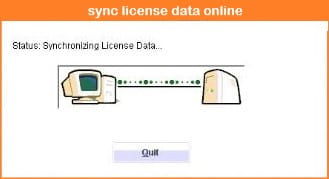
The Sync License Data Online error in QuickBooks Desktop occurs when the application fails to validate or synchronize its license information with Intuit’s licensing servers during startup or activation. This verification process is essential for confirming that the installed product is properly licensed and authorized to run on the system.
When this synchronization breaks, QuickBooks cannot complete the authentication process and can stop launching or restrict access to company files. The issue is not related to user data but to the communication between local license files and online validation services.
What are the Causes of the Sync License Data Online QuickBooks Desktop?
The QuickBooks license sync problem occurs when license verification fails due to system, network, or file-related issues. Here are the major causes of the Sync License Data Online error in QuickBooks Desktop.
- Corrupted or missing license files (like EntitlementDataStore.ecml) break activation validation
- Firewall or antivirus blocks QuickBooks from reaching Intuit servers
- Unstable internet or ISP restrictions interrupt licensing communication
- Incorrect system date and time prevent secure verification
- Wrong product key or a mismatch with the installed version causes validation failure
- Damaged MSXML components affect license data processing
- Corrupted installation or incomplete updates disrupt the sync process
What are the Signs & Symptoms of the QuickBooks Sync License Data Online Error?
When the Sync License Data Online error appears in QuickBooks Desktop, the system clearly indicates that the licensing process has failed and the application cannot function normally. Here are the signs of the QuickBooks license validation error.
- Error messages appear, such as “Sync License Error,” “License Expired,” or “Could not initialize license properties.”
- QuickBooks closes immediately after you click the icon or crashes during startup
- The application freezes, or the system slows down while attempting license synchronization
- Users cannot open company files or access financial reports and records
- Repeated activation or registration prompts appear without successful completion
What are the Prerequisites to fix the Sync License Data Online Error?
Before you troubleshoot the Sync License Data Online error in QuickBooks Desktop, ensure the system meets basic requirements so the repair process runs smoothly. Here are the prerequisites to fix the QuickBooks license sync problem.
- Maintain a stable internet connection; restart the router if the network is unstable
- Sign in with an administrator account to allow system-level changes
- Keep your license number and product code ready for verification
- Correct the system date and time to avoid authentication failures
- Update QuickBooks to the latest release to fix known bugs and compatibility issues
- Allow QuickBooks through the firewall and antivirus by adding necessary exceptions
- Close QuickBooks completely, including background processes, before starting fixes
- Ensure sufficient storage space is available for updates and repair operations
What are the Solutions to fix the Sync License Data Online Error in QuickBooks Desktop?
The Sync License Data Online Error in QuickBooks Desktop usually appears when the software fails to validate licensing information. Here are the structured troubleshooting solutions to fix the QuickBooks sync license data online error.
Solution 1: Check and Use the QuickBooks Database Server Manager
This method helps establish proper communication between QuickBooks Desktop and the server, especially in multi-user environments. Here are the steps to set up and use QuickBooks Database Server Manager:
- Download and install QuickBooks Database Server Manager (QBDSM) on your system
- Open QBDSM, go to the Search tab, click Start, and type Services
- Locate “QuickBooksDBXX” (XX represents your version number)
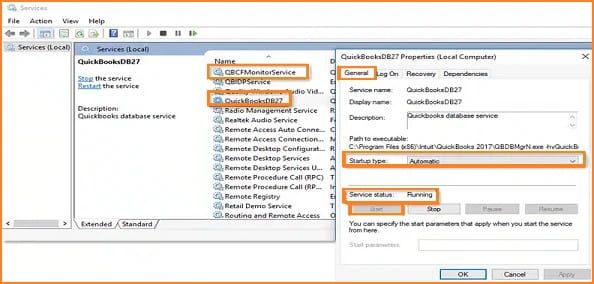
- Open the “QuickBooksDBXX service.
- Go to the General tab
- Check the service status and click Stop if it is running.
- Set Startup type to Automatic
- Under Logon, select Local System account
- Go to the Recovery tab, then choose Restart the Service after the first, second, and subsequent failures
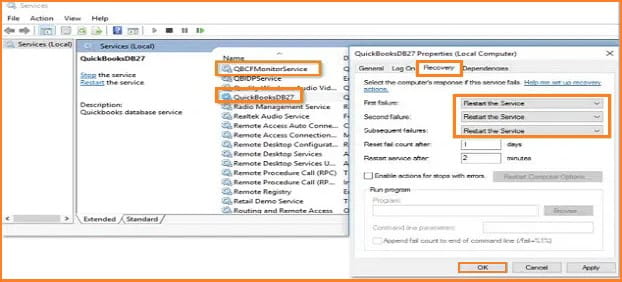
- Return to the General tab and click Start
- The Database Server Manager will restart successfully
Solution 2: Check the Internet Connection
This step ensures QuickBooks maintains uninterrupted access to online services. Here are the steps to configure internet settings in QuickBooks:
- Open QuickBooks Software
- Click on the Help menu
- Select Internet Connection Setup
- Choose Use my Computer’s Internet Connection Settings
- Click Next to continue
- Open Advanced Connection Settings
- Review the internet options displayed on your screen
Solution 3: Verify the License and Product Keys
This step confirms whether incorrect license details are triggering the issue. Here are the steps to check your product information:
- Launch QuickBooks Software
- Press F2 on your keyboard
- The Product Information window will open
- Verify the Product and License Key
- Confirm the Product Name
- Check the release date shown at the end of the product name
Solution 4: Rename the EntitlementDataStore.ecml File
A damaged EntitlementDataStore.ecml file can prevent QuickBooks Desktop from validating the product license correctly. Renaming this file allows QuickBooks to recreate the licensing data when the application starts again.
Follow these steps:
- Close QuickBooks Desktop completely.
- Press Windows + R to open the Run window.
- Enter the following path and press Enter:
- C:\ProgramData\Intuit\Entitlement Client\v8
- Locate the EntitlementDataStore.ecml file.
- Right-click the file and select Rename.
- Rename it to EntitlementDataStore.old.
- Reopen QuickBooks Desktop.
- Enter your product and license information if prompted.
- Try Help > Manage My License > Sync License Data Online again.
If you cannot find the ProgramData folder, enable Hidden items from the View menu in File Explorer.
Solution 5: Reset Internet Explorer Settings
It clears outdated browser configurations that can affect QuickBooks services. Here are the steps to reset Internet Explorer:
- Open Internet Explorer
- Go to Tools and select Internet Options
Security tab:
- Select the Internet icon and click the Default level
- Select the Local intranet icon and click Default level
Advanced tab:
- Click Restore advanced settings
- Click Reset
- Select OK and restart Internet Explorer
Solution 6: Use the File Doctor Tool to Check Network Issues
It identifies and resolves network-related issues affecting license synchronization. Here are the steps to run QuickBooks File Doctor:
- Install QuickBooks Tool Hub first
- Launch Tool Hub after installation
- Go to Company File Issues
- Select Run QuickBooks File Doctor
- Let the tool scan and repair network-related problems
- The tool will automatically detect and fix issues causing sync errors
Solution 7: Configure the Firewall
It ensures Windows Firewall does not block QuickBooks Desktop communication. Listed below are the steps to set firewall rules:
- Open Start and search for Firewall, then open Advanced Settings
- Select Inbound Rules from the left panel
- Add TCP ports as follows:
- QuickBooks Desktop 2019: 8019, 56728, 55378–55382
- QuickBooks Desktop 2018: 8019, 56728, 55378–55382
- QuickBooks Desktop 2017: 8019, 56727, 55373–55377
- Click Next after entering ports
- Name the rule and click Finish
- Repeat the same steps for Outbound Rules
Solution 8: Check and Ensure the Correct License and Product Number
It verifies whether incorrect product details are preventing activation. Here are the steps to confirm license details:
- Open QuickBooks Desktop
- Press F2 to open Product Information
- Review product number, license number, and product name
- Check the release version shown in the details
Solution 9: Update QuickBooks to the latest Version
It ensures your software is running the latest patched version. Listed below are the steps to update QuickBooks Desktop:
- Open QuickBooks Desktop
- Go to the Help menu
- Select Update QuickBooks
- Choose the latest available update with critical fixes
- Restart your system after installation completes
Solution 10. Internet Connectivity Not Blocked by Firewall
This ensures firewall rules do not restrict QuickBooks internet access. Here are the steps to verify firewall connectivity:
- Add firewall port exceptions for QuickBooks
- Open the Windows Start menu
- Search and open Windows Firewall
- Select Advanced Settings
- Right-click Inbound Rules and choose Port
- Click Next and ensure TCP is selected
Solution 11. Perform a Clean Install
This step resolves deeper installation or corruption issues by reinstalling QuickBooks. The following are the steps to perform a clean installation:
- Uninstall QuickBooks if other methods fail
- Reinstall QuickBooks after uninstalling
- Back up your company file before proceeding
- In case multiple users need access to the same company file:
- Ensure at least two QuickBooks licenses are available
- Set up a second PC and connect it to the network
- Share the database across both Windows users
- On the primary system:
- Go to Help > Manage My License > Sync License Data Online
- This ensures the main license syncs properly
- Switch to multi-user mode via File > Switch to Multi-User Mode
What are the Preventive tips for the QuickBooks Sync License Data Online Error?
Preventing the Sync License Data Online Error in QuickBooks Desktop focuses on ensuring correct setup, uninterrupted connectivity, and consistent system health preventive practices. Here are the preventive tips to maintain system stability and smooth license communication.
- Use QuickBooks Tool Hub regularly to identify and fix hidden issues before they affect licensing functions
- Avoid force shutdowns or abrupt system restarts while QuickBooks is running to prevent corruption of license and program files
- Restart your system periodically after updates or configuration changes to keep background services running smoothly
- Remove outdated or conflicting QuickBooks installations to avoid internal conflicts during license verification
- Run QuickBooks as an administrator when performing licensing or sync-related tasks to ensure proper system permissions
- Keep background applications minimal while using QuickBooks to reduce interference during license syncing operations
Conclusion
Preventing the QuickBooks sync license data online error requires consistent maintenance and proper system handling. Users should follow best practices to avoid a QuickBooks license validation error and ensure smooth activation. Regular monitoring, clean installations, and correct permissions help keep QuickBooks Desktop stable and effectively reduce license-related disruptions.
Frequently Asked Questions
Why does QuickBooks fail to activate after installation?
QuickBooks can fail to activate due to incorrect license details, blocked internet access, or interference from security software during the verification process.
Can multiple QuickBooks versions cause licensing issues?
Yes, installing multiple versions can create conflicts that disrupt license verification and prevent proper product registration.
Does reinstalling QuickBooks fix activation problems?
Reinstallation can help if core program files are damaged, but users should also repair license components and verify credentials.
Why does QuickBooks keep asking for registration?
It usually happens when the system cannot store or validate license information due to permission issues or corrupted configuration files.
Can antivirus software cause a QuickBooks license validation error?
Yes, antivirus or firewall settings may block communication with Intuit servers, leading to repeated activation or verification prompts.
