


When users access the Sage 50 application, it often crashes. Due to sudden crashes, accounting data may become temporarily inaccessible, or unsaved transactions may be lost if proper backups are not maintained. After the application crashes, the following message is displayed on the screen:
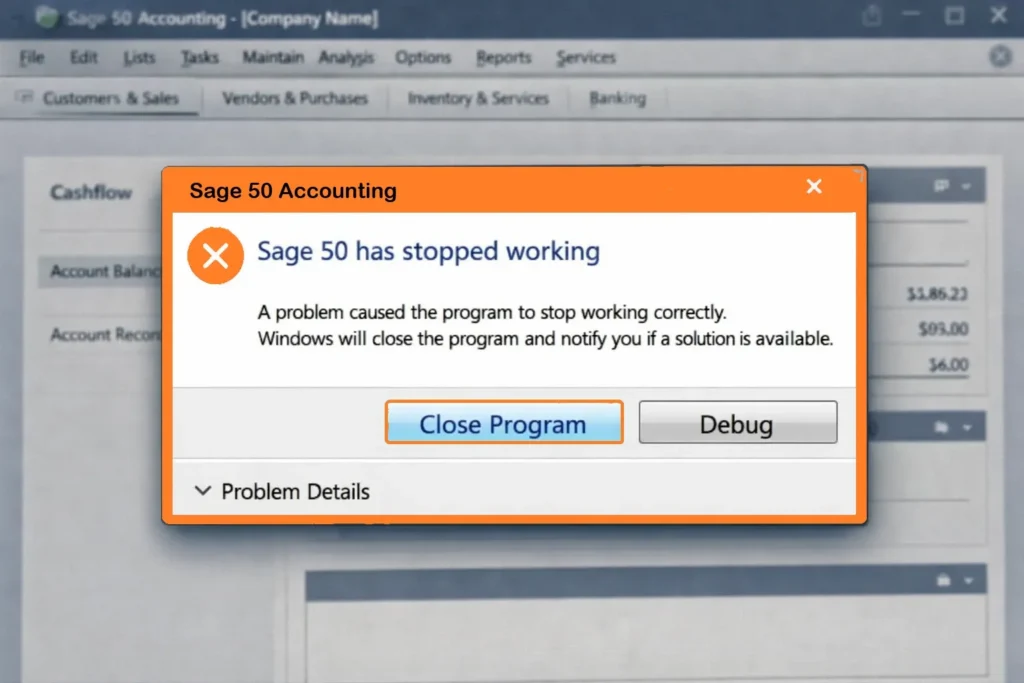
- “Sage 50 Keeps Crashing.”
- “Sage 50 has stopped working.”
- “Sage 50 has encountered an error and needs to close.”
Due to the crash, business operations have been disrupted, affecting operational stability. Unsaved accounting data may be lost if the application closes unexpectedly before changes are saved. This disrupts invoicing and bank reconciliation, diminishing financial transparency.
This guide provides complete information on Sage 50 crashes. This guide shares the causes and effective troubleshooting steps to resolve the issue and recover system stability.
Table of Contents
- 1 How to Resolve the Sage 50 Keeps Crashing Issue?
- 1.1 1. Start Windows in a Selective Startup Mode
- 1.2 2. Start Sage 50 in Compatibility Mode
- 1.3 3. Install Sage 50 again
- 1.4 4. Review the Windows System Information App
- 1.5 5. Fix and install the software
- 1.6 6. Temporarily deactivate the Firewall/Antivirus
- 1.7 7. Change Performance Settings
- 1.8 8. Change the name of ACCDATA
- 1.9 9. Review Event Viewer for Application Errors
- 2 How to Prevent Sage 50 Crashes?
- 3 Common Reason for Sage 50 Crashes on Windows
- 4 Key Considerations before Troubleshooting Sage 50 Crashes
- 5 Frequently Asked Questions
How to Resolve the Sage 50 Keeps Crashing Issue?
Sage 50 crashes often disrupt the system, delaying the business workforce. Here is the step-by-step process to determine the reason and resume bill entry without interrupting accounting tasks:
1. Start Windows in a Selective Startup Mode
Selective Startup Mode deactivates unnecessary third-party applications during startup. This moves separate background applications that interfere with the Sage 50 processes, triggering crashes.
Here are the steps to run Windows in Selective Startup Mode:
- Access the ‘Selective Startup’ option using the System Configuration (msconfig) utility in Windows.
- Now, switch off the system.
- Delete Sage 50 from the system.
- Use the .NET Cleanup tool to perform Windows system cleanup.
- To erase the v.2.050727 folder, stick to the following path:
- C:\Windows\Microsoft.NET\Framework
- Head to the Windows temporary folder and erase everything.
- Head to the “My Computer” option in case the Windows temporary folder cannot be located.
- Right-click and choose the option “Proceed and Advanced”.
- Click the “Temporary Folder” option under the “Environmental Variables”. Segment.
- Lastly, install the Sage 50 application again.
Note: Use the Microsoft-recommended .NET repair or troubleshooting tools only if advised by Sage or Microsoft support, as improper use may impact other Windows applications.”
2. Start Sage 50 in Compatibility Mode
Starting Sage 50 in Compatibility Mode minimizes operating system issues that trigger repeated crashes. Here are the steps to run the Sage 50 application in compatibility mode:
- On the “Sage 50 Quantum” icon, perform a right-click.
- Choose the “Properties” option.
- Click the tab “Compatibility”.
- Review the box titles “Run this program in compatibility mode for”.
- From the dropdown, choose “Windows 10” or a previous version.
- Click the “Apply” button.
- Now, click the “OK” button.
3. Install Sage 50 again
Often, a corrupted installation leads to repeated crashes. This issue can be resolved by installing the software again. Here are the steps to reinstall the Sage 50 application:
- Remove the Sage 50 application from the “Control Panel” option.
- Now, click the “Programs and Features” option.
- Reboot the system.
- Download the current Sage 50 version from the Sage website.
- Complete the on-screen guidelines to install the program again.
- Once the installation is complete, reboot the system once more.
4. Review the Windows System Information App
In some cases, Sage 50 sign-in issues may be associated with Windows Management Instrumentation (WMI) corruption, which can be verified using the System Information tool.
Here are the steps to fix the crashing issue and resume regular login functionality:
- Enter “System Information” in the Windows search bar.
- Now, click on the option “System Information”.
- Successful loading of the window implies there is no error.
- In case the “System Information” screen is blank, implement the steps shared below:
- In the search bar, enter “cmd”.
- Right-click on the “Command Prompt” option.
- Now, click on the “Run as Administrator” option.
- Enter “net stop winmgmt” and click the “Enter” button.
- Verify with “Y” and shut down the Command Prompt.
- Head to the folder shared below, depending on the operating system type:
- 32-bit: C:\Windows\System32\wbem
- 64-bit: C:\Windows\SysWOW64\wbem (For a 64-bit system, check C:\Windows\System32\wbem. Next, change the name of the “Repository” folder, if available.
- In case renaming is not possible, perform the steps again with Command Prompt as Admin.
- In case the system fails to restart, then reboot the device.
- Access Sage 50 accounts, sign in, and check.
- Uninstall and then install Sage 50 accounts.
- In case the System Information app is blank, move to the next solution.
5. Fix and install the software
Often, to fix the Sage 50 crashing issue, it is crucial to execute a repair install for the software. Here are the steps to repair and install the software to resolve the crashing issue:
- Click the “Windows and R” keys together.
- Enter “appwiz.cpl” and click the “Enter” button.
- Find and click the “Sage 50 Accounts” shortcut twice.
- Choose the “Repair” button when notified.
6. Temporarily deactivate the Firewall/Antivirus
Firewall or antivirus software often disrupts Sage 50 and leads to application problems. Here are the steps to disable the antivirus or firewall application temporarily and resolve crashing issues:
- Start the firewall or antivirus settings.
- Search for an option to deactivate the firewall capabilities temporarily.
- Reboot Sage 50 to see if the issue is fixed.
7. Change Performance Settings
Restricted system resources cause application instability and impact the performance of Sage 50. To avoid crashes in Sage 50 during high resource usage, perform the steps shared below:
- Exit unimportant applications running in the background.
- Deactivate startup programs that are not important.
- Boost the virtual memory settings in System Settings.
- Right-click on the PC and click the “properties” option.
- Now, click the “Advanced Settings” option.
- Click the “Settings” option in the “Performance” segment.
- Head to the “Advanced” tab in the “Performance Options” screen.
- Now, click the “Virtual Memory” option.
- Boost the virtual memory to 1.5 times the system’s RAM.
8. Change the name of ACCDATA
Renaming the ACCDATA folder forces Sage 50 to regenerate default data paths, which may resolve corruption-related startup issues:
- Locate the data directory.
- Perform a right-click on the “ACCDATA” folder.
- Now, select the “Rename” option.
- Change the name of the folder to “ACCDATAOLD”.
- Perform a right-click on the blank space of the screen and choose the “New” button.
- Add a new name to the folder ACCDATA.
9. Review Event Viewer for Application Errors
Windows Event Viewer registers system and application issues comprehensively. Checking these transactions helps determine the specific reason for Sage 50 crashes.
Here are the steps to check the Event Viewer for application issues and prevent Sage 50 crashes:
- On the “Start” menu, perform a right-click and choose the option “Event Viewer”.
- Head to “Windows Logs” in the Event Viewer screen.
- Now, click the “Application” option.
- Search for the issues that occurred when the Sage 50 crashed. This can share reasons for the root cause.
How to Prevent Sage 50 Crashes?
Avoiding Sage 50 crashes by implementing specific measures guarantees seamless business operations. Here are the measures to take to minimize downtime and secure financial data:
- Take regular backups of data and maintain a restore plan for quick recovery from crashes.
- Update Sage 50 with the system frequently. This ensures routine maintenance to prevent crashes and issues.
- Check if the software and hardware requirements for Sage 50 are addressed to avoid crashes.
Common Reason for Sage 50 Crashes on Windows
Sage 50 may crash on Windows due to various system and technical issues. Below are the most common causes behind these crashes:
- Running outdated versions of Windows or Sage 50 can cause compatibility conflicts and frequent crashes.
- Firewalls, antivirus tools, or other background applications may interrupt Sage 50 operations.
- Certain Windows 11 updates may cause compatibility issues when older, unsupported versions of Sage 50 are installed.
- Incomplete or corrupted installation files can lead to repeated application failures.
- Limited CPU, RAM, or disk space can reduce performance and cause Sage 50 to crash.
Key Considerations before Troubleshooting Sage 50 Crashes
Prior to implementing the solutions to fix frequent Sage 50 crashes, it is mandatory to meet certain prerequisites.
Here are the key considerations before troubleshooting Sage 50 crashes:
1. System Requirements
Meeting system requirements minimizes risk during troubleshooting and secures accounting information.
Here is the list of the system requirements to troubleshoot Sage 50 crashes:
- Operating system– Ensure the Windows version is updated prior to registry or system edits.
- Data backup– Prior to troubleshooting, take a backup of the company files.
- Sage assistance– For correct guidance, access the official Sage support channels.
- System updates– Download the current Sage 50 updates to resolve crashing issues.
2. Ensure to Upgrade Sage 50 with the Latest Fixes
Here are the steps to install the Sage 50 updates:
- Start the Sage 50 application and head to the “Services” option.
- Choose the “Check for Updates” option.
- Click the “Check Now” option.
- When the downloads are accessible, choose the “Download” option.
- Reboot Sage 50 once the download is over.
- Complete the on-screen guidelines to finish the installation.
- Head to the Sage 50 server folder.
- Click on the “ClientInstall.bat” option twice.
- Allow the connected workstations to finish the installation.
Conclusion
In this guide, complete information on Sage 50 crashes has been shared. Still, if there is any query or doubt, feel free to reach out to our team of experts.
If the issue persists, you may contact our Sage 50 technical support team for professional assistance.
Frequently Asked Questions
Can Windows 11 be compatible with Sage 50?
Yes. Windows 11 is compatible with Sage 50. However, using only the current version guarantees peak performance. Frequent updates from Microsoft and Sage ensure stability, prevent slow performance, and help avoid crashes
What to do when Sage 50 crashes and unsaved data is lost?
Prior to saving, if Sage 50 crashes, unsaved data is lost. Using the current backup guarantees all or most of the data can be recovered. Furthermore, daily backups reduce data loss and ensure seamless accounting operations and financial reporting.
How frequently should users take a Sage 50 data backup?
It is advised to take Sage 50 data backup at least once a week or instantly after crucial financial adjustments. Regular backups minimize the data loss risk, guarantee operational consistency, and ensure quick recovery from system errors or crashes.
Is it crucial to improve Sage 50 data files?
Yes. Enhancing Sage 50 data files boosts software reliability. Bigger or fragmented data files trigger poor performance, triggering crashes and issue reports. Frequent optimization guarantees, successful processing, quicker reporting, and prevention against sudden system failures.
