


The Sage 50 Desktop-to-Sage 50 US Cloud migration is a significant step for numerous companies striving to work smarter, remain flexible, and expand without restrictions. Cloud accounting is the solution that helps you access your data anytime, collaborate, and pay less to maintain local servers.
This article walks you through the steps to migrate from Sage 50 Desktop to the cloud. It also explains the reasons to migrate, outlines prerequisites, addresses common errors with solutions, and shares preventive steps to follow after migration.
Table of Contents
- 1 Benefits of Sage 50 US Cloud Migration
- 2 Pre-Migration Planning and Requirements
- 3 Preparing Sage 50 Desktop for Migration
- 4 Understanding the Migration Process
- 5 Migrate from Sage 50 to Sage 50 Cloud Step-by-Step
- 5.1 Step 1: Open Sage 50 US Cloud Setup
- 5.2 Step 2: Download and Install Sage 50 US Cloud
- 5.3 Step 3: Launch Sage 50 US Cloud
- 5.4 Step 4: Start the Migration Wizard
- 5.5 Step 5: Select Your Desktop File
- 5.6 Step 6: Review and Confirm
- 5.7 Step 7: Convert and Upload
- 5.8 Step 8: Set Up Users
- 5.9 Step 9: Verify Your Data
- 6 Troubleshooting Common Sage 50 Desktop to Cloud Migration Issues
- 7 Benefits of Working in Sage 50 US Cloud
- 8 Final Checklist Before You Go Live
- 9 Frequently Asked Questions
- 9.1 Will my data be safe in Sage 50 US Cloud?
- 9.2 What happens in case my internet connection fails?
- 9.3 How much time is required for the migration to be completed?
- 9.4 Will my payroll information properly transfer to Sage 50 US Cloud?
- 9.5 Is it possible to transfer many company files from Sage 50 Desktop to Sage 50 US Cloud?
Benefits of Sage 50 US Cloud Migration
It is always good to know what Sage 50 US Cloud is and why it is relevant before you begin the migration process.
Why Move Away from Desktop?
Sage 50 Desktop has served as a reliable accounting solution for many years. You install it on your computer, and the system stores your data on the local hard drive. However, this setup has limitations:
- You are only able to access data in which the software is installed.
- These are manual backups and security.
- Working with distant teams is more difficult.
Key Advantages of Sage 50 US Cloud
Sage 50 Cloud (Sage 50 Cloud or Sage 50c) allows you to retain the functionality of desktop accounting and add the advantages of the cloud:
- Check your Sage 50 data remotely over the internet.
- Collaborate with various users in real time.
- Auto upgrades and easier IT maintenance.
- Cloud-based security features and contingencies are offered by Sage.
Businesses are moving to the cloud to minimize risk, enhance mobility, and achieve modernization of the business.
Key Differences between Sage 50 and Sage Business Cloud
This comparison highlights the fundamental shifts in deployment, functionality, and cost-efficiency between Sage 50 and Business Cloud:
| Feature | Sage 50 (Desktop) | Sage Business Cloud |
|---|---|---|
| Availability | Locally installed and also uses a hybrid cloud. | 100% Cloud-native |
| Collaboration | Multi-user access (if set up) | Real-time, multi-user collaboration is standard across all plans. |
| Accessibility | Requires software installation, but remote access is also available | Universal access from any device |
| Ideal User | Startups and freelancers are seeking simplicity and automation. | Startups and freelancers are seeking simplicity and automation. |
| System Updates | Timely, Manual Updates Available | Instant, automatic updates |
| Integrations | Limited | Extensive API ecosystem |
| Ideal User | Startups and freelancers are seeking simplicity and automation. | Mid-sized SMEs need advanced inventory or job costing. |
| Data Security | Local storage with optional encrypted cloud backups. | Automated cloud security with bank-level encryption. |
| Pricing Model | Annual subscription/license | Mid-sized SMEs need advanced inventory or job costing. |
Pre-Migration Planning and Requirements
Planning is the first step towards successful migration. This step will make sure that the transition process does not come as a shock.
1. Verify Version Compatibility
Ensure that you are aware of the version of Sage 50 Desktop to which you are operating. None of them are compatible directly with Sage 50 US Cloud. There are many cases when you have to upgrade to the newest version, then move.
2. Subscription and Licensing
Your Desktop version requires a valid Sage 50 license and a subscription to Sage 50 US Cloud. Confirm that:
- You have registered your Desktop product.
- You are a subscriber of Sage 50 Cloud.
3. Review Your Data
See what data you already have and determine whether you need to:
- Clean the old/inactive accounts.
- Remove duplicate records.
- Erase old transactions no longer required.
This is to be done before migration to save time and to have a clean cloud file.
4. Backup Your Data
I would always save a copy of my Sage 50 Desktop data before undertaking any major change. Keep a copy in a safe place like an external drive or cloud storage system. Backups ensure that you are safe in the event of anything.
Backing Up Your Sage 50 Desktop File
1. Create a Full Backup
- Open Sage 50 Desktop.
- Go to File – Backup.
- Choose a reliable storage location (like an external hard drive or a protected cloud drive).
- Save the backup.
2. Confirm the Backup
After the backup is complete:
- Make certain that the file is in its stored place.
- E-mail a copy to yourself.
Just in case you require rolling back after migration, then you should save your backup files somewhere safe.
Preparing Sage 50 Desktop for Migration
You have planned now, and now you have to prepare the software itself.
1. Update to the Latest Release
Measure and upgrade Sage 50 Desktop to the most current version of your product. This step is used to make sure that it is compatible with Sage 50 US Cloud.
2. Run the Sage 50 Data Verification Utility
Sage 50 also includes an in-built Data Verification tool that identifies and resolves problems within your company file.
To run it:
- Click File – system utilities – verify Data.
- Where any mistakes are detected, go through with the prompts to fix them.
- This step is important. Migration to the cloud can abort in case there are errors in your file.
3. Resolve Data Issues
Provided that the verification tool detects issues that it cannot resolve automatically, respond to them manually:
- Fix broken accounts.
- Remove or combine duplicate records.
- Make sure there is a balance of transactions.
After the file is cleaned, you can proceed.
Understanding the Migration Process
Sage 50 provides the means of transitioning to the cloud. Migration usually involves:
- Preparing the Desktop file
Making sure that it is updated, error-free, and backed up. - Converting the file
The conversion process of Sage 50 Cloud conditions also adapts your Data in the Desktop environment to fit in the cloud environment. - Uploading to the Cloud
When converted, the file is uploaded and saved safely. - Setting up users and permissions
Grant permissions to your subordinates. - Verifying the migration
Ensure that you have checked your balances, transactions, and reports as compared to the ones in Desktop.
Migrate from Sage 50 to Sage 50 Cloud Step-by-Step
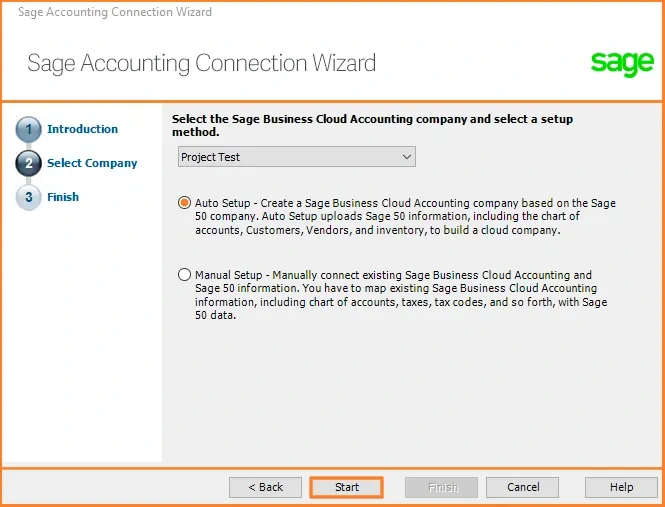
This is the migration in a definite, consecutive process.
Step 1: Open Sage 50 US Cloud Setup
- First, go to your Sage 50 US Cloud subscription portal using your web browser. You are expected to find download or install instructions for Sage 50 Cloud.
Step 2: Download and Install Sage 50 US Cloud
On the Sage portal:
- Locate the tab for Sage 50 US Cloud.
- Get the installer of your system.
- Run the installer and install the software.
Step 3: Launch Sage 50 US Cloud
After installation:
- Open the Sage 50 Cloud program.
- Input your Sage ID along with the password you use to log in to your cloud subscription.
Step 4: Start the Migration Wizard
Inside Sage 50 Cloud:
- Find one possibility, such as Migrate from Desktop or Convert Company File.
- Select that and launch the migration wizard.
Step 5: Select Your Desktop File
- The wizard will request that you find your Sage 50 Desktop company file.
- Navigate to your computer to its location.
- Select the file to be migrated.
Step 6: Review and Confirm
A summary of the data that will move will be demonstrated by the wizard:
- Customers
- Vendors
- Accounts
- Open transactions
- History
- Review carefully. Make sure you have everything you need.
Step 7: Convert and Upload
Once you confirm:
- The file will be transferred to Sage 50 Cloud.
- The file will be uploaded to the cloud server in the converted form.
- This transfer can take time depending on the file size and the internet speed.
Step 8: Set Up Users
After uploading:
- Define user access.
- The roles and permissions are given to the staff as per the level of access required by them.
For instance:
- Complete access for the administrators.
- The sales or accounting user has no access.
Step 9: Verify Your Data
In the end, you should also check the important figures in the cloud file against the figures you had on the Desktop:
- Go through the account balances.
- Test open invoices and bills.
- Make run reports such as Profit and Loss and Balance Sheet.
When everything is successful, the migration is successful.
Troubleshooting Common Sage 50 Desktop to Cloud Migration Issues
Migration may present certain problems. These are typical ones and resolutions.
| Issue | Common Cause | Solution |
|---|---|---|
| Conversion Error | Outdated software or corrupt data. | Update to the latest Desktop release and rerun Data Verification. |
| Slow Upload Speed | Large file size or weak Wi-Fi. | Connect via Ethernet and close bandwidth-heavy apps (like streaming). |
| Missing Transactions | Sync interruption. | Restore the local backup and re-attempt the migration during off-hours. |
| Access Denied | Incorrect Sage ID or role. | Reset the user password in the Sage Cloud portal. |
Best Practices for Migration
The best practices to use are now that you are on Sage 50 US Cloud:
A. Train Your Team
Make sure employees know:
- How to log in to the cloud.
- Where reports and data live.
- How to perform daily tasks.
- Training minimizes mistakes and enhances productivity.
B. Set up Regular Backups
- In spite of the fact that Sage supports cloud data backup, it is better to make your own backup periodically to ensure additional security.
C. Review Security Settings
Enable:
- Strong passwords.
- Perform two-factor authentication (2FA) where it is possible.
- Roles restricting access where necessary.
D. Monitor Performance
Watch for:
- Slow processing times.
- Unexpected errors.
- Sync issues.
When something is not right, find out soon.
Benefits of Working in Sage 50 US Cloud
Having immigrated, you will enjoy numerous perks:
1. Access from Anywhere
With internet access, you can:
- View your books from home.
- Work while travelling.
- Support remote teams.
2. Better Collaboration
- Several people may be working simultaneously without problems of file sharing.
3. Automatic Updates
- The automatic updates will contain new features and bug fixes.
4. Improved Security
Cloud storage comes with:
- Encryption.
- Professional server management.
- Scheduled backups.
5. Fewer IT Costs
- There is no requirement for local servers or layered networks.
Final Checklist Before You Go Live
Check this briefly before committing to Sage 50 US Cloud:
- Copy the Desktop company file.
- Upgrade the Sage 50 desktop to the new one.
- Look at the run data and the troubleshooting of errors.
- The migration wizard will convert the file.
- Create and allocate user access.
- Corroborate major financial statements.
- Educate and train personnel on new cloud access.
With all these things done, you are fit to go!
Conclusion
Migrating from Sage 50 Desktop to Sage 50 US Cloud may seem complex at first, but with the right planning and a clear process, it becomes straightforward. You simply need to prepare your data, use the built-in migration tools provided by Sage, and carefully verify your results after the move.
Cloud accounting gives your business greater flexibility, stronger collaboration, and improved security, all essential for growing companies. By following this guide, you can confidently move your Sage 50 accounting system to the cloud and start working more efficiently.
If you need additional support, consider reaching out to your accountant, Sage support, or an IT professional experienced in Sage 50 migrations.
Frequently Asked Questions
Will my data be safe in Sage 50 US Cloud?
Yes, one of the biggest advantages of migration is its data security. Sage 50 US Cloud has been implemented using Microsoft Azure security standards, which include:
1. Data encryption
2. Secure authentication
3. Regular backups
4. Role-based access controls
Nonetheless, best practices such as the use of strong passwords, the control of user permissions, and the regular audit are useful to be adhered to by businesses.
What happens in case my internet connection fails?
Since Sage 50 US cloud is based on a connection to the cloud, the internet connection should be constant. If the connection drops:
1. There is also a risk of sitting out of shared data temporarily.
2. It is possible that local changes are not synchronized until the connection is regained.
3. Businesses must also rely on trusted internet services and backup connections to reduce inconvenience.
How much time is required for the migration to be completed?
In small companies, migration may require several hours, and in large companies with many users and data volumes, it may require one to two days.
The timeline depends on:
1. Data size
2. Number of users
3. Integrations and customizations.
4. Testing requirements
5. Decent planning helps to minimize the downtime.
Will my payroll information properly transfer to Sage 50 US Cloud?
Migration of payroll data will not be a problem as both Sage 50 US Cloud and Sage 50 Desktop use the same core database structure. Records, payroll history, tax settings, and pay schedules of the employees are supposed to be intact.
However, you should always:
1. Verify the payroll balances at present.
2. Check tax calculations
3. Verify payroll after migration.
5. When you engage third-party payroll services, you may need to reconfigure.
Is it possible to transfer many company files from Sage 50 Desktop to Sage 50 US Cloud?
Yes, Sage 50 US Cloud is compatible with using a variety of company files, and the companies can be migrated one by one. In case you are running more than one business entity, you will have to:
1. Copy all the files in each Sage 50 Desktop company one by one.
2. Import them individually to Sage 50 US Cloud.
3. Allow user designations and company permissions.
4. It is also advisable to migrate and test a single company file to completion, then continue the process with the next one to prevent confusion and repetition of data.
