


Child support garnishment is a court-ordered payroll deduction where employers withhold a fixed amount from an employee’s wages and remit it to the designated agency. In QuickBooks Desktop Payroll, this can be configured as a post-tax deduction, so it is automatically calculated during payroll processing and tracked as a liability.
When set up correctly, QuickBooks ensures accurate withholding, proper accounting, and timely payments. This guide explains how to set up child support garnishment, assign it to employees, manage payments, and troubleshoot common issues.
Why Do You Need to Set Up Child Support in QuickBooks?
Setting up child support in QuickBooks ensures accurate payroll processing and compliance with court orders. It helps you:
- Withhold court-ordered amounts automatically from employee paychecks
- Maintain accurate payroll records and liability tracking
- Ensure timely remittance to the correct agency
- Reduce manual calculation errors
- Keep audit-ready payroll documentation
How to Set Up Child Support Garnishment in QuickBooks Desktop?
Set up child support garnishment in QuickBooks Desktop by following a clear process that ensures accurate deductions, proper employee assignment, and correct liability tracking.
Total Time: 10 minutes
Step 1: Create the Payroll Garnishment Item
It establishes the deduction item that QuickBooks will use to process child support garnishments correctly. Here are the steps to create a payroll garnishment item in QuickBooks Desktop:
1. Go to Lists > Payroll Item List
2. Select New > Custom Setup
3. Choose Deduction
4. Enter a name such as Child Support – Employee Name
5. Set Tax Tracking Type: None
6. Select Net (post-tax deduction)
7. Enter the court-ordered amount or percentage
8. Save the payroll item
Step 2: Assign Garnishment to Employee
This step links the garnishment deduction to the employee, so it applies automatically during payroll runs. The following are the steps to assign a child support garnishment to an employee:
1. Open Employee Center
2. Double-click the relevant employee record
3. Go to Payroll Info > Deductions
4. Select the child support deduction item
5. Enter the deduction amount or limit
6. Click OK to save
Step 3: Track Payroll Liability
This step helps you confirm that QuickBooks records and reports the garnished amounts correctly in payroll liabilities. Listed below are the steps to track payroll liability for child support garnishment:
1. Run payroll as usual in QuickBooks Desktop
2. Check the Payroll Liabilities section
3. Verify that the child support deduction appears correctly
4. Confirm it is recorded under the Child Support liability account in the Chart of Accounts
How to Set Up Child Support Payments in QuickBooks Desktop?
Set up child support payment schedules to ensure timely remittance based on court orders. Here are the steps to set up child support payments in QuickBooks Desktop:
- Go to Employees > Payroll Taxes and Liabilities
- Open Payment Schedule / Liability Settings
- Select the child support deduction item
- Set the payment frequency (weekly, monthly, or as required by the order)
- Update due dates based on court instructions
- Save the changes
How to Troubleshoot Child Support Deductions in QuickBooks?
Troubleshoot child support deductions in QuickBooks by systematically checking payroll item setup, employee assignment, payroll updates, and paycheck calculations to quickly identify and fix issues.
Step 1: Verify Payroll Item Setup
This step ensures the deduction is configured correctly so QuickBooks can process it without errors. Here are the steps to verify payroll item setup in QuickBooks:
- Confirm the deduction type is set to Deduction
- Ensure Tax Tracking Type is set to None
- Check that the calculation method is set to Net (post-tax deduction)
Step 2: Check Employee Assignment
This confirms the garnishment is properly linked to the employee record so it applies during payroll. Here are the steps to check employee assignment for child support deductions:
- Open the employee profile in Employee Center
- Confirm the child support deduction is assigned to the correct employee
- Verify the deduction amount or percentage is accurate
Step 3: Update Payroll Data
This ensures QuickBooks has the latest payroll rules and tax table updates required for accurate processing. Here are the steps to update payroll data in QuickBooks Desktop:
- Run Get Payroll Updates
- Install the latest payroll tax table updates
- Confirm updates complete successfully
Step 4: Verify Paycheck Calculation
It helps confirm whether the deduction is being applied correctly during payroll processing. Here are the steps to verify paycheck calculation in QuickBooks:
- Create a sample paycheck for the employee
- Review the paycheck details carefully
- Check if the child support deduction appears correctly
Step 5: Contact Support if Needed
This applies when troubleshooting does not resolve the issue and expert help is required. Here are the steps to take if child support deduction issues persist:
- Contact QuickBooks Payroll Support
- Or consult a certified accountant for assistance
What are the Best Practices to Set Up Child Support in QuickBooks?
Setting up child support in QuickBooks Payroll correctly ensures accurate payroll garnishment, QuickBooks processing, legal compliance, and error-free deductions. Following the right QuickBooks payroll setup practices helps you avoid miscalculations and tracking issues.
- Use separate liability accounts for clear tracking by assigning child support deductions to dedicated accounts so payments are easy to monitor and reconcile.
- Monitor court-ordered limits regularly to ensure deductions do not exceed legal thresholds or employee-specific caps.
- Ensure timely remittance of payments by processing and forwarding withheld amounts according to the court’s required schedule.
- Remove deductions when orders expire to prevent unnecessary payroll withholdings and maintain compliance with updated court instructions.
Conclusion
Proper child support setup in QuickBooks Desktop ensures payroll deductions are calculated correctly, recorded accurately, and remitted on time. When configured properly, it reduces manual errors, supports compliance with court orders, and helps maintain clear payroll liability records.
Frequently Asked Questions
How to pay child support in QuickBooks Online?
Child support payments are tracked as payroll liabilities and can be paid through the payroll liability workflow or recorded manually depending on your payroll setup.
How to record child support payments in QuickBooks Online?
Use the Pay Liabilities feature or record a payroll liability payment linked to the appropriate account.
How to set up a garnishment in QuickBooks Payroll?
Add a deduction in the employee profile, select the garnishment type, enter court details, set the amount, and save.
How to track child support deductions in QuickBooks?
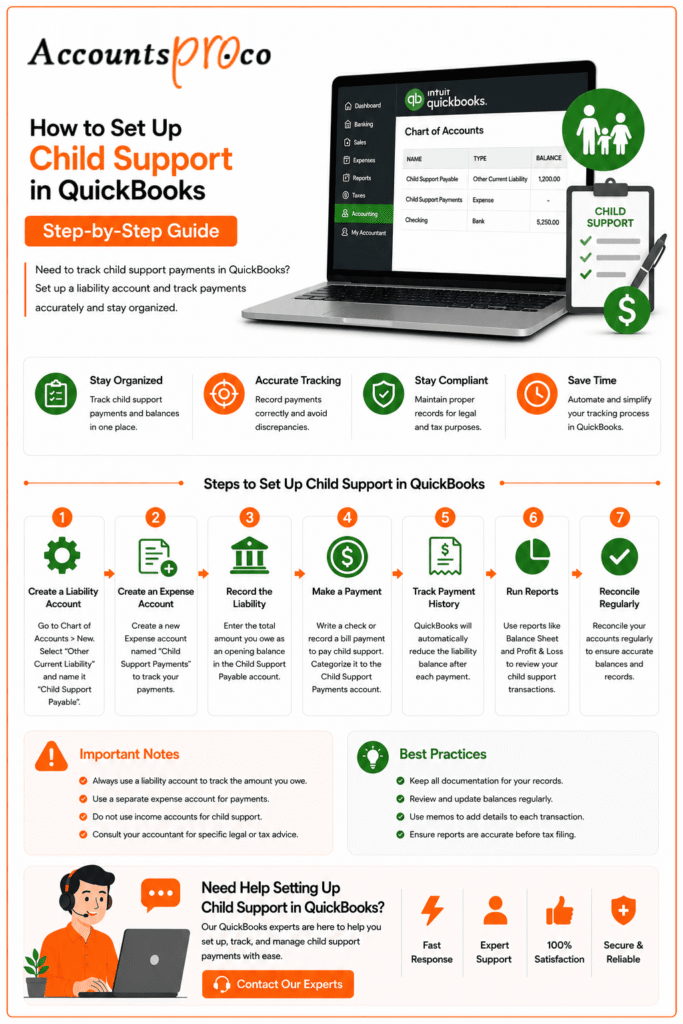
Track deductions through a liability account under Other Current Liabilities in the Chart of Accounts.
How to deduct child support from payroll in QuickBooks?
Assign the garnishment to the employee profile under deductions so it is automatically applied during payroll.
