


Bank reconciliation in Sage 50 helps businesses compare recorded transactions with the bank statement. This process checks that deposits, withdrawals, and payments match the entries in the accounting system. It helps identify missing transactions, incorrect amounts, and duplicate entries. Regular reconciliation keeps financial records accurate and well-organized.
A Sage 50 bank reconciliation discrepancy occurs when the balance in Sage 50 does not match the balance on the bank statement. Missing transactions, incorrect entries, or uncleared payments often cause this difference. These discrepancies can affect financial reports and account balances. Review transactions carefully and correct any errors to resolve the issue.
The following table presents key information about the Sage 50 Reconciliation Discrepancy error.
| Error Name | Sage 50 Bank Reconciliation Discrepancy Error |
| Applicable for Product | Sage 50, Sage 50 Accounts, Sage Line 50, Sage 50 Premium, Sage 50 Canada |
| Error Description | There is a mismatch in the Sage 50 Bank transaction accounts. |
| Errors Messages | Sage 50 Discrepancy, Adjustment Required, Crashes, Slow, Unresolved Amount |
| Reports | Bank Statement, Bank Statement PDF, Retrospective Bank Reconciliation |
Table of Contents
- 1 What is Sage 50 Bank Reconciliation Discrepancy?
- 2 What are the Important Aspects of Sage 50 Bank Reconciliation Discrepancy
- 3 What are the Possible Reasons that Lead to Sage 50 Bank Reconciliation Discrepancy?
- 4 How to Locate Reconciliation Errors in Sage 50
- 5 What are the steps to reset Sage 50 Reconciliation Discrepancy?
- 6 How to Fix Sage 50 Bank Reconciliation Unresolved Amount or Adjustment Required Error?
- 7 How to Prevent Bank Reconciliation Discrepancies in Sage 50
- 8 What do you mean by Discrepancy is Negative in Sage 50?
- 9 What to Do if the Discrepancy is Positive in Sage 50
- 10 Frequently Asked Questions
- 10.1 How can I resolve the Sage 50 Bank Reconciliation crashes?
- 10.2 How do I track missing or duplicate entries?
- 10.3 Can previously reconciled transactions be edited in Sage 50?
- 10.4 Why do outstanding transactions remain uncleared in Sage 50 reconciliation?
- 10.5 How often should bank reconciliation be performed in Sage 50?
- 10.6 Can reconciled transactions be edited in Sage 50?
- 10.7 What should I do if past reconciliations are misaligned?
- 10.8 How do I correct an incorrect opening balance in Sage 50?
What is Sage 50 Bank Reconciliation Discrepancy?
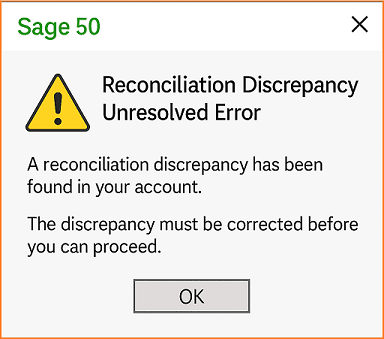
Sage 50 Reconciliation Discrepancy Unresolved refers to a situation where differences appear during the bank reconciliation process in Sage 50. The reconciliation process helps accountants compare the transactions recorded in Sage 50 with the transactions shown in the bank statement. This comparison confirms that both records match and that the bank account activity is accurate.
Bank reconciliation is the process of matching the balance in your accounting records with the balance on the latest bank statement. When both balances are compared, any difference between them should be identified and corrected as soon as possible. Fixing these differences helps maintain accurate financial records and prevents errors in financial reports.
What are the Important Aspects of Sage 50 Bank Reconciliation Discrepancy
- Bank reconciliation helps check whether your account records match the information shown in the bank statement.
- Once a discrepancy or unresolved amount is found, time should be spent reviewing the records to identify the source of the difference.
- Sage consultants cannot automatically determine which entries belong in your records, but they can help review transactions and guide you through the reconciliation process.
- Sage cannot determine which entries should appear in your company’s books or which transactions should appear on the bank statement.
What are the Possible Reasons that Lead to Sage 50 Bank Reconciliation Discrepancy?
A discrepancy can occur because of different reconciliation adjustments, such as journal entries or transactions that were added, modified, or deleted after reconciliation.
The most common reason is that previously reconciled transactions were changed, removed, or new adjustments were made later. Because of these changes, issues may appear when reconciling the Sage 50 bank statement.
How to Locate Reconciliation Errors in Sage 50
Sage 50 reconciliation error occurs when account balances, dates, or transactions do not match the bank statement. You must find the source of the difference before making any correction.
- Check the Opening Balance, Ending Balance, Statement Start Date, and Statement End Date in the reconciliation window.
- Review all transaction dates and confirm they fall within the correct reconciliation period.
- Confirm that all deposits, withdrawals, and bank charges exist in Sage 50 records.
- Check that bank statement transactions show as cleared in the reconciliation window.
- Verify that the bank account book balance matches the expected amount.
- Compare the outstanding amount with the total value of all unchecked transactions.
- Review bank charges, interest income, and adjustment entries and confirm they post to the correct accounts.
A careful comparison of these values helps identify the difference before you adjust entries or restart the reconciliation process.
What are the steps to reset Sage 50 Reconciliation Discrepancy?
Users who have not upgraded to Sage 50 2026 and are using a Sage 50 Cloud subscription should review the option to reverse a single bank reconciliation instead of resetting all reconciliations for an account.
To reset the bank reconciliation in Sage 50, follow these steps:
Step 1: Make a Backup
Click the Back Up button to create a backup of your data. This backup saves your bank reconciliation information so it can be restored later if needed.
Step 2: Generate a List of Outstanding Transactions
Follow the steps below to create a report that shows all outstanding transactions for the selected bank account during the reconciliation period.
- Go to Reports, then go to Banking, and then click on Account Reconciliation Report
- In Report Type, choose Summary Report with Outstanding Transaction Detail
- Select the correct Bank Account
- Choose the appropriate Start Date and Finish Date to show the latest successfully reconciled period
- Select Report by Statement End Date
- Click OK to view the report
- Click Print or Open in Excel to save the report
Step 3: Clear the Sage 50 Bank Reconciliation
Follow the steps below to remove the existing bank reconciliation settings for the selected account.
- Open your Company from the left pane and go to the Chart of Accounts.
- Double-click the Chart of Accounts to open it in Enhanced View.
- Right-click your bank account, then select Open.
- Go to the Reconciliation & Deposits tab.
- Remove the checkmark from Save Transactions for Account Reconciliation.
- Click Save and Close.
- Select OK to remove the reconciliations.
Step 4: Re-enable the Bank Account for Reconciliation
Use the steps below to enable the bank account again and set up the required accounts for reconciliation.
- Double-click your bank account again.
- Go to the Reconciliation & Deposits tab.
- Check the box Save Transactions for Account Reconciliation.
- The Set Up button will appear at the bottom of the page.
- Click it to set up accounts such as Interest Income, Exchange Gain, Error Gain, and Adjustments.
- You can also create expense accounts for Bank Charges, NSF Fees, and Interest Expenses.
- Click Save and Close when finished.
- Click the X in the corner of the window to close the Accounts window.
Step 5: Set Up the Sage 50 Reconciliation Again
Follow the steps below to configure the bank reconciliation again and add any prior outstanding transactions before starting the new reconciliation.
- Select the correct bank account from the list to perform reconciliation and deposits.
- You can also enter the Statement Start Date, Statement End Date, and Reconciliation Date for the month you want to reconcile.
- Click Add Prior Outstanding to state the opening outstanding transactions:
- If there are transactions that were outstanding but were not printed or exported, you can add them back manually by using the Report option from your statement.
- Sage 50 will automatically bring in transactions dated between the Statement Start Date and the Statement End Date.
- Set the date in Show Resolved Trans. On or after the date of the oldest prior outstanding transaction.
- Select the outstanding transactions from the Resolved Transactions list and click Checkout.
- Then click Add to move them to the Outstanding Transactions list.
- If the outstanding transaction does not appear in the Resolved Transactions list even after changing the original date, click Add Outstanding to add it manually.
- This will only add the outstanding transaction to the reconciliation list and will not create a new journal entry in Sage 50.
- Click OK after you have added all the outstanding transactions or shared them with your client.
- If there are no outstanding transactions, leave the Outstanding Transactions list empty and click OK.
- You can now reconcile your bank account again.
How to Fix Sage 50 Bank Reconciliation Unresolved Amount or Adjustment Required Error?
Follow the steps below when you see an unresolved amount or discrepancy in Sage 50:
Step 1: Verify the Causes of the Sage 50 Bank Reconciliation Discrepancy
Follow the checks below to review balances, transaction details, and account entries to identify the possible cause of the reconciliation discrepancy.
- Check the statement details such as Opening Balance, Ending Balance, Statement Start Date, and Statement End Date.
- Check the dates of the transactions.
- Make sure all transactions are recorded in the system.
- Verify that the bank statement transactions are cleared.
- Check the book balance of the bank account linked with Sage 50.
- Confirm that the outstanding amount matches the total of all unchecked items shown in the Reconciliation window.
- Verify that bank fees are added to expense accounts and bank gains or interest are added to income accounts.
After checking these points, review the discrepancy and unresolved amount calculations. Reset the bank reconciliation only when the issue cannot be identified.
Step 2: Check and Calculate the Reconciliation Discrepancy
Use the following information and formula to calculate the discrepancy amount and compare the opening balances and outstanding values.
- A discrepancy in bank reconciliation does not always generate an error message.
- To calculate the discrepancy, use the following formula:
- Discrepancy = Opening Book Balance – (Opening Outstandings + Statement Opening Balance)
- To find the opening outstanding amount, check the remaining outstanding balance from the previous year’s reconciliation.
- When performing reconciliation for the first time, the opening outstanding amount will be the same as the prior outstanding total added at the start date.
Below are the steps to discover the opening book balance value:
- Bank reconciliation cannot move to the next step until the discrepancy is resolved.
- When there is possible data corruption in the bank reconciliation, perform the following comparison:
- Check whether Opening Book Balance = Statement Opening Balance + Opening Outstanding.
- When these values are not equal, the difference shown is called the discrepancy amount.
- When the values are equal, but a discrepancy amount still appears, the bank reconciliation table may have damaged data. In this case, you need to reset the bank reconciliation.
- The balance shown at the top of the window is the opening balance.
- Click the OK button.
- Select the account.
- Adjust the beginning and ending dates so they match the bank reconciliation dates.
- Then go to Reports, then click on Financials, and then click on General Ledger.
Step 3: Handle an Unresolved Reconciliation Issue in Sage 50
Use the steps below to calculate the unresolved amount and review the ending balances and outstanding transactions to identify the difference.
- This issue usually appears as Unresolved Negative or Unresolved Positive on the screen.
- Use the following formula to calculate the unresolved amount:
- Unresolved = (Statement End Balance + Ending Outstanding) – Ending Book Balance
- The outstanding amount refers to the value shown in the bank reconciliation window.
How to Prevent Bank Reconciliation Discrepancies in Sage 50
Prevention of reconciliation discrepancies keeps financial records accurate and reduces the time required to correct errors. Regular checks and accurate data entry reduce reconciliation problems in Sage 50.
- Record every bank transaction in Sage 50 as soon as it occurs. This step prevents missing entries.
- Avoid editing or deleting reconciled transactions unless a correction is required.
- Review bank charges, interest income, and adjustment entries before you complete the reconciliation.
- Verify transaction dates and confirm they fall within the correct reconciliation period.
- Perform bank reconciliation each month to detect issues early.
- Create backup copies of company data before you make major changes or adjustments during reconciliation.
- Regular monitoring and consistent record updates help maintain accurate balances and reduce reconciliation errors.
Negative unresolved issues can occur due to the following reasons during the Sage 50 reconciliation process:
- High ending book balance: This may happen because of too many debit entries, missing credit entries during adjustments, or an incorrect reconciliation end date.
- Low ending outstanding amount: This can occur due to missing outstanding transactions, errors in the outstanding account, or an incorrect statement end date.
- Low statement ending balance: This may happen because of bank errors, manual mistakes, or an incorrect statement end date.
- Identify the correct reason for the issue.
- Make the necessary adjustments once the cause is found.
- When the issue still continues, reset the bank reconciliation.
What do you mean by Discrepancy is Negative in Sage 50?
A negative discrepancy means the opening book balance is lower than the total of the statement opening balance and the opening outstanding amount.
Below are the reasons associated with a negative discrepancy:
- Opening outstanding or the statement opening balance is too high.
- The opening book balance is too low.
Find complete details on how to fix the Sage 50 Out of Balance issue step by step.
Resolution: Negative Balance Amount in Sage 50 Reconciliation
Verify the following:
- Missing debit entries in earlier periods, too many credit entries, or an incorrect statement start date in the bank reconciliation window.
- Multiple outstanding debit cheques, incorrect cheque posting dates, duplicate entries, bank errors, manual mistakes, or incorrect statement ending balances.
- Identify the correct reason and make the necessary adjustments.
- When a receipt is cleared, but the credit note is not voided, clear it to correct the balance.
What to Do if the Discrepancy is Positive in Sage 50
The main factors for a positive discrepancy can be:
- Too high opening book balance: This may happen due to missing credit entries, too many debit entries before the start date, or an incorrect start date in the bank reconciliation window.
- Too low opening outstanding: This can occur when the outstanding amount for a debit cheque is low. It may also happen because of incorrect cheque posting dates or duplicate entries. Large outstanding credit cheques can also cause this issue.
- Too low statement opening balance: This may occur due to bank statement errors, manual mistakes by the bank, duplicate entries, an incorrect amount entered in the bank reconciliation window, or a mismatched account balance.
- Make the necessary adjustments after identifying the correct issue.
- Resetting the bank reconciliation may be required after posting the entries or adjustments.
Conclusion
Sage 50 bank reconciliation discrepancies can occur due to missing transactions, incorrect balances, or changes made to previously reconciled entries. Reviewing transactions carefully and applying the correct troubleshooting steps can usually resolve the issue and restore accurate account balances.
When the discrepancy continues or becomes difficult to identify, professional assistance can help resolve the issue quickly. Our experts are available to guide you through the process and ensure your Sage 50 bank reconciliation is completed accurately.
Frequently Asked Questions
How can I resolve the Sage 50 Bank Reconciliation crashes?
Sage 50 reconciliation may crash because of corrupted files, registry issues, missing updates, damaged company data, or Windows compatibility problems. To resolve the issue, try renaming the userpref.dat file, repairing or recreating the bankrec.dat file, renaming the sage.ini file, updating Sage 50 to the latest version, or fixing Windows compatibility settings. These steps often help stabilize the program and prevent crashes during the reconciliation process.
How do I track missing or duplicate entries?
You can track missing or duplicate entries by reviewing the Detailed Nominal Activity report or the Bank Reconciliation Summary in Sage 50. These reports help identify unmatched, missing, or repeated transactions so you can correct, delete, or re-enter the entries as required.
Can previously reconciled transactions be edited in Sage 50?
Yes. Sage 50 allows limited editing of reconciled transactions, and major changes such as amount or date usually require deleting and re-entering the transaction. However, making changes after reconciliation can create discrepancies in the next reconciliation period. It is recommended to review any edits carefully before saving the changes.
Why do outstanding transactions remain uncleared in Sage 50 reconciliation?
Outstanding transactions remain uncleared when they appear in the accounting records but are not yet reflected in the bank statement. This usually happens with recently issued cheques, deposits in transit, or delayed bank processing.
How often should bank reconciliation be performed in Sage 50?
Most businesses perform bank reconciliation monthly after receiving the bank statement. However, some companies reconcile their accounts weekly or daily to monitor transactions and detect discrepancies faster.
Can reconciled transactions be edited in Sage 50?
Only limited fields, such as the reference or description, can be edited for a reconciled transaction. Changing the amount or transaction date outside the reconciled period is not allowed directly. To modify those details, the transaction usually needs to be deleted and entered again with the correct information.
What should I do if past reconciliations are misaligned?
Review the reconciliation start and end dates to make sure each period continues correctly from the previous one. Gaps between dates or changes made to earlier reconciled transactions can cause misalignment. Correct the affected entries or restart the reconciliation for the impacted period to restore accurate records.
How do I correct an incorrect opening balance in Sage 50?
Check that the opening balance matches the ending balance of the previous reconciliation. A difference usually occurs when earlier transactions were edited or missed. Update the opening balance so it matches the correct bank statement value, then apply the changes before starting the next reconciliation.
