


QuickBooks Desktop relies on Windows internet components and embedded web services to perform tasks such as accessing online services, displaying web pages, and connecting with Intuit servers. If these components fail to communicate properly, you can encounter the QuickBooks Script Error: Expected Identifier. Such an error typically appears in a script dialog box and can interrupt your workflow by preventing certain features from loading or functioning correctly.
If left unresolved, this script error can cause repeated pop-up messages, slow down QuickBooks, prevent web-based features from loading, interrupt online banking and payroll tasks, and reduce overall productivity. In this guide, we’ll discuss what the QuickBooks Script Error: Expected Identifier is, its common causes, effective methods to resolve it, preventive tips, and more.
What is a QuickBooks Script Error?
A QuickBooks Script Error occurs when QuickBooks cannot execute a script required to display or process web-based content. The error usually appears in a dialog box with messages such as “An error has occurred in the script on this page” or “Expected Identifier.” It commonly affects features that rely on internet connectivity, including payroll services, payment processing, and Intuit-hosted web pages.
Although it does not usually damage your company file, it can interrupt normal operations by causing repeated error prompts, preventing certain pages from loading, and limiting access to online QuickBooks features until you resolve the underlying issue.
What are the Causes of Script Error in QuickBooks: Expected Identifier?
The QuickBooks Script Error: Expected Identifier can occur due to browser configuration issues, outdated system components, or problems with QuickBooks files. Here are the common causes of the QuickBooks script error.
- Configure Internet Explorer or Microsoft Edge settings incorrectly.
- Run an outdated version of QuickBooks Desktop.
- Disable JavaScript or other scripting features required by QuickBooks.
- Allow corrupted browser cache, cookies, or temporary internet files to accumulate.
- Use damaged or disabled ActiveX controls required for web-based components.
- Install QuickBooks incompletely or allow program files to become corrupted.
- Run an outdated version of Windows or use outdated system components required by QuickBooks.
- Let antivirus, firewall, or Windows Defender block QuickBooks scripts.
- Use a corrupted Windows user profile that restricts required permissions.
What are the Signs and Symptoms of a Script Error in QuickBooks?
A QuickBooks script error can affect both the application’s performance and its online functionality. Here are the signs of a script error in QuickBooks.
- Frequent “Script Error” or “Expected Identifier” pop-up messages.
- Error dialogs display a website URL, script line number, or error code.
- QuickBooks freezes, crashes, or responds slowly during operation.
- Blank or partially loaded screens appear in QuickBooks windows.
- Web-based pages fail to load within the application.
- Payroll, Bank Feeds, invoice payments, or other online services stop working.
- Buttons, links, or web forms fail to respond properly.
- Online features fail to refresh or connect to Intuit services.
What are the Things to Do Before Troubleshooting Script Error in QuickBooks: Expected Identifier?
Before you begin troubleshooting, complete the following checks to reduce the risk of data loss and improve the effectiveness of the troubleshooting methods. Here are the things to do before troubleshooting the QuickBooks script error: Expected Identifier.
What are the Methods to Resolve QuickBooks Script Error: Expected Identifier?
Since QuickBooks Desktop uses Internet Explorer components for several web-based functions, incorrect browser configurations, outdated settings, and script-related problems can trigger this error. Follow the methods below to troubleshoot and resolve the QuickBooks script error: Expected Identifier issue effectively.
Method 1: Add Intuit Websites to the Trusted Sites List in Internet Explorer
Adding QuickBooks-related websites as trusted sites helps Internet Explorer establish a secure connection with Intuit services and prevents script-related interruptions. Follow these steps to add Intuit websites to the trusted sites list:
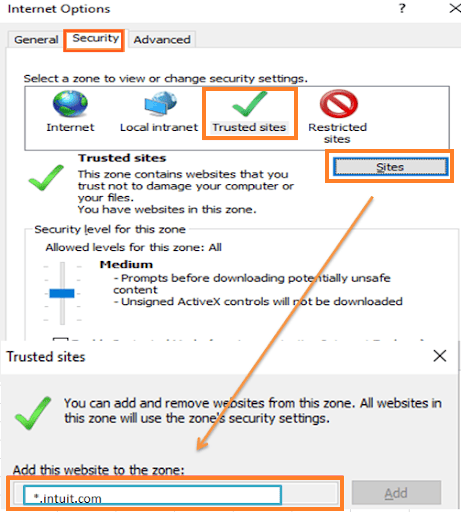
- Open Internet Explorer on your system.
- Click the Tools option from the Command Bar and select Internet Options.
- Navigate to the Security tab.
- Select Trusted Sites and click the Sites button.
- Uncheck the option Require server verification (HTTPS:) for all sites in this zone.
- Enter .intuit.com in the field labeled Add this website to the zone.
- Click Add to include the website in the trusted list.
- Note: Remove other Intuit-related websites from the list if they are already added separately, as adding .intuit.com covers all Intuit domains.
- Close the Trusted Sites window.
- Disable the Enable Protected Mode option.
- Click Apply and then OK.
- Exit Internet Explorer and reopen QuickBooks to check whether the script error is resolved.
Method 2: Disable Script Debugging in Internet Explorer
Turning off script debugging prevents Internet Explorer from displaying script-related errors that can interrupt QuickBooks operations. Here is how you can disable script debugging in Internet Explorer:
- Launch Internet Explorer.
- Open Internet Options from the Tools menu.
- Select the Advanced tab.
- Scroll down to the Browsing section.
- Locate these two options:
- Disable script debugging (Internet Explorer)
- Disable script debugging (Other)
- Check both options.
- Click Apply and then select OK.
- Restart Internet Explorer and verify QuickBooks functionality.
Method 3: Disable Script Error Notifications During QuickBooks Import
When a script error appears while importing files into QuickBooks, disabling script error notifications can prevent unnecessary interruptions. Follow these steps to turn off script error notifications:
- Open Internet Explorer.
- Select Tools and click Internet Options.
- If the Tools menu is not visible, press the Alt key to display the hidden menu bar.
- Open the Advanced tab.
- Locate the option Display a notification about every script error.
- Clear the checkbox next to this option.
- Click Apply and then OK.
- Restart QuickBooks and try importing the file again.
Clearing temporary files refreshes Internet Explorer settings and removes outdated data. Follow these steps to clear Internet Explorer cache and history:
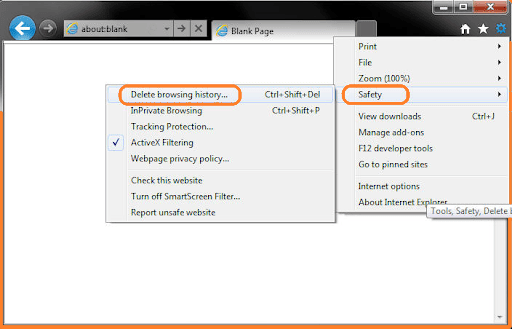
- Open Internet Explorer.
- Click the Gear icon in the upper-right corner and select Internet Options.
- Under the General tab, locate the Browsing History section.
- Click Delete.
- Select the following options:
- Temporary Internet files
- Cookies and website data
- History
- Click Delete to remove the selected data.
- Click Apply and then OK.
- Restart Internet Explorer and open QuickBooks again.
Method 5: Clear SSL State in Internet Explorer
Corrupted or outdated SSL certificates can affect secure connections between QuickBooks and Intuit services. Follow these steps to clear SSL certificates:
- Open Internet Explorer.
- Click the Gear icon and select Internet Options.
- Go to the Content tab.
- Click the Clear SSL State button.
- Select OK to save the changes.
- Restart Internet Explorer and check QuickBooks again.
Method 6: Disable Internet Explorer Add-ons
Third-party browser add-ons can interfere with QuickBooks processes and trigger script-related problems. Perform the following steps to disable Internet Explorer add-ons:
- Open Internet Explorer.
- Click Tools and select Internet Options.
- Open the Programs tab.
- Click Manage Add-ons.
- Select an add-on from the list.
- Click Disable at the bottom of the window.
- Disable unnecessary add-ons and click OK.
- Close Internet Explorer and restart QuickBooks.
Method 7: Reset Internet Explorer Compatibility Settings (Older Windows Versions Only)
QuickBooks can display script errors when websites do not load correctly in Internet Explorer. Follow these steps to enable Compatibility View:
- Open Internet Explorer.
- Click the Gear icon located at the top-right corner.
- Select Tools and choose Compatibility View Settings.
- Check the “Display all websites in Compatibility View” option.
- Click Close.
- Restart QuickBooks and check whether the script error has been fixed.
Method 8: Verify Your Default Browser and Internet Settings
QuickBooks Desktop relies on certain Windows internet settings for web-based features. Verify that your default browser and internet settings are properly configured before retrying the affected task.
- Open Windows Settings.
- Click Apps.
- Select Default Apps.
- Verify that a supported web browser (such as Microsoft Edge or Google Chrome) is set as the default browser.
- Close the Settings window.
- Restart QuickBooks Desktop.
- Repeat the task that previously triggered the Script Error: Expected Identifier to check whether the issue has been resolved.
Method 9: Verify ActiveX Settings and Remove Damaged ActiveX Files
Improper ActiveX settings or corrupted QuickBooks ActiveX files can prevent QuickBooks from loading web-based components correctly. Here are the steps to verify ActiveX settings and remove corrupted ActiveX files:
- Verify ActiveX Settings
- Launch Internet Explorer.
- Open Internet Options from the Tools menu.
- Go to the Security tab.
- Click Custom Level.
- Locate the ActiveX controls and plug-ins section.
- Click Default Level to restore the default settings.
- Click OK to save the changes.
Remove ActiveX Files
- Open Internet Explorer and access Settings.
- Select View Objects.
- Review the installed ActiveX files.
- Locate files beginning with qboax, such as qboax11 or qboax11.dll.
- Close all running Internet Explorer windows.
- Remove only damaged QuickBooks ActiveX components if instructed by Intuit Support or an official troubleshooting guide.
- Restart QuickBooks and check whether the script error is resolved.
Method 10: Verify Internet Explorer Version Before Exporting Files
If the script error appears while exporting data from QuickBooks, ensure that Internet Explorer is correctly configured and uses the supported version.
Follow these steps to resolve export-related script errors:
- Verify that your computer has the 32-bit version of Internet Explorer installed.
- Open Internet Explorer.
- Click the Gear icon and select Internet Options.
- Under the Browsing History section, click Delete.
- Select Cookies and Website Data along with other temporary browsing files.
- Click Delete.
- Restart Internet Explorer.
- Open QuickBooks and try exporting the file again.
Method 11: Add the Script Error URL to the Restricted Sites List
If a specific Intuit webpage repeatedly triggers the script error, verify that it is not accidentally added to the Restricted Sites zone. Intuit websites should generally be allowed or added to Trusted Sites when appropriate.
- Open QuickBooks Desktop.
- Select Help and choose Internet Connection Setup.
- Click Next and then select Advanced Connection Settings.
- Open the Security tab.
- Select Restricted Sites and click Sites.
- Copy the URL displayed in the script error message.
- Paste the URL into the Add this website to the zone field.
- Click Add and then OK.
- Close QuickBooks.
- Reopen the application and check whether the script error persists.
Method 12: Repair QuickBooks Using QuickBooks Tool Hub
Running the QuickBooks Tool Hub utilities repairs common program issues automatically. Follow these steps to repair QuickBooks using Tool Hub:

- Ensure you have installed the latest version of QuickBooks Tool Hub.
- Open the Tool Hub.
- Select the Program Problems tab.
- Click Quick Fix my Program and allow the repair process to complete.
- If the issue continues, open the Installation Issues tab.
- Select QuickBooks Program Diagnostic Tool.
- Let the diagnostic tool complete the repair.
- Restart your computer if prompted.
- Launch QuickBooks and verify whether the script error has been eliminated.
Method 13: Repair the QuickBooks Installation
A damaged QuickBooks installation can cause script-related errors. Here are the steps to repair your QuickBooks installation:
- Type Control Panel in the Windows Search box and press Enter.
- Open Control Panel and select Programs and Features.
- Locate QuickBooks Desktop from the list of installed programs.
- Select Uninstall/Change.
- When the QuickBooks Maintenance Wizard opens, click Repair.
- Select Next and allow the repair process to finish.
- Restart your computer.
- Launch QuickBooks and check if the script error has been resolved.
Method 14: Restore Internet Explorer Settings to Their Default Configuration
Changes in Internet Explorer settings can sometimes affect QuickBooks operations and lead to script errors. Follow these steps to reset Internet Explorer settings:
- Open Internet Explorer on your computer.
- Click the Tools option and select Internet Options.
- Move to the Advanced tab.
- Click the Reset button.
- Confirm the reset action when prompted and allow Internet Explorer to restore its original settings.
- Click Apply, then OK, to save the updated configuration.
- Close Internet Explorer, reopen QuickBooks, and check whether the script error has been fixed.
Method 15: Repair Windows Internet Components
QuickBooks depends on Internet Explorer components for several online functions. If Internet Explorer 11 is disabled or its components become unstable. Follow these steps to re-enable Internet Explorer 11:
- Press Windows + R to open the Run window.
- Enter Control Panel and press Enter.
- Select Programs and Features.
- Click Turn Windows features on or off in the left side panel.
- Locate Internet Explorer 11 in the list of Windows features.
- Clear the checkbox next to Internet Explorer 11 and click OK.
- Restart your computer to apply the changes.
- Open the Turn Windows features on or off window again.
- Select the checkbox for Internet Explorer 11 to enable it.
- Click OK and restart your system.
- Launch QuickBooks and repeat the task that previously generated the script error to confirm whether the issue has been resolved.
What are the Preventive Tips for script errors in QuickBooks: Expected Identifier?
Follow these preventive measures to maintain QuickBooks performance and reduce the chances of script-related issues.
- Keep QuickBooks Desktop and Windows updated to ensure smooth compatibility with system components.
- Maintain proper Internet Explorer settings to support QuickBooks web-based features.
- Use QuickBooks Tool Hub regularly to identify and fix potential program issues.
- Avoid installing unnecessary browser add-ons that can conflict with QuickBooks processes.
- Maintain a stable internet connection to prevent interruptions.
- Create regular backups of your QuickBooks company files to protect data during troubleshooting.
- Address QuickBooks errors promptly to prevent minor issues from becoming major problems.
When Should You Contact a QuickBooks Expert?
Contact a QuickBooks expert when the QuickBooks Script Error: Expected Identifier persists after applying troubleshooting methods or when it disrupts your workflow. Seek professional assistance for recurring errors, company file issues, installation problems, or configuration challenges. An expert can identify the root cause, resolve the error, and prevent future QuickBooks disruptions.
Conclusion
You can fix the QuickBooks Script Error: Expected Identifier by adjusting Internet Explorer settings, adding Intuit as a trusted site, clearing cache, disabling script debugging, managing add-ons, and repairing QuickBooks with Tool Hub. These troubleshooting methods help fix script-related conflicts, browser configuration issues, and damaged QuickBooks components that trigger the error. If the error persists, seek expert assistance to resolve advanced issues safely.
Frequently Asked Questions
Can an outdated QuickBooks version trigger script errors?
Yes, an outdated QuickBooks version can create compatibility issues with Windows components and online services, which can result in script-related errors.
Does the QuickBooks Script Error affect company file data?
No, this error generally affects QuickBooks functions that rely on browser components and does not directly damage your company file. However, creating regular backups is recommended.
Can antivirus or firewall settings cause QuickBooks script issues?
Yes, overly restrictive security settings can block QuickBooks processes or online connections, leading to script errors and connectivity problems.
Why does QuickBooks use Internet Explorer settings?
QuickBooks Desktop uses certain Internet Explorer components to support online features, embedded web pages, and connections with Intuit services.
Can multiple users experience the QuickBooks Script Error on the same company file?
Yes, if the issue is related to the company file, network environment, or shared QuickBooks settings, multiple users can encounter the same QuickBooks script error.
