


Bank accounts record transactions with customers, suppliers, and investment partners, while accounting systems record those same transactions internally to produce financial statements and manage cash flow. Differences often occur due to timing delays, bank fees, interest postings, or data entry errors.
Bank reconciliation is the process of comparing bank statements with accounting records to identify, explain, and correct these differences. In Sage 50, reconciliation tools allow businesses to match transactions efficiently, maintain accurate cash balances, and preserve a reliable audit trail.
This guide provides a step-by-step, practitioner-focused approach to completing a bank reconciliation in Sage 50, explaining why each step matters and how it impacts financial accuracy.
Table of Contents
- 1 What is Bank Reconciliation and its Purpose?
- 2 Bank Reconciliation Methods and Supporting Reviews in Sage 50
- 3 Prerequisites for Reconciliation in Sage 50
- 4 Steps to Complete Bank Reconciliation in the Sage 50 Application
- 5 Best Practices to follow for Bank Reconciliation
- 6 How to Reverse/Cancel Bank Reconciliation in Sage 50?
- 7 Frequently Asked Questions
What is Bank Reconciliation and its Purpose?
Bank reconciliation is the method of aligning bank records with accounting statements. This procedure verifies that all entries are added properly, ensuring financial accuracy. Its purpose is to ensure that the cash balance shown in financial reports is accurate and complete.
Frequent reconciliation helps businesses:
- Detect posting errors early
- Identify unauthorized or fraudulent transactions
- Maintain accurate cash flow reporting
Bank reconciliation does not change the bank’s balance. It ensures that internal accounting records accurately reflect bank activity after timing differences are accounted for.
Bank Reconciliation Methods and Supporting Reviews in Sage 50
The reconciliation method used depends on transaction volume, business complexity, and internal controls.
Here are the various types of bank reconciliations in Sage 50:
- Continuous reconciliation- Transactions are reviewed daily or weekly, commonly used by businesses with high transaction volumes to identify discrepancies quickly.
- Accounts Receivable Review- This process compares customer payments to bank deposits. While related, it supports bank reconciliation rather than replacing it.
- Periodic Reconciliation- Performed monthly after receiving the bank statement. This is the most common method for small and mid-sized businesses.
- Inter-company reconciliation- Matches transfers between related entities to ensure consistency across books.
- Accounts Payable reconciliation- Compares cleared payments with issued checks or electronic payments to identify outstanding or duplicate payments.
Prerequisites for Reconciliation in Sage 50
Systematic preparation guarantees a seamless and precise bank reconciliation in Sage 50. Acquire proper records and verify system configuration prior to starting.
Here is the list of requirements:
- Bank statement for the reconciliation period
- List of outstanding checks and deposits in transit
- Access to Sage 50 with proper permissions
Once the prerequisites are addressed, here are the steps to set up Sage 50:
- Verify Sage 50 is installed and customized for business data.
- Configure related bank accounts in Sage 50 prior to reconciliation.
Best practice: Always back up your Sage 50 company file before starting or undoing a reconciliation.
Steps to Complete Bank Reconciliation in the Sage 50 Application
To finish bank reconciliation precisely, complete the following systematic steps shared below:
1. Set up Bank Accounts
- Start the Sage 50 accounting software on the system.
- Navigate to the “Maintain” option and head to “Chart of Accounts”.
- Prepare a new bank account by clicking the “New Account”.
- Add an account ID, type, and description.
- Save the new account.
2. Add Opening Balances
- Head to the “Tasks” option and click the “General Journal Entry” tab.
- With the start date, add the opening balance for the bank account.
- Ensure total debits are equal to total credits.
3. Transactions Entry
Precise entry of transactions is crucial for a seamless reconciliation procedure. To record transactions, follow these steps:
- Add all deposits, transfers, and withdrawals into Sage 50.
- Verify every transaction is classified properly.
4. Uploading Bank Statements
Here are the steps to upload bank statements:
- Get the electronic copy of the bank statement from the online portal of the bank.
- Head to the “Tasks” option and click the tab “Account Reconciliation”.
- Choose the bank account required to reconcile.
- Click the option “Import Statement”.
- Complete the prompts for bank statements upload and import.
5. Reconcile Transactions
To reconcile transactions, follow these steps:
- Match Sage 50 transactions to bank records.
- Reconcile amounts first.
- Review every matching withdrawal with a deposit.
6. Locate Irregularities
To locate irregularities, follow these steps:
- Identify transactions that are not matched or unavailable. Generally, such differences comprise deposits in transit, pending checks, interest income, and data entry issues.
7. Update internal records
To modify internal statements, follow these steps:
- Register interest income and bank statements.
- Rectify issues available in the ledger.
- Validate records show the correct cash balance.
8. Record Corrections
To record corrections, follow these steps:
- Record the account, date, amount, and cause for every correction.
- Include supporting documents when needed.
- For correct documentation, access journal entries.
- The reconciliation statement works as a reference for the audit.
9. Matching Accounts
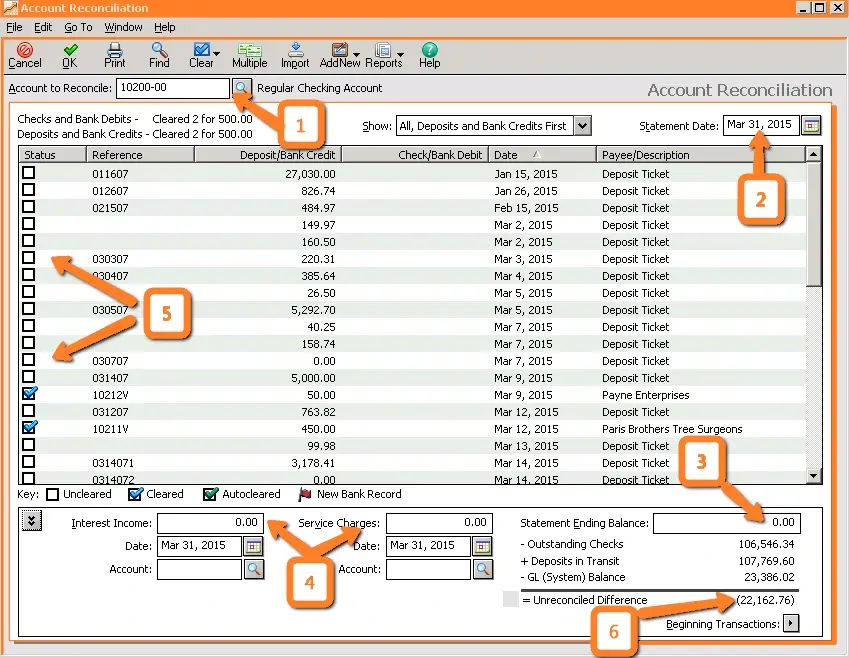
- Head to the “Tasks” option and click the “Account Reconciliation” tab to start the reconciliation.
- Choose the statement date and the bank account.
- Match every transaction in Sage 50 to the related transaction on the bank statement.
- Mark every transaction that matches.
- Look for irregularities.
- Perform the required changes or modifications.
- Check if the bank statement and Sage 50 reconcile at zero.
- Click the “Reconcile” option to finish the procedure.
Best Practices to follow for Bank Reconciliation
Here are the best practices to follow for a hassle-free bank reconciliation in Sage 50:
- Perform reconciliation monthly at minimum
- High-volume businesses should reconcile daily or weekly
Additional best practices:
- Maintain organized documentation
- Use automated imports when possible
- Assign a second reviewer for approval
How to Reverse/Cancel Bank Reconciliation in Sage 50?
Undoing a reconciliation affects historical records. Always back up data before proceeding. Here are the steps to follow in Sage 50 to undo, reverse, or cancel a bank reconciliation:
- Click the “Tasks” button.
- Now, click the “Account Reconciliation” option.
- Choose the reconciliation statement date and bank account.
- Click the option “Undo Last Reconciliation”.
- Check and confirm the reversal process.
- Implement the rectifications and finish the reconciliation once more.
Conclusion
Bank reconciliation is a critical internal control that safeguards cash, supports accurate reporting, and strengthens audit readiness. When performed correctly in Sage 50, it ensures financial records remain reliable and transparent.
If you need assistance with Sage 50 reconciliation or cleanup, consult a qualified accounting professional or Sage 50-certified advisor.
Frequently Asked Questions
Why is bank reconciliation crucial in Sage 50 accounts?
Bank reconciliation in Sage 50 guarantees that the recorded cash balance aligns with the bank statement. The reconciliation procedure classifies posting issues, unavailable transactions, potential fraud, and time-related irregularities.
When should all reconciling items be resolved?
Reconciling items need timely review. Timing differences are generally reconciled via standard banking processes. However, data entry issues, repeated postings, or unusual transactions need instant rectification. Resolving such issues on time ensures ledger integrity and stops small irregularities from turning into bigger issues.
How often does bank reconciliation need to be conducted?
Bank reconciliation needs to be performed by businesses at least once per month. Businesses with high transaction volumes need to perform reconciliation daily or weekly. Daily scheduling guarantees precise balances, ensures correct tax reporting and VAT, and helps avoid errors due to delayed work.
Can a bank reconciliation statement be treated as a ledger record?
No, A bank reconciliation statement is not treated as a ledger. All financial transactions are recorded in the general ledger. The reconciliation statement, however, reconciles bank statements with cash balances. The bank reconciliation statement elaborates the differences and ensures the modified balance reconciles precisely.
