


Downloading, installing, and upgrading Sage 50 2026 allows businesses to access the latest accounting features, security updates, performance enhancements, and compliance improvements. Sage 50 2026 helps organizations maintain accurate financial records, manage daily accounting tasks, and improve operational efficiency. Following the correct download, installation, and upgrade procedures helps ensure uninterrupted access to company data and reduces the risk of setup or compatibility issues.
Sage 50 2026 installation and upgrade processes can trigger issues such as setup failures, activation errors, company file conversion problems, and performance slowdowns. Common causes include unsupported system requirements, corrupted installation files, outdated Windows components, antivirus interference, and damaged company data.
This article covers the complete process for downloading, installing, and upgrading Sage 50 2026, including system requirements, preparation steps, troubleshooting methods, and best practices for a successful setup.
How to Download Sage 50 2026 Accounting Software?
Sage 50 Download Steps
- On the server, open Sage 50 and select Services, then choose Check for Updates
- Click Check Now
- Select Sage50_20xx.x.x.Upgrade and click Download
- After the download completes, close Sage 50 and follow the prompts to install the update
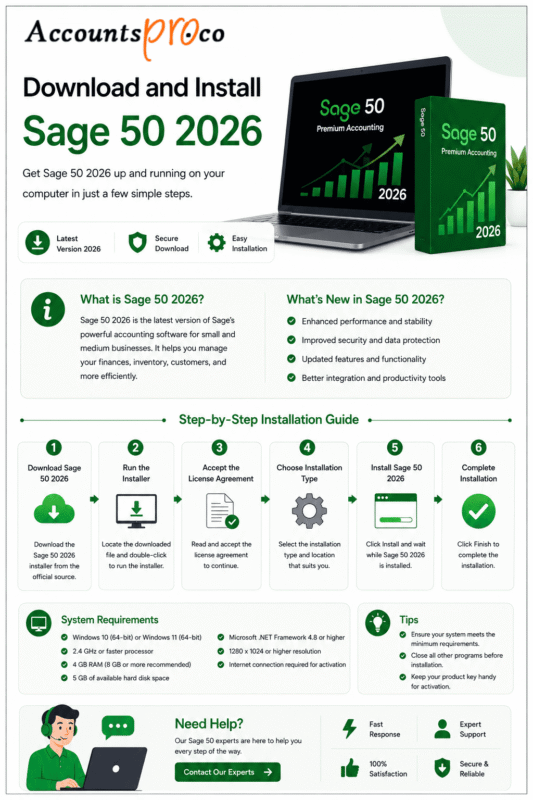
How to Install Sage 50 2026
- Verify that all computers meet the minimum system requirements.
- Close all Microsoft applications and any non-essential programs before starting the installation.
- Disable antivirus software during the installation process.
- Keep the firewall enabled and allow notifications.
- Set User Account Control (UAC) to the minimum level. Administrator access may be required. Coordinate with IT support when needed.
- For Upgrading an Existing Sage 50 Version
- Create a full backup of all company files before starting.
- Ensure all users are logged out of Sage 50 before beginning the installation on the server.
Single or standalone installation instructions
Step 1: Download the Program
- Download the installer.
Step 2: Install on a Single / Standalone Computer
Note: The recommended program path is C:\Program Files (x86)\Sage\Peachtree
- Run the downloaded installation file.
- Install required components for Sage 50 Accounting when prompted.
- Turn off antivirus software, then click Next.
- Accept the license agreement and click Next.
- Select Auto-configure the Windows Firewall to allow install and run Sage 50 (Recommended), then click Next.
- The option appears grayed out when Windows Firewall is disabled.
- Verify or enter the Serial Number, then click Next.
- At the prompt “Will this be the only computer running Sage 50?”, select Yes, then click Next.
- In the Install options, choose the locations for program files and company data files, then click Install.
- Finish the installation.
Network installation instructions
Step 1: Install Sage 50 on the Server
Note: Install Sage 50 in the recommended program path: C:\Program Files (x86)\Sage\Peachtree
- Download the program installation.
- Run the downloaded installation file and follow the on-screen instructions.
- When asked, “Will this be the only computer running Sage 50?”, select No, then click Next.
- On the Sage 50 Company Data Files Storage screen, choose This computer is the server, then click Next.
- Review the Install Options screen and proceed with the installation on the server.
- On the Sharing Company Data screen, select Share the Folder, then click Next.
- Complete the installation. Review the Release Notes when prompted.
- Allow Sage 50 to open and activate.
- Open each company file and allow Sage 50 to convert the data to the new version.
Step 2: Install Sage 50 on Workstations
Update an existing workstation after installing on the server
- After updating the server, open Sage 50 on a workstation. The update usually installs automatically.
- When the prompt does not appear, install the update manually on the workstation.
- You can also download the update from the Sage Knowledgebase and install it manually.
Advanced Option: Install Using the Network Installation Manager
- On the server, set folder permissions for the PeachtreeInstaller[Year#] folder. This folder is located by default in the program path.
- Find and confirm the program path on the server.
- Verify that the PeachtreeInstaller[Year#] folder has Full Control permissions for data file access.
At the workstation:
- Press Windows + R to open the Run dialog.
- Type \ServerName (ServerName is the actual name of the server computer) and select OK.
- Open the PeachtreeInstaller[Year#] folder.
- Open the Peachw folder, then open the Install folder.
- Right-click _setup.exe and select Run as administrator.
- The setup will start automatically using the server’s settings.
Notes:
- Installation on other workstations can continue without waiting for one installation to finish.
- The server is installed as a workstation when the PeachtreeInstaller[Year#] folder is not found on the server.
Installing on a laptop or home computer for Remote Data Access
Note: Use this setup for existing Sage 50 Accounting multi-user local network environments and remote standalone environments.
- Install Sage 50 Accounting as a standalone on each computer that will access the data.
- When asked, “Will this be the only computer running Sage 50?”, select Yes. This allows Sage 50 to run without connecting to a server over a local network.
- Activate Sage 50.
- Sage 50 activates automatically after closing and reopening the program.
- When automatic activation does not occur, activate online from the Help menu.
- Confirm that all system requirements for Remote Data Access are met.
- Share your company using Sage Remote Data Access.
- Skip this step when connecting to a company already shared by another user.
- Download the shared company through Remote Data Access.
- Any changes made to the local data synchronize through the cloud with all users. Changes made by other users, whether remote or in the office, also synchronize to your computer.
Sage 50 2026 Activation Steps
Note: For assistance in locating the serial number before installation.
Tip: When Sage 50 is installed on a network, complete these steps on the server.
- Open Sage 50.
- When the activation prompt does not appear, go to Help, then click on Sage 50 Activation, Licensing, and Subscription Options.
- Choose Activate Online Now (recommended) or Activate Manually to continue.
How to Upgrade to Sage 50 2026: A Step-by-Step Checklist
- Confirm your subscription status and cloud entitlements, especially for AR Automation.
- Create a full backup of company files and perform a test restore in a separate environment.
- Review and validate all third-party add-ons and printer drivers for compatibility.
- Set up a pilot environment to test user logins, printing, and bank feeds.
- Plan and schedule a read-only access window during the cutover process.
- Share a clear go-live plan with users, including a quick rollback option if needed.
- Insert your migration checklist graphic here for fast review and visual scanning.
Step 1: Pre-Upgrade Preparation and Data Backup
- Upgrading to Sage 50 2026 involves permanent data conversion, which cannot be reversed. Proper preparation is essential.
- Confirm your subscription status and cloud entitlements, especially when using AR Automation.
- Create a full backup of all company files.
- Perform a test restore in a separate environment to confirm backup integrity.
- Review and validate all third-party add-ons and printer drivers for version compatibility.
- Set up a pilot environment to test user logins, printing, and bank feeds.
- Plan and schedule a read-only access window during the upgrade cutover.
- Communicate the go-live plan clearly, including a quick rollback option.
Add your migration checklist graphic here for quick scanning and visual reference.
Step 2: Downloading the Sage 50 2026 Installer
- Download the correct installer before starting the upgrade to avoid interruptions.
- Sign in to the Sage Knowledgebase and locate the Sage 50 2026 download.
- Use the Sage Advisor Update tool as an alternative for automatic detection and download.
- Verify that the installer matches your edition and region.
- Save the installer on the server or primary system hosting company data.
This step ensures the upgrade runs smoothly without version or licensing conflicts.
Step 3: Activation and Data Conversion
- Sage 50 2026 introduces a new Serial Number Auto-Population feature to simplify activation.
- Launch Sage 50 2026 after installation.
- The software automatically detects and populates your existing serial number.
- Follow on-screen prompts to begin company data conversion.
- Allow the conversion process to complete without interruption.
Once completed, company data opens in Sage 50 2026 and is ready for post-upgrade validation.
What’s New in Sage 50 2026? Key Features & Enhancements
Sage 50 2026 adds powerful automation, smarter AI tools, and usability improvements designed to save time, reduce manual work, and improve financial accuracy. The sections below explain the main features and improvements.
- AI Document Capture (Accounts Payable Automation)
Sage 50 2026 allows users to upload or email invoices and credit notes directly into the system. Built-in AI automatically captures key details such as vendor name, invoice number, date, and amount. This reduces manual data entry, minimizes errors, and speeds up Accounts Payable processing. - Accounts Receivable (AR) Automation
The new AR automation tools simplify invoice delivery and collections. Businesses can send invoices automatically, schedule payment reminders, and accept online payments through the Customer Portal. These features help improve cash flow and reduce delays in customer payments. - Enhanced Banking Integration
Sage 50 2026 offers more secure and reliable bank connections that meet modern security standards. Automatic bank feeds now support major banks such as Capital One and BMO, making bank reconciliation faster and more accurate. - Payroll Enhancements
Payroll updates support SECURE Act 2.0 rules. The release adds super catch-up retirement contributions for employees aged 60 to 63. New payroll fields for allowances and tax withholding improve payroll accuracy and compliance. - Streamlined Updates and Licensing
The upgrade process now uses reusable serial numbers and activation codes. This change reduces setup time during annual upgrades and simplifies license tracking. - Microsoft 365 Outlook Integration
Improved Outlook integration allows users to send emails directly from Sage 50 without delays. The update resolves common email issues and supports smoother communication. - Sage Copilot (UK/EU)
Sage Copilot is an AI assistant available in the UK and EU. Users can ask questions in plain language and view instant results for reports such as Profit and Loss and Balance Sheets. This tool supports faster review and informed decisions. - Improved Usability and Performance
Sage 50 2026 delivers clearer error messages, simpler serial number handling during installation, and multiple performance improvements based on user feedback. These updates enhance day-to-day usability and overall system stability.
Automated Accounts Receivable (AR) & Customer Portals
Automated Accounts Receivable (AR) and Customer Portals in Sage Connect help businesses get paid faster while reducing manual work. Sage Connect streamlines invoicing by sending invoices automatically along with secure online payment links. Automated email reminders follow up on unpaid invoices, reducing delays and eliminating the need for manual follow-ups.
Customers access a self-service portal to view invoices, check statements, make online payments, and set up AutoPay. These tools improve the payment experience and shorten payment cycles.
Sage Connect also reduces manual data entry by syncing payment details directly with Sage 50. This lowers the risk of errors, improves accuracy, and provides real-time visibility into receivables. The ERP connection supports automated workflows that help businesses manage AR tasks with greater efficiency and accuracy.
2026 Payroll Compliance: SECURE Act 2.0 & Super Catch-Up
For 2026 payroll compliance under the SECURE Act 2.0, two major updates impact retirement contributions. The first is the mandatory Roth treatment for catch-up contributions from high earners with more than $150,000 in FICA wages in 2025. The second is the continued Super Catch-Up provision, which allows higher catch-up contribution limits for employees ages 60–63.
Sage 50 2026 supports these rules by applying the correct catch-up limits based on employee age and earnings. The system tracks wages, classifies Roth catch-up contributions, and calculates payroll amounts accurately to lower compliance risk.
Plan sponsors must update payroll settings, track employee eligibility during the year, and explain the changes to employees. Required plan updates should be completed by year-end to meet SECURE Act 2.0 rules and apply the higher Super Catch-Up limits.
Improved Banking Feeds and Reconciliation
Expanded API Support: Connect securely with more regional and community banks using modern API-based integrations. This setup provides stable bank feeds and reduces connection failures.
- Faster Match-and-Clear Workflow: Automatically match bank transactions with existing entries in Sage 50, reducing manual reconciliation work and saving time during month-end close.
- Reduced Manual Effort: Fewer unmatched transactions mean less data entry and quicker issue resolution.
- Real-Time Cash Visibility: Access up-to-date banking data to monitor cash flow and make informed financial decisions.
- Improved Accuracy: Automated matching lowers the risk of errors and keeps financial records clean and audit-ready.
Sage 50 2026 System Requirements
Minimum System Requirements
- 2.0 GHz processor for single-user and multi-user
- 8 GB RAM for single-user and multi-user
- Windows 10 (version 21H1 or later) or Windows 11 (version 23H2 or later) with the latest Microsoft updates
- 1 GB available disk space for installation
- Microsoft Edge is required for Sage Payroll Solutions, Sage Payments Solutions, and other Connected Services
- Google Chrome™ and Microsoft Edge (2023 versions or later) are supported for accessing Connected Services outside the product
- Microsoft .NET Framework 4.8 (requires an additional 280 MB to 850 MB)
- High-color (16-bit) SVGA display
- Minimum resolution: 1280 × 800
- Preferred resolution: 1440 × 900 or higher
- Small fonts / DPI settings required
- Internet access is required for all online features and services
- Recommended speed: 25 Mbps download and 10 Mbps upload
- Maximum Sage Remote Data Access company file size: 5 GB
- Computer name must be 15 characters or fewer
Integration and Compatibility Requirements
- Excel, Outlook, and Word integration requires desktop installations of Microsoft Excel, Outlook, and Word (64-bit versions)
- Microsoft 365 integration requires Microsoft 365 Business Basic, Business Standard, Business Premium, or Enterprise editions
- Adobe Acrobat Reader required
Multiuser Requirements
- Multiuser environments are supported in Sage 50 Premium Accounting and higher editions
- Optimized for Windows Server 2022, Windows Server 2019 client-server networks, and Windows 10 peer-to-peer networks with the Extended Support User (ESU) program
- Windows 10 Notice: Microsoft support for Windows 10 ends on October 14, 2025. Without the ESU program, Sage will provide limited, software-specific support only. A supported version of Windows may be required to use or receive full support for Sage 50
- Sage 50 Premium Accounting supports up to 5 licensed named users
- Sage 50 Quantum Accounting supports up to 40 licensed named users
- A named user license is assigned when selected in the User Maintenance screen
- The server requires 2 GB of disk space for component installation
Terminal Services Requirements
- Windows Server 2019 or later required
- A Remote Desktop Connection or Remote Desktop Web Connection client is required
- Maximum of 5 named users for Sage 50 Premium Accounting
- Up to 40 named users for Sage 50 Quantum Accounting
- The Terminal Server requires additional memory when multiple users run Sage 50 at the same time
Other Requirements
- Customer registration and acceptance of the Sage 50 Accounting software license agreement are required
Conclusion
Sage 50 2026 streamlines accounting with smarter automation, AR and AP improvements, enhanced banking, and SECURE Act 2.0 payroll compliance. These updates save time, reduce errors, and improve cash flow. Follow the upgrade steps carefully for a smooth transition.
For help with installation, upgrades, or Sage 50 questions, contact our Sage 50 Support team today.
Frequently Asked Questions
How does Sage 50 2026 improve Accounts Receivable?
Sage 50 2026 automates invoice delivery, sends scheduled payment reminders, and enables secure online payments through customer portals. It provides real-time AR tracking, reduces manual work, and helps businesses receive payments faster.
What payroll compliance updates are included in Sage 50 2026?
The update supports SECURE Act 2.0 rules. It includes mandatory Roth catch-up contributions for high earners and Super Catch-Up contributions for employees aged 60–63. Sage 50 applies the correct limits automatically and tracks payroll accurately.
Can Sage 50 2026 integrate with banks?
Yes. Sage 50 2026 offers improved banking feeds with API support for major and regional banks. It matches transactions automatically and provides real-time cash visibility, simplifying reconciliation and reducing manual effort.
What are the minimum system requirements for Sage 50 2026?
A 2.0 GHz processor, 8 GB RAM, Windows 10 (21H1 or later) or Windows 11 (23H2 or later), 1 GB disk space, and Microsoft Edge. Multiuser and ERP setups require additional specifications.
How do I upgrade to Sage 50 2026 safely?
Backup all company files, perform a test restore, and check add-on compatibility. Set up a pilot environment, download the correct installer, and follow the step-by-step upgrade process.
Can Sage 50 2026 be used remotely?
Yes. With Sage Remote Data Access, users can install Sage 50 on laptops or home computers, sync company data via the cloud, and access it in real time.
