


Sage 50 is a key tool for small and medium enterprises that manage their finances, and sometimes surprises them with error messages. Among these, Sage 50 Error 1327: Invalid Drive is one of the most irritating issues. Sage 50 installations, upgrades, and even daily activities trigger these bugs, hindering vital accounting work and causing major disruption. Identifying potential root causes, likely effects, and an overall course of diagnostic action is most important to any organization utilizing the software.
This article explores the complexities of Sage 50 Error 1327 and is a complete guide to diagnosing this invalid drive issue, understanding it, and rectifying it to ensure the drive is fully functional. We will delve into different situations where this error presents itself, analyze the scenarios promoting this, and equip you with a well-structured method of understanding how to effectively troubleshoot it.
The Many Faces of Error 1327
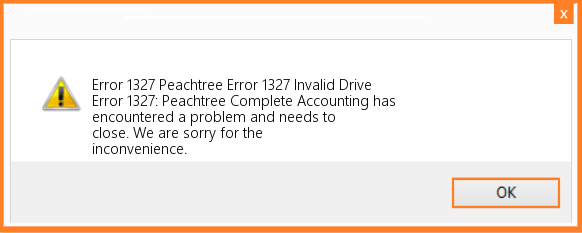
Sage 50 Error 1327 is not a singular problem; rather, it is a mix. It manifests itself in several situations that suggest somewhat different underlying reasons. The first step to making an effective solution is realizing the exact scenario in which the error occurs. Here are some common instances:
1. Installation Errors
This could be the general error message of Error 1327. When Sage 50 is being installed, the system could try to write temporary files or components to a drive that seems to be invalid or inaccessible to it. This may cause early termination of installation and presentation of the error message.
2. Update Failures
When trying to update the existing installation of Sage 50, the update process could face problems with accessing some files or folders on a given drive. This can cause Error 1327, thereby preventing completion of the update, and may leave the software in an unstable state.
3. Program Launch Issues
Sometimes, when attempting to start Sage 50, Error 1327 appears. This is often a problem with the software’s configuration files or its inability to find crucial parts on the identified drive.
4. Data File Access Problems
Error 1327 may occur on occasion when Sage 50 cannot get to its data files, and if the files are on a drive that the system is misinterpreting.
Deconstructing the Roots of the Problem: Why Does Error 1327 Occur in Sage 50?
To understand what causes Error 1327, it is important to address the issues. There are numerous reasons under which Sage 50 and the underlying Windows operating system may have a false perception of an invalid drive:
1. Incorrect Drive Letter Assignments
Windows allocates drive letters to storage devices. If a drive letter has been altered strangely or there is a conflict in assigning drive letters, then Sage 50 may be searching for files on a non-existent drive in an unexpected letter. This is especially true for external hard drives or network drives, which are sometimes now remounted using different letters.
2. Temporary Folder Issues
Sage 50, just like other applications, uses the temporary folders for installation, the update process, and runtime functions. If the path of the system’s temporary folder is not correctly set or if the specified temporary folder is inaccessible because of a permissions problem or corruption, Error 1327 can arise.
3. Registry Corruption
The Windows Registry is an environment for storing configuration settings of an operating system and applications launched on it. A hierarchical database. Registry keys responsible for drive mappings or application paths corrupted might cause misidentification of drives by Sage 50.
4. Insufficient Permissions
System access to some files and folders in the system is dependent on specific permissions. Error 1327 may occur if the installation or the installing application’s user account does not have permission to read/write the target drive.
5. Network Drive Disconnections or Instability
If Sage 50 or its data files exist in the form of a network drive, episodic network connectivity problems or a disconnected drive can cause Error 1327. Perhaps the software may lose access to the drive briefly, creating an impression of an ” invalid drive “.
6. Corrupted Installation Files
If the Sage 50 installation files themselves are corrupted or incomplete, during the installation process, when attempting to access or write to some specified drive, it may give Error 1327.
7. Operating System Issues
Narrowly, underlying issues on the Windows operating system, for instance, file system errors or driver conflicts, can also, to a small extent, cause wrong recognition of drives by applications like Sage 50.
8. Antivirus or Firewall Interference
The excessive aggression of the antivirus protection software or firewall settings may sometimes block some of Sage 50’s access to some drives or directories during installation or operation, hence causing the error.
When it comes to Sage 50 Error 1327, the best way out is through phased processes, starting with the simplest and building towards more complex procedures. In essence, this is the comprehensive manual for the troubleshooting procedure.
Phase 1: Initial Check and Quick Fixes
1. Restart Your Computer
Most of the time, this is the most immediate and easiest way to fix many software problems. A restart usually removes temporary problems with system conflicts and reinitializes the mapping drives.
2. Check Drive Connectivity
When the error message identifies a particular drive letter, particularly targeted to an external or network drive, the drive should be correctly connected and allowed access via Windows Explorer. For the network drive, check the network connection.
3. Run Sage 50 as Administrator
You have to click Run as administrator after performing a right-click on the Sage 50 installation file or software shortcut. This endows the application with increased privileges that could be needed to access some drives or folders.
4. Check Disk Space
The drive where you are trying to install or run Sage 50 should have adequate free disk space. A full drive sometimes causes unexpected errors in file procedures.
Phase 2: Investigation of Drive Letters and Temporary Folder Assignments
1. Drive Letter Assignment Verification
- Press Enter on the keyboard after typing diskmgmt.msc while holding down the Windows Key + R. It will open Disk Management.
- In the Windows Disk Management interface, locate the disk letter that is referenced in the error notice.
- Make sure that the correct drive letter is given to the device of storage device.
- If you think there is a conflicting or wrong assignment, you may right-click on the drive and open the option called “Change Drive Letter and Paths” to assign another letter. Be a bit careful in changing drive letters because it may affect other applications.
2. Temporary folder paths: check and modify.
- Enter %tmp% and press Enter after pressing Windows Key + R. This causes your user account’s temporary folder to open. Make a note of the path in the address bar.
- To access the System Properties dialog box, use Windows Key + R, type sysdm.cpl, and then hit Enter.
- Now, you need to click “Environment Variables” under the Advanced tab after scrolling to it.
- Under “User variables for [Your Username]” and “System variables,” find TEMP & TMP variables.
- Make sure that paths for these variables refer to a valid and accessible place on your local hard drive (typically C:\Users[Your Username]\AppData\Local\Temp).
- If the paths are wrong, choose the variable, click “Edit”, and enter the correct path.
Phase 3: Addressing Registry Issues and Permissions
1. Caution
Modification of the Windows registry can be dangerous. Before making any changes, you need to create a registry backup.
- The Windows Registry Editor may be opened by using the Windows key + R, typing regedit, and then pressing Enter.
- Go to the following keys and see what is related to drive mappings and Sage 50 InstallPaths:
- HKEY_LOCAL_MACHINE\SOFTWARE\Microsoft\Windows\CurrentVersion\Explorer\DriveIcons
- HKEY_CURRENT_USER\Software\Microsoft\Windows\CurrentVersion\Explorer\MountPoints2
- HKEY_LOCAL_MACHINE\SOFTWARE\Sage (or something similar, depending on your version of Sage 50)
- Scan for any kind of strange or wrong drive letter assignments or installation paths. If you identify any suspicious entries, you can be dexterous in deleting them (after a backup of the registry).
2. Verify File and Folder Permissions
- Find the location of the Sage 50 installation directory (usually that would be under C:\Program Files (x86)\Sage\Sage 50 [Your Version]).
- Select Properties with a right-click after highlighting the Sage 50 folder.
- Go to the “Security” tab.
- Make sure that your user account and the “Everyone” group have full control or at least read and write access to this folder and its subfolders.
- If you need it, click on Edit and select your user account, then tick the checkbox marked Full control.
Phase 4: Dealing with Network Drives and Corrupted Files
1. Remap Network Drives
If Sage 50 or its files are on the network drive, try disconnecting and remapping the network drive. Make sure you use the right network path and have the credentials.
2. Check Network Connectivity
If you are working on a network drive, confirm that your network connection is strong and stable. An unforeseen issue, like an invalid drive error, would occur intermittently because of the connectivity.
3. Repair or Reinstall Sage 50
This means that if the installation files are thought to be corrupted, you can go with the repair option in Sage 50. In most cases, a repair option can be found in Windows’ “Apps & features” settings. If it does not work: Uninstall Sage 50 completely and then install it through a fresh install file on the official Sage website.
4. Run System File Checker (SFC)
This Windows utility can perform a scan and fix corrupted files that may be causing the problem.
- Find “cmd,” right-click on it, and choose “Run as administrator” to launch the Command Prompt with administrator rights.
- Press Enter after running Type sfc /scannow.
- Let the scan finish on its own, and follow any remaining instructions after it has completed.
Phase 5: Advanced Troubleshooting and Seeking Support
1. Check for Operating System Updates
Make sure that you have the latest service packs and updates for your Windows operating system. These updates usually include the correction of compatibility and system errors.
2. Examine Event Viewer
Errors and warnings are among the system events that are tracked by Windows Event Viewer. Review any disk error, file system, or application error entries in the Event Viewer to find any clues to the source of error 1327.
- Enter eventvwr.msc by pressing Windows Key + R, then hit the Enter key.
- Under Windows Logs, Applications, and Services Logs, there should be relevant entries.
3. Contact Sage Support
If, after following all the above-mentioned troubleshooting steps, you’re still experiencing Error 1327, it is recommended that you contact our Sage 50 support experts. They possess specific knowledge and resources to recognize and fix intricate problems with Sage 50. Tell them about the exact time and error message when the error occurs, and the troubleshooting steps you have already taken.
Proactive Measures: Preventing Error 1327 in the Future
It goes without saying that when it comes to Error 1327, the issue is vital; however, steps taken in a proactive manner can prevent the recurrence of the issue.
1. Maintain Consistent Drive Letter Assignments
For external and network Sage 50 drives, make sure the letters used in drive assignments are uniform. You may set this up in Disk Management or in your network settings.
2. Regular System Maintenance
Run routine system maintenance services like disk cleanup, disk defragmentation (in the case of traditional hard drives), as well as conducting a scan of the system files.
3. Keep Software Updated
Make sure that you are not running out-of-date versions of your Sage 50 software or a Windows operating system. Keep both of them updated to the latest patches and updates.
4. Proper User Permissions
Make sure that users accessing and using Sage 50 have the required permissions to the corresponding files and folders.
5. Reliable Network Infrastructure
In case of network drives, have a steady and reliable network set up.
6. Regular Backups
Sage 50 data should be backed up regularly. That is not only helpful against the loss of data but can also be useful in those situations where reinstallation is required.
7. Careful Software Installation and Updates
Pay close attention to the official Sage 50 installation and upgrade guidelines.
Conclusion
Sage 50 Error 1327: Invalid Drive can be a serious obstacle for those businesses that use this accounting software. Nevertheless, through understanding the various scenarios and possible causes, users can learn how to systematically troubleshoot the above problem. Not only restarting, but also more complex registry changes and permission troubleshooting, the steps curated in this guide give a full range of options to address this invalid drive situation.
Remember to be careful when making system-level changes, and don’t hesitate to contact Sage support when and if necessary. By being proactive and knowing how it works, you can reduce the damage caused by Error 1327 and make your Sage 50 accounting system work smoothly.
Frequently Asked Questions
Why does Sage 50 sometimes depend on specific drive letters?
During installation and data path configuration, Sage 50 records the drive letters used for its program files and company data. If those drive letters change or become unavailable, Sage 50 cannot locate the required files, which may result in Error 1327.
Could reinstalling Sage 50 fix Error 1327?
Yes, in some cases. If Error 1327 was caused by an incomplete or incorrect installation, performing a clean reinstallation may resolve the issue. Always back up your company data before reinstalling Sage 50 and verify the installation path during setup.
Do User Account Control (UAC) settings cause Sage 50 Error 1327?
In some cases, strict User Account Control (UAC) settings can interfere with software installation or updates. Temporarily lowering the UAC level during troubleshooting may help resolve the error. After troubleshooting, restore the recommended UAC settings.
What should I do if the invalid drive is a USB drive or an external hard drive?
Ensure the USB or external hard drive is connected to your computer. If the drive letter has changed, use Windows Disk Management to assign the original drive letter. Be cautious when changing drive letters, as incorrect changes may cause additional issues.
How can I check whether my Sage 50 company data files are linked to the wrong drive?
Open Sage 50, select File > Open Company, and review the location of your SAI and SAJ company data files. If the file path points to an unavailable or incorrect drive, restore the data from a backup or move it to a valid local drive.
