


Accounting plays a key role in every organisation. Manual accounting creates errors and consumes time. Sage 50 software helps businesses manage accounting tasks with better accuracy and control. The software can still show technical problems during use. Sage error codes can stop work and delay daily operations. The Sage 50 .DLL error is a common issue that affects system performance.
AccountsPro’s technical experts help identify the cause of the error. The team explains the issue clearly and provides solution steps based on how and when the error appears.
Table of Contents
- 1 How to Fix Sage 50 DLL Error?
- 1.1 Solution 1: Help Windows Start or Stop Pervasive While Installing Sage 50
- 1.2 Solution 2: Make Sure Pervasive Is Correctly Installed
- 1.3 Solution 3: Resolve the Compatibility Problems
- 1.4 Solution 4: Change the Windows Profile
- 1.5 Solution 5: Run the Setup File in Compatibility Mode
- 1.6 Solution 6: Repair the Registry Key Using a Microsoft Tool
- 2 What are the major reasons for the Occurrence of Sage 50 DLL File Errors & Issues
- 3 Frequently Asked Questions
- 3.1 What does a SAGE .DLL file error mean?
- 3.2 Why does Sage show a “.DLL file missing” or “not found” error?
- 3.3 Can reinstalling Sage fix the .DLL error?
- 3.4 Does Pervasive or PSQL affect Sage .DLL errors?
- 3.5 Can antivirus or firewall software cause .DLL errors in Sage?
- 3.6 Should I create a new Windows profile to fix the error?
How to Fix Sage 50 DLL Error?
A Sage 50 DLL error can stop normal work. Follow these steps to fix the issue:
- Uninstall Sage 50 from the system.
- Reinstall Sage 50 to restore missing or damaged files.
- Download and install the latest Sage 50 version to apply updates and fixes.
When the error continues after these steps, contact customer support. The support team reviews the issue and provides clear steps based on the system setup and error type.
Solution 1: Help Windows Start or Stop Pervasive While Installing Sage 50
Windows may start the pervasive process when you attempt to install Sage 50 on Windows 10. When using a version of Windows earlier than Windows 10, refer to the related article for instructions on how to start or stop pervasive.
- Press Windows + R to open the Run dialog.
- Type taskmgr and press Enter.
- Open the Processes tab or the Details tab.
- Find the Pervasive .exe file.
- Select the file and click End Task or End Process.
- Confirm the action to stop the process.
- Restart the Sage 50 installation.
Solution 2: Make Sure Pervasive Is Correctly Installed
When facing a Sage 50 DLL error, the first step is to check whether Pervasive is installed. Pervasive is a required component for Sage and can resolve many related issues.
Use these steps to fix the issue:
- Remove Pervasive completely
- Reinstall Pervasive manually
- Install the software again
Solution 3: Resolve the Compatibility Problems
When experiencing a Sage 50 DLL error, resolving compatibility issues is important. Follow the steps below to address the problem:
- Locate the .exe file
- Right-click on it
- Choose Run as
- Uncheck the Protect my computer and data from unauthorized activity option
- Click OK to save the changes.
- Check whether the software installs without errors.
Solution 4: Change the Windows Profile
When receiving a “Sage DLL Error” while opening a program or file, changing the Windows profile can resolve many common issues. Follow these steps:
- Sign in to Windows using a different administrator profile
- Create a new administrator profile if one does not already exist
- Sign in with the new profile
- Try installing the software again
Solution 5: Run the Setup File in Compatibility Mode
A Sage DLL error can occur while opening a Sage file. Running the setup file in compatibility mode helps prevent crashes during installation.
- Go to the installation files
- Locate Peachw\Install
- Right-click the .exe file
- Select Properties
- Click the Compatibility tab
- Check the Run this program in compatibility mode option
- Click Apply, then click OK.
- Install the software again and check for errors.
Solution 6: Repair the Registry Key Using a Microsoft Tool
A Sage DLL error can occur due to a damaged registry key. Microsoft Windows includes a built-in tool that helps fix registry-related problems.
- Run the Microsoft Easy Fix tool to repair registry entries.
- Remove the Pervasive PSQL Workgroup Engine from the system.
- Install Sage 50 again after completing the repair.
When installation still fails, restore Windows to a restore point created before the registry file was damaged
What are the major reasons for the Occurrence of Sage 50 DLL File Errors & Issues
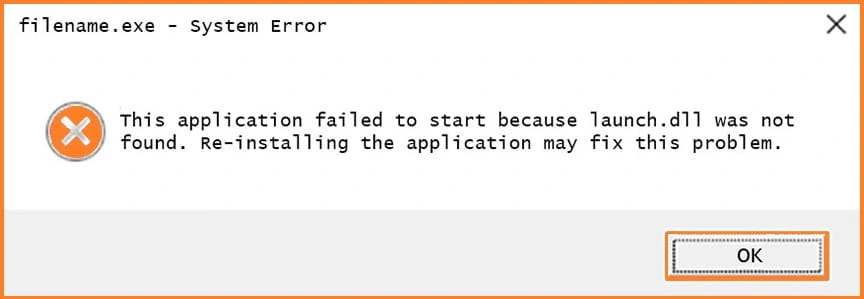
Sage 50 DLL file errors occur due to system or installation problems. The following causes can trigger these issues:
- A damaged or corrupt Windows profile
- Improper installation of a pervasive database
- The operating system being unable to start or stop the pervasive process during installation
- A damaged or missing registry key
- Security software or UAC blocking registry access
- A sudden power outage during system activity
Any of these causes can lead to DLL related errors in Sage 50. For recurring DLL issues, Sage 50 technical support helps check Windows and server file system problems and guides users through the required fixes.
Conclusion
Along with the solutions discussed above, temporarily disabling antivirus and firewall applications can also help resolve Sage 50 DLL issues. When the error continues despite these steps, reaching out to experienced Sage 50 technical experts ensures faster and more accurate resolution.
To keep your company file secure, especially when you are not actively using the system, reliable Sage 50 cloud hosting plays an important role. It allows better control, monitoring, and protection against unauthorised access. AccountsPro offers dependable cloud hosting solutions for Sage 50 users, along with expert support to help you manage and safeguard your accounting data with confidence.
Frequently Asked Questions
What does a SAGE .DLL file error mean?
A SAGE .DLL file error occurs when a required Dynamic Link Library file is missing, damaged, not registered correctly, or fails to open. This issue prevents Sage from opening or running specific functions.
Why does Sage show a “.DLL file missing” or “not found” error?
This issue usually appears due to an incomplete Sage installation, corrupted program files, Windows registry issues, or interference from antivirus or security settings.
Can reinstalling Sage fix the .DLL error?
Yes. Uninstalling Sage and reinstalling it restores missing or damaged .DLL files and fixes registration issues in many cases.
Does Pervasive or PSQL affect Sage .DLL errors?
Yes. Sage depends on Pervasive PSQL. An incorrect or damaged Pervasive installation can trigger .DLL file errors, so reinstalling it may help.
Can antivirus or firewall software cause .DLL errors in Sage?
Yes. Antivirus or firewall software can block Sage .DLL files from registering or opening. Temporarily disabling these tools during installation can help.
Should I create a new Windows profile to fix the error?
Yes. A damaged Windows user profile can cause Sage .DLL errors. Creating and using a new administrator profile often resolves the problem.
