


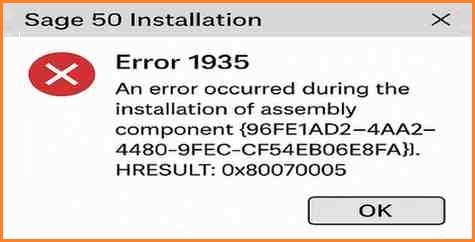
Sage 50 Error 1935 is an installation error that appears when the software fails to install a required Windows assembly component. This issue usually occurs due to corrupted Microsoft Visual C++ files, a damaged .NET Framework, or missing Windows updates. During setup, you may see a message stating that an error occurred while installing the assembly component Microsoft.VC80.MFCLOC.
To resolve Error 1935 in Sage 50, repair or reinstall Microsoft Visual C++ components, update or fix the .NET Framework, install pending Windows updates, and run the Sage 50 installer as an administrator. These steps help complete the installation successfully.
Understanding Sage 50 Installation Error 1935
To better understand the issue and its impact, the important details related to Sage 50 Installation Error 1935 are outlined below:
| Issue Name: | Sage 50 Installation Error 1935 |
| Description: | During the installation of Sage 50 or Sage Peachtree, Error 1935 may occur when the Windows Installer (MSI) cannot create or access required registry entries. This issue can also happen when Microsoft components are missing or damaged, or when the .NET Framework is outdated or not enabled on the system. |
| Applicable for Product: | Sage 50, Sage 50 Accounts, Sage 50 Quantum, Sage 50 Pro, Sage Line 50, Sage 50 Premium, Sage 50 Canada, Peachtree |
| Error Messages: | Error: “1935 cannot install assembly component” |
How to fix Sage Error Code 1935?
The following methods help resolve Sage 50 Error 1935 by addressing system issues that can block the installation. Follow each method carefully to fix the error and complete the installation.
Total Time: 10 minutes
Method 1: Update your Windows
Updating Windows ensures that all system components required by Sage 50 are installed and working correctly. Follow these steps:
1. Click the Start button on the Windows taskbar.
2. Open the Control Panel and go to Windows Update.
3. Click Change Settings on the left-hand side of the window.
4. Select the Important Updates link and open the drop-down menu.
5. From the drop-down menu, choose the Never check for updates option.
6. Click OK to save the changes.
7. Go to Windows Start, then go to Control Panel, click on Administrative Tools, and finally click on Services.
8. Find and select Windows Update.
9. Double-click the service and click Stop.
Important Note: Check for all available Windows updates and install them immediately. Restart your computer after installing updates. Only consider temporarily stopping or disabling the Windows Update service if it conflicts with the Sage 50 installer, not before updates are applied.
Method 2: Updating the .NET Framework
Updating or repairing the .NET Framework ensures Sage 50 can access the components it needs to install correctly. Follow these steps:
1. Check your system’s operating system for any errors or issues.
2. Windows Vista or later: Update .NET Framework 4.5 (or the latest compatible version) to ensure Sage 50 installs correctly.
3. Windows XP: Uninstall the existing .NET Framework 4.0 and reinstall it before running the Sage 50 installer.
Method 3: Close All Applications Running in the Background
Background programs can interfere with Sage 50 installation and cause Error 1935. Close unnecessary applications to allow the installer to run smoothly.
1. Check for any third-party software or applications that may be interfering with Sage 50. These programs may be running in the background and blocking the installation process.
2. Open Task Manager by pressing Ctrl + Alt + Delete on your keyboard.
3. Click on the Startup tab.
4. Right-click on the programs that may interfere with Sage 50 and are running in the background.
5. Select the Disable option.
6. Next, go to the Details tab.
7. Identify the programs that could be interfering with the Sage 50 installation.
8. Select the program and click on End Process.
What are the preventive measures to avoid Error 1935?
To prevent Sage 50 Error 1935 during installation, follow these tips:
- Always keep Windows updated with the latest updates.
- Make sure Microsoft .NET Framework and Visual C++ components are installed and in good condition.
- Run the Sage 50 installer as an administrator.
- Keep enough free space on your main drive before installation.
- Temporarily disable the antivirus or firewall during installation.
- Avoid running other heavy programs while installing Sage 50.
- Restart your computer before starting the installation to clear any temporary issues.
What are the causes behind Sage Error 1935?
Several factors can trigger Sage 50 Error 1935 during installation. Common causes include:
- Pending Windows Restart – Windows may need a reboot after recent updates, which can block the installation process.
- Damaged or Disabled .NET Framework – Sage 50 depends on the .NET Framework, and any issue with it can cause Error 1935.
- Background Programs Running – Applications running in the background may interfere with the installer.
- Antivirus or Security Software Blocking Installation – Security programs can prevent required components from installing properly.
- Unsupported Operating System – Installing Sage 50 on an unsupported Windows version may trigger this error.
- Corrupted Installation File – A damaged or incomplete Sage 50 setup file can stop the installation.
Signs of Sage 50 Error 1935
You may notice these signs when Error 1935 occurs during Sage 50 installation:
- The installation stops or fails.
- You see an error message:
- “Error 1935: Cannot install assembly component Microsoft.VC80.MFCLOC.”
- The installer may freeze or run very slowly.
- Microsoft Visual C++ or the .NET Framework may be missing or damaged.
- Even after restarting, the installation fails again.
- Windows may ask you to install updates or repair components.
What are the Prerequisites for Installing Sage 50?
Before installing Sage 50, make sure the following are ready to avoid Error 1935:
- Your system has all the latest Windows updates installed.
- Microsoft .NET Framework is installed and updated.
- Required Microsoft Visual C++ components are installed and not corrupted.
- You have administrator rights to run the installation.
- There is enough free space on your main drive for Sage 50.
- Temporarily disable antivirus or firewall software, as they may block the installation.
Conclusion
Sage 50 Error 1935 can occur due to missing or damaged Windows components or .NET Framework issues. Following the steps in this article can help resolve the error and complete the installation successfully. For further assistance, you can contact AccountPro.co, a global Sage 50 support provider, via their 24×7 toll-free number, email, or live chat for expert guidance.
Frequently Asked Questions
Why does Error 1935 appear during Sage 50 installation?
Sage 50 Error 1935 usually occurs because of missing or corrupted Microsoft Visual C++ components, a damaged .NET Framework, or pending Windows updates that prevent the installation from completing successfully.
Will installing Windows updates fix Sage 50 Error 1935?
Yes. Installing all pending Windows updates can restore missing system components, improve compatibility, and often resolve Sage 50 Error 1935.
Can a corrupted .NET Framework cause Sage 50 Error 1935?
Yes. A corrupted or outdated Microsoft .NET Framework is one of the primary causes of Sage 50 Error 1935. Since Sage 50 depends on the .NET Framework during installation, any issues with it can interrupt the setup process.
Do I need to stop Windows Update to install Sage 50?
In some situations, temporarily stopping the Windows Update service can prevent conflicts during the Sage 50 installation. After the installation is complete, restart the Windows Update service to continue receiving updates.
Can antivirus software cause Sage 50 Error 1935?
Yes. Antivirus or security software may block required installation components, causing Sage 50 Error 1935. Temporarily disabling the antivirus during installation may help resolve the issue. Be sure to re-enable your security software after the installation is complete.
