


Accounting teams often struggle with time-consuming manual entries, delayed reporting, and inconsistent financial data validation inside Sage 50. Thus, it can slow down decision-making and increase the risk of errors during reconciliation and month-end closing. Sage Copilot for Sage 50 brings AI-assisted automation into everyday accounting tasks, helping users streamline bookkeeping, reporting, and financial analysis directly within the Sage 50 environment.
However, feature availability may depend on the Sage 50 Accounts version, product variant, region, user permissions, and licence. In this Sage Copilot guide, we’ll discuss Sage Copilot setup, top features, operational benefits, activation steps, optimization practices, and more.
What is Sage Copilot for Sage 50?
Sage Copilot for Sage 50 is an AI-powered assistant designed to help users analyze financial data, generate reports, and gain useful business insights within Sage 50 Accounts. The Sage AI accounting assistant uses company data to provide insights into areas such as profitability, debt management, inventory, and financial performance while helping users identify anomalies and important trends.
It improves workflow efficiency by reducing the time required to analyze financial information and create reports. Sage Copilot can also support natural-language interactions, allowing users to request certain reports and insights using conversational prompts. The availability of Sage Copilot features depends on the Sage 50 version, edition, user permissions, and access configuration.
What are the Sage 50 AI Features?
Sage Copilot for Sage 50 streamlines financial workflows and improves real-time decision-making across core accounting operations. Here are the Sage Copilot features.
1. Natural language interaction:
Sage 50 AI Copilot interprets conversational queries and converts them into structured financial data requests across Sage 50 modules. It eliminates dependency on report builders or technical query languages and enables direct interaction with accounting data in real time.
Example: A finance manager asks, “What was our revenue trend this quarter by region?” and the system returns a structured breakdown of revenue by month and region with comparative insights against the previous quarter.
2. Proactive recommendations and alerts:
It continuously monitors financial transactions and ledger activity to detect risks, delays, and anomalies, then generates context-aware recommendations. Thus, it helps teams act early instead of reacting after issues escalate.
3. Task and workflow automation:
It automates repetitive accounting processes such as invoice handling, expense categorization, approvals, and payment reminders, ensuring consistency across financial operations.
Example: It automatically processes approved vendor invoices, assigns correct ledger codes, and schedules payment reminders for overdue accounts.
4. Month-end close orchestration:
The Sage 50 automation tool provides a centralized dashboard to manage and track month-end close activities across AP, AR, GL, and cash accounts. It flags incomplete bank reconciliation tasks and prevents final close until all discrepancies are resolved.
5. Automated reconciliation:
It continuously matches general ledger entries with sub-ledger records to ensure accuracy and financial integrity. It identifies mismatches instantly and helps isolate root causes.
6. Variance analysis and trend detection:
It analyzes actual versus budget performance and identifies anomalies, cost overruns, and financial trends with supporting explanations.
Example: It highlights a 15% increase in administrative expenses due to higher utility costs and seasonal operational changes.
7. Natural language insights for decision support:
The Sage AI accounting assistant enables conversational querying of financial data and delivers structured, actionable insights without requiring manual report generation.
Example: A user asks, “Which departments exceeded budget last month?” and receives a department-wise variance report with detailed overspend breakdowns.
What are the Benefits of Using Sage Copilot for Sage 50?
Sage Copilot for Sage 50 delivers multiple operational and financial benefits that improve accounting efficiency, accuracy, and decision-making across core finance workflows. Listed below are the top benefits of the Sage AI accounting assistant:
1. Improved operational efficiency
Sage Copilot automates invoice processing, expense handling, reconciliation support, and report generation within Sage 50. It analyzes transactional data, applies accounting rules, and executes routine workflows with minimal manual intervention.
2. Faster invoice payments
Sage 50 AI Copilot tracks accounts receivable in real time and monitors invoice aging across customers. It identifies overdue invoices and triggers structured follow-up actions aligned with payment timelines.
3. Reduced manual data entry
Sage Copilot captures and processes financial data from bills and expenses, then assigns appropriate ledger codes automatically. It validates entries against system rules and standard formats inside Sage 50.
4. Error and anomaly detection
Sage Copilot scans ledger entries and transaction records continuously to identify duplicate postings, missing fields, and unusual cost patterns. The Sage 50 automation applies pattern recognition and validation logic across financial datasets.
5. Stress-free VAT filing
Sage Copilot monitors VAT-related transactions and validates tax data against compliance rules in Sage 50. It highlights inconsistencies, missing entries, and reporting gaps, which help finance teams to reduce compliance errors.
How to Set Up Sage Copilot for Sage 50?
Sage Copilot setup in Sage 50 requires installing the latest version, configuring user access, and completing activation through your Sage account to ensure proper integration with company data. Here is the complete Sage Copilot setup.
- Step 1: Install and update Sage 50 Accounts to the latest version to ensure compatibility with Sage Copilot features.
- Step 2: Log in to Sage 50 using the Manager account to access administrative setup controls.
- Step 3: Locate and select the Sage Copilot button within the application; in version 32.0 and earlier, it appears as “Copilot Insights.”
- Step 4: On version 32.1 and above, navigate to the Home page or Help banner and select Activate Sage Copilot to start the setup process.
- Step 5: Select Connect Now in the “Connect your company to get started with Sage Copilot” window to link your company data.
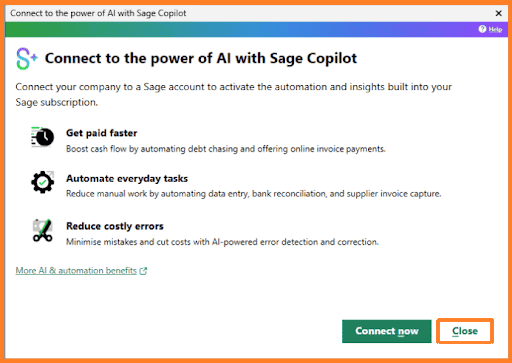
- Step 6: Follow the on-screen instructions to connect your Sage company file with your Sage account for authentication.
- Step 7: Enter user details such as name and email address when prompted, especially if multiple users exist in the system.
- Step 8: Remove inactive or irrelevant users from the list to maintain accurate access control and system security.
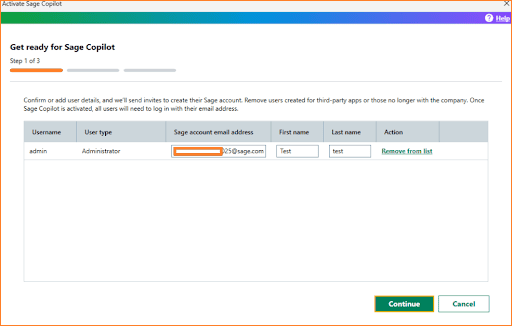
- Step 9: Select Continue after verifying all user details to proceed with configuration.
- Step 10: Assign Copilot access in the “Grant Sage Copilot access” window by selecting the appropriate user from the dropdown menu.
- Step 11: Confirm the selection and proceed by clicking Continue to move forward in the setup flow.
- Step 12: Complete activation by selecting Activate Sage 50 AI Copilot on the final setup screen to enable the feature.
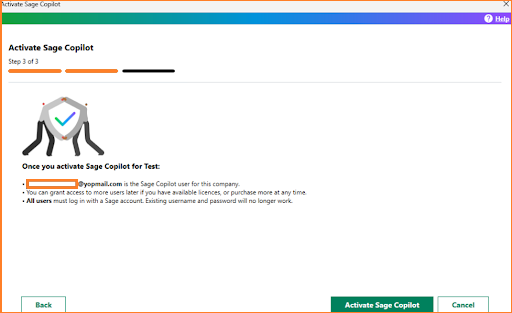
- Step 13: After activation, ensure all users sign in using their Sage account credentials, even if they do not actively use Copilot.
Note: Once you activate Sage 50 AI Copilot, all Sage 50 users must sign in using their Sage account credentials, regardless of whether they have access to or actively use Sage Copilot.
How to Use Sage Copilot for Sage 50?
Sage Copilot in Sage 50 enables users to interact with financial data through AI-driven chat, insights, and automation tools that improve reporting, analysis, and decision-making efficiency. Here are the steps to use Sage Copilot for Sage 50.
1. Accessing Sage Copilot
Sage Copilot must be enabled at the company level and assigned to users with the correct permissions before it becomes available in Sage 50. Here are the steps to access and launch Sage Copilot within your workspace:
- Ensure Copilot is activated for your organization, and your user role has permission.
- Open any screen in Sage 50 or Sage Intacct
- Select the Copilot icon in the top title bar to open the panel on the right side of the screen
- Contact your system administrator if the Copilot icon is not visible due to configuration or access restrictions
The Copilot panel provides a central workspace for insights, chat, and financial interactions within Sage 50. Here are the steps to navigate and control the Copilot interface effectively:
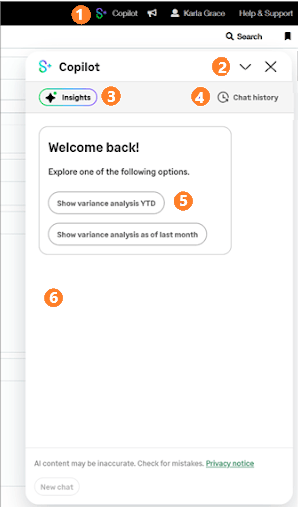
- Open the Copilot panel using the Copilot icon in the top navigation bar.
- Collapse the panel using the arrow icon or close it using the X icon
- Open Sage Copilot Insights to view system-generated financial notifications and reports
- Access Chat History to review past conversations
- Select suggested prompts to start interactions quickly
- View all responses directly inside the chat pane
3. Viewing Insights
Sage 50 AI assistant generates insights that highlight financial trends, reports, and system notifications for analysis. The following are the steps to view and analyze Sage Copilot insights:
- Open an insight through a suggested prompt in the chat pane
- Select the Insights button to open the Insights panel
- Browse available notifications and select View More for full details
- Review the complete insight card with financial context and breakdown
- Check the timestamp to understand when the insight was generated
4. Starting a Copilot Chat
Copilot chat allows users to interact with financial data using prompts, insights, or new queries. Listed below are the steps to start a Sage 50 AI Copilot chat session:
- Select a suggested prompt in the chat pane to begin instantly
- Open View More from any insight to continue analysis in chat
- Select New Chat from the chat pane or chat history
- Ask questions or explore financial data using conversational input
5. Managing Chat History
Chat history stores all Copilot interactions and helps users organize and revisit past financial analyses. Here are the steps to manage your Copilot chat history:
- Open Chat History from the Copilot panel
- Review all saved conversations stored for up to 30 days
- Rename, favorite, or delete chat sessions based on requirements
- Keep important sessions at the top by marking them as favorites
- Remove outdated chats to maintain a clean workspace
6. Renaming a Chat Session
Renaming helps users organize conversations based on financial topics or analysis type. Here are the steps to rename a Copilot chat session:
- Open Copilot and go to Chat History
- Select the vertical ellipsis next to the required session
- Choose Rename from the menu
- Enter a relevant name and save the changes
- Note that Copilot auto-generates names if not renamed manually
7. Adding a Chat to Favorites
Favoriting important chats helps users quickly access key financial discussions and insights. Here are the steps to add a chat session to favorites:
- Open Chat History in the Copilot panel
- Select the vertical ellipsis next to a chat session
- Click Add to Favorites
- Access the session anytime from the Favorites section at the top
8. Deleting a Chat Session
Deleting removes outdated or unnecessary conversations to keep chat history organized and relevant. Here are the steps to delete a Copilot chat session:
- Open Chat History in Copilot
- Select the vertical ellipsis next to the session you want to remove
- Click Delete and confirm the action in the prompt
- Permanently remove the session from your chat history list
What are the Best Practices for Using Sage Copilot?
Sage Copilot for Sage 50 performs best when users follow structured practices that improve accuracy, control, and workflow efficiency. Here are the best practices for using the Sage 50 AI assistant.
- Use clear prompts with a defined role, action, format, and time period to improve response accuracy.
- Review all AI outputs before posting entries, approvals, or tax submissions to ensure compliance.
- Apply advanced features like anomaly detection and variance analysis instead of relying only on summaries.
- Maintain proper role-based access controls to keep data secure and enforce segregation of duties.
- Check audit trails and transaction links to understand and verify Copilot recommendations.
- Start with focused use cases like reconciliation or month-end close before scaling usage.
- Keep financial data clean and standardized to improve output accuracy and reliability.
Conclusion
Sage Copilot for Sage 50 streamlines accounting workflows through AI automation, real-time insights, and intelligent reporting. It improves accuracy, reduces manual effort, and enhances financial decision-making across core processes. Proper setup and usage maximize Sage Copilot features and ensure consistent performance, stronger compliance, and faster financial operations within Sage 50 AI Copilot.
Frequently Asked Questions
Does Sage Copilot work with all versions of Sage 50?
No. Sage Copilot requires a supported version of Sage 50 Accounts, and individual features may vary depending on the software version, product variant, region, and licence.
Is an internet connection required to use Sage Copilot?
Yes, the Sage AI accounting assistant requires a stable internet connection because it processes data and delivers insights through connected services.
How secure is financial data in Sage Copilot?
Sage Copilot follows Sage security protocols, including encryption and role-based access control, to protect financial data and restrict unauthorized access.
Can multiple users access Sage Copilot in one company file?
Yes, multiple users can access Sage Copilot if the administrator assigns the correct permissions and licenses to each user.
Does Sage Copilot support real-time financial reporting?
Yes, it generates real-time insights and summaries based on live data in Sage 50, helping users monitor financial performance continuously.
